Welcome to our community

Be a part of something great, join today!

  • Hey all, just changed over the backend after 15 years I figured time to give it a bit of an update, its probably gonna be a bit weird for most of you and i am sure there is a few bugs to work out but it should kinda work the same as before... hopefully :)

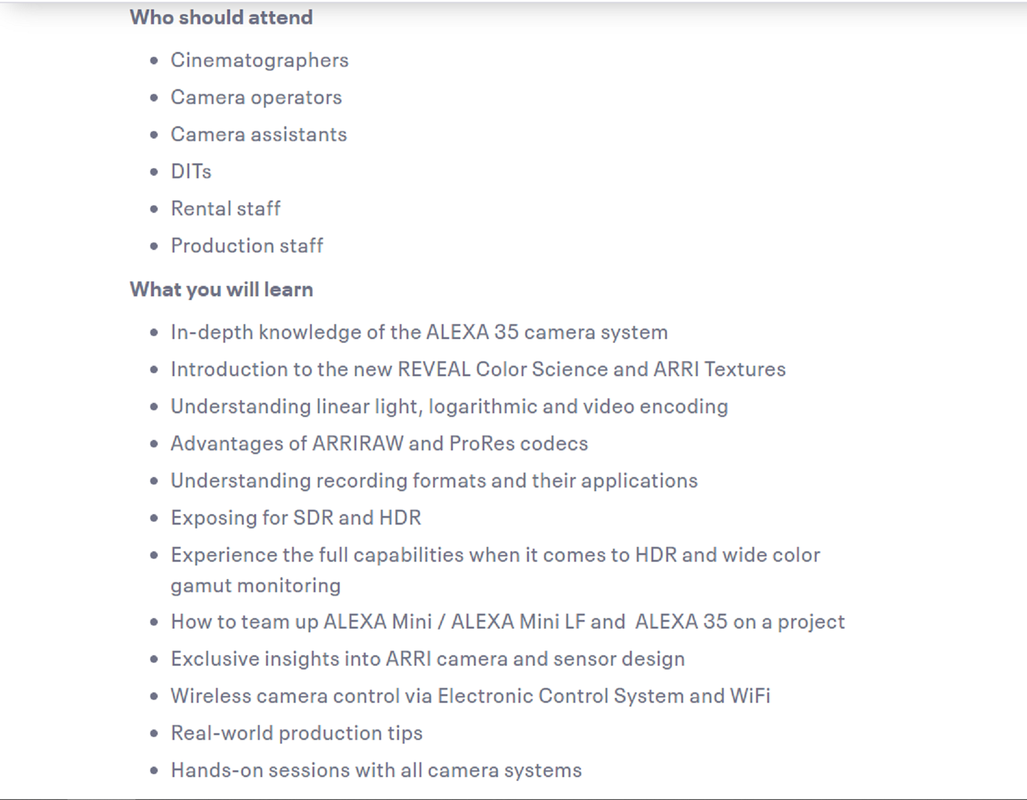
ARRI 4K Super 35 Camera Will be Launched Next Month

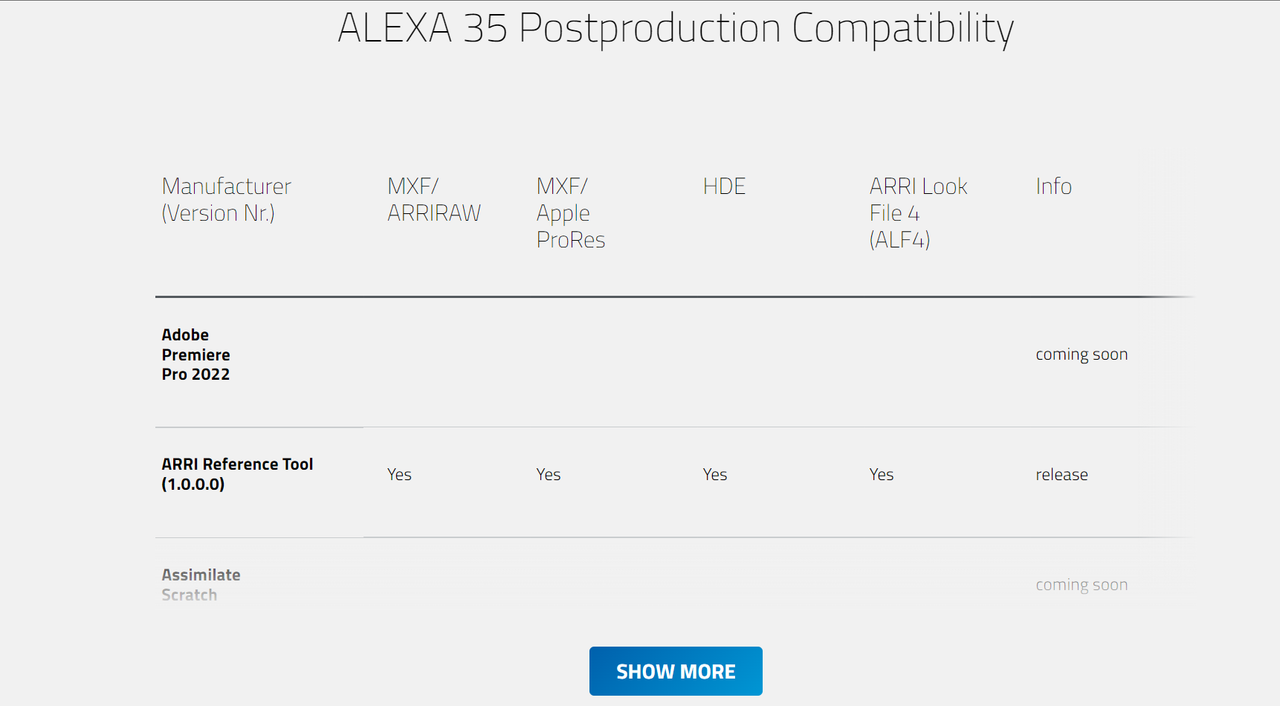
ALEXA 35 Postproduction Compatibility

ALEXA 35 Workflows (arri.com)

CLICK ON THE "SHOW MORE" BUTTON ON THE WEBPAGE FOR A MORE UP-TO-DATE LIST OF NLE'S AND PRE AND POST SOFTWARE APPLICATIONS COMPATIBLE WITH THE VARIOUS ASPECTS OF THE ALEXA 35 CAMERA
Screenshot-5581.png
 
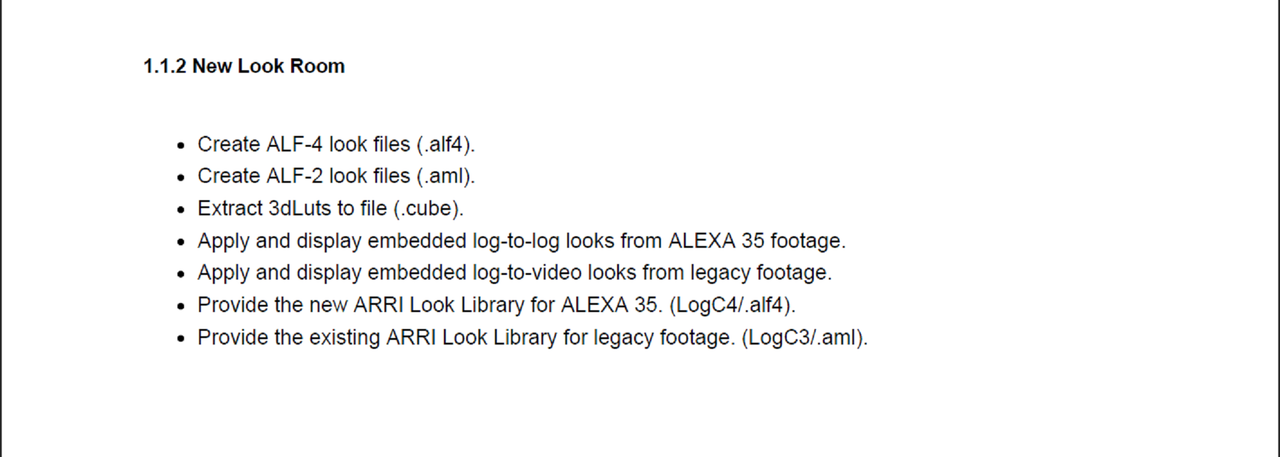
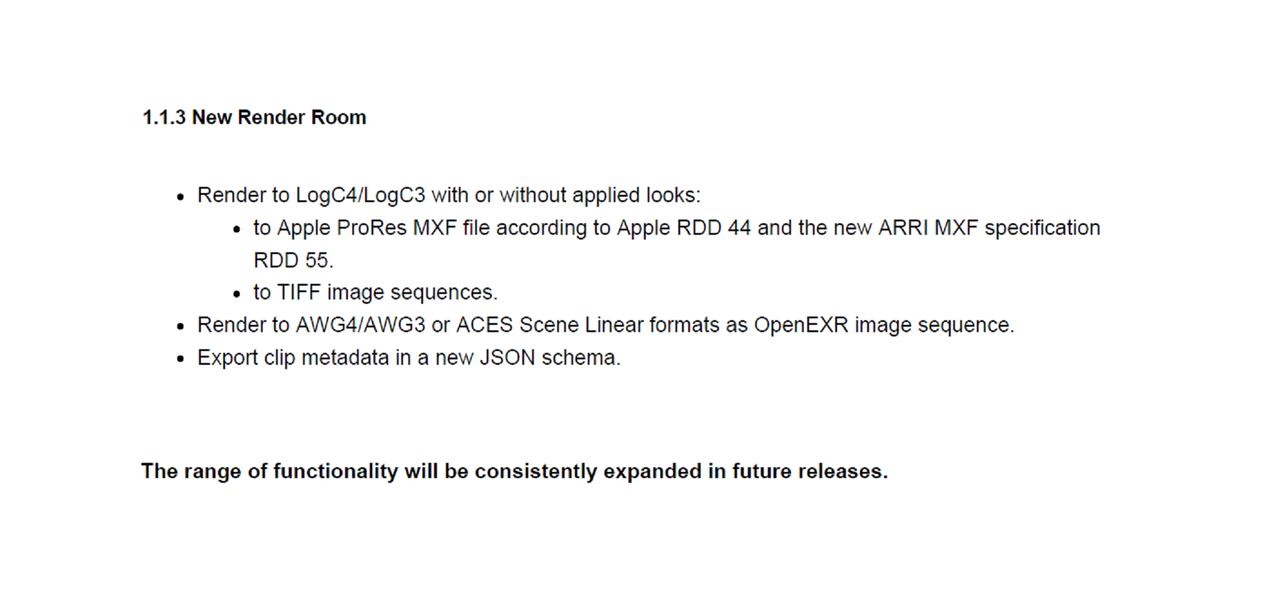
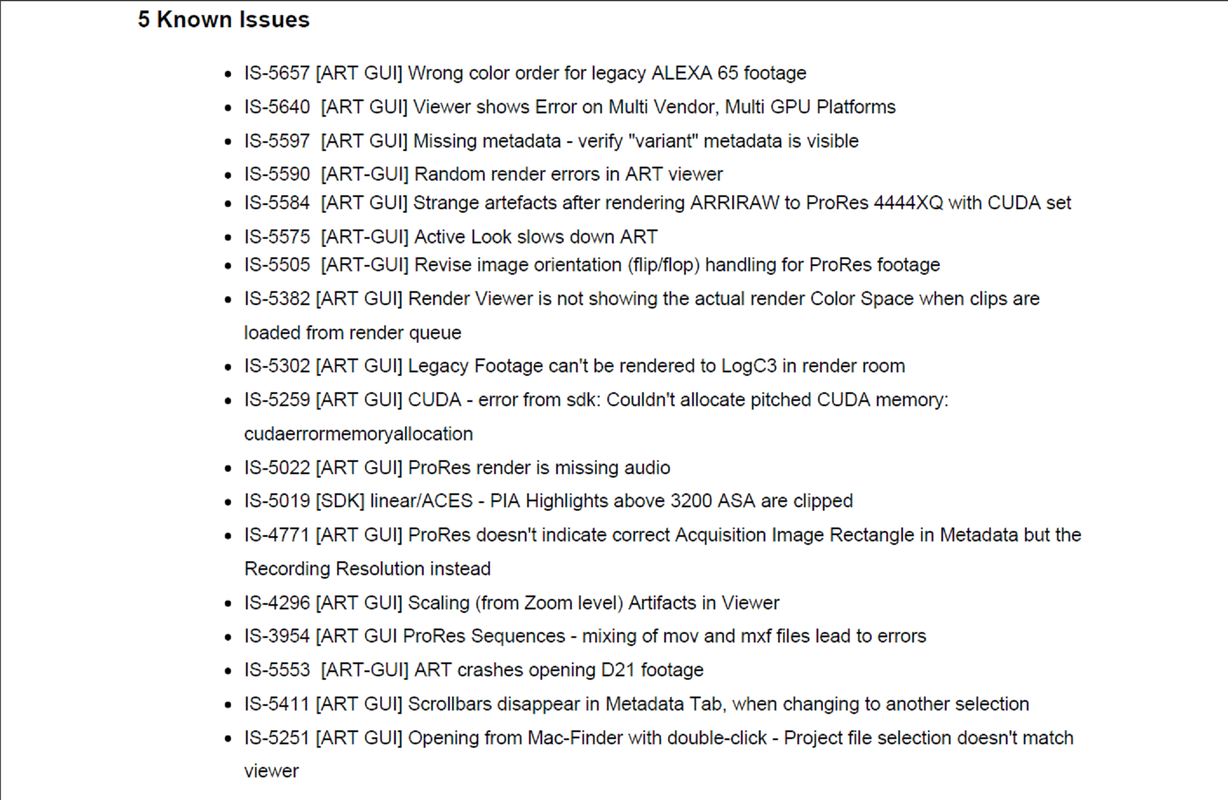
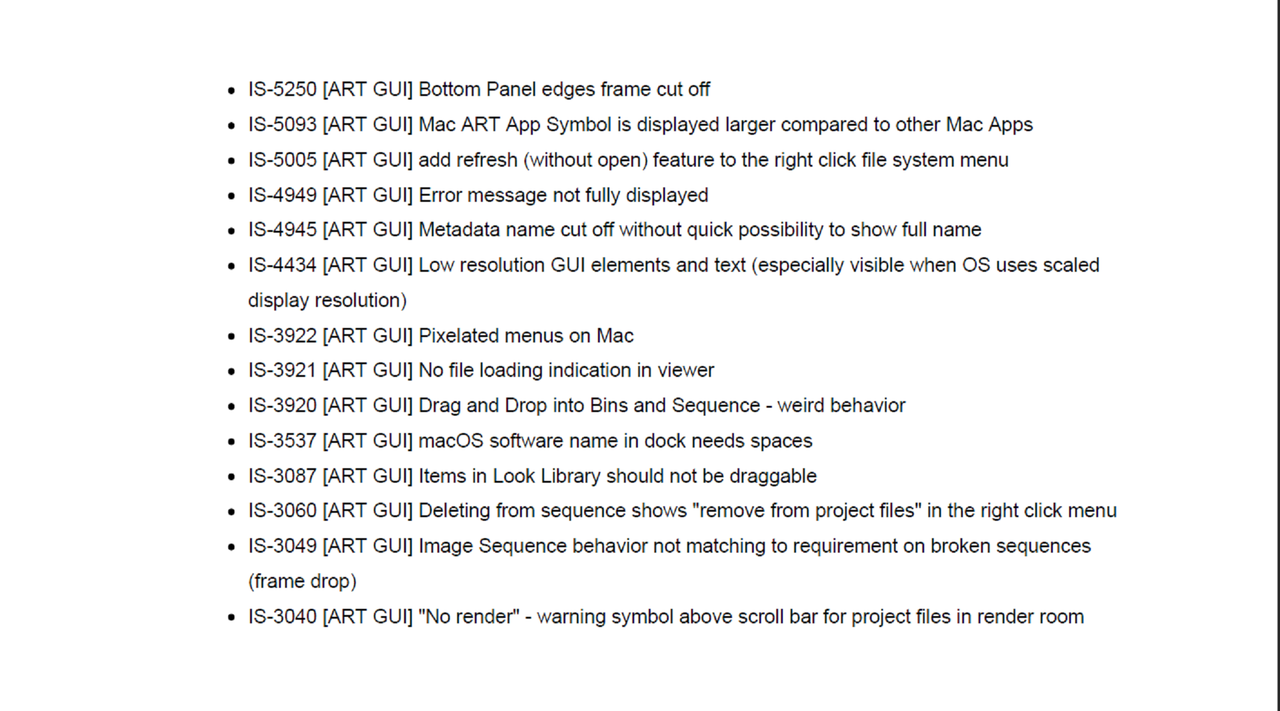
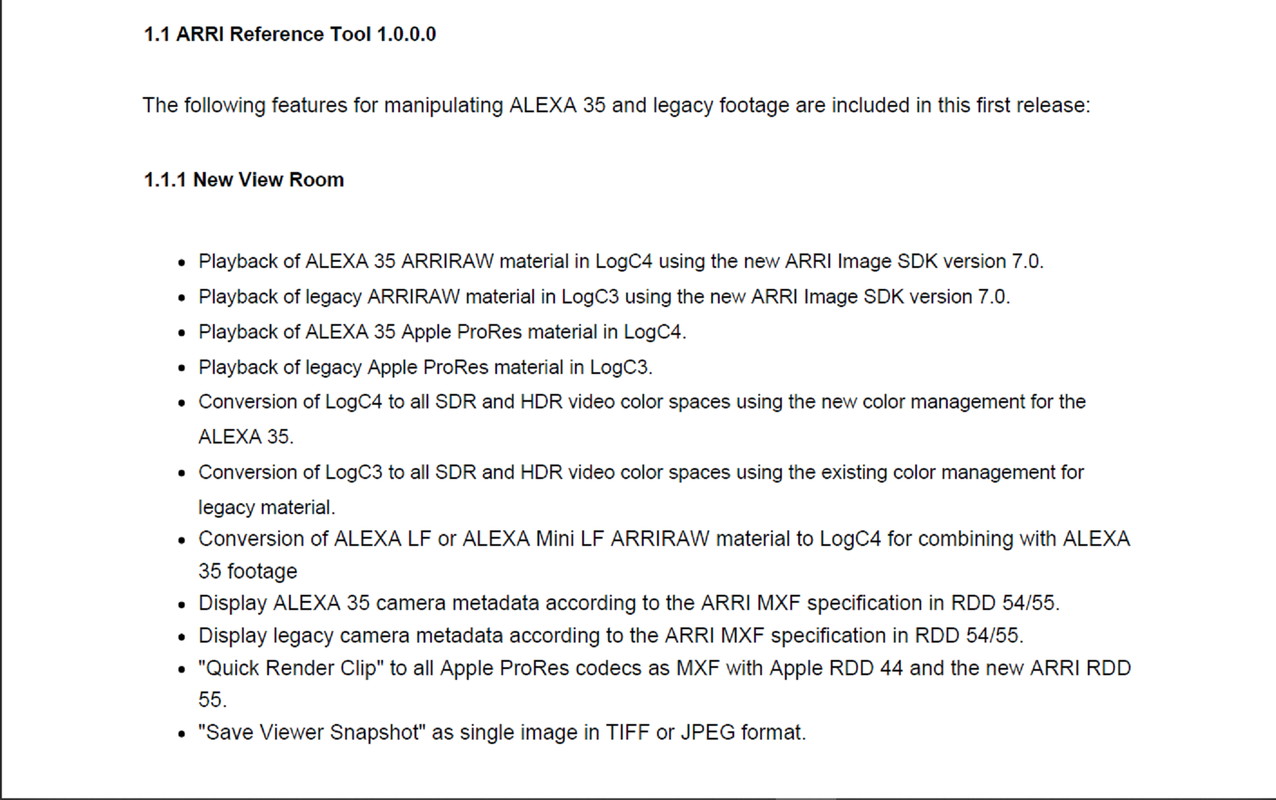
I was looking for a Manual for how to better use the ARRI REFERENCE TOOL. However all I found was a PDF that was included inside of the ARRI REFERENCE TOOL zip file that tells about the updates in this version and some known issues.


FULL VERSION OF ARRI REFERENCE TOOL


FOR MAC
https://www.arri.com/resource/blob/282136/43190e70dc5be97af36c92ef843dbff5/arrireferencetool-gui-1-0-0-0-macos-data.zip

FOR WINDOWS
https://www.arri.com/resource/blob/282138/f6d7a8bc59a2311140a1f6ce630dba13/arrireferencetool-gui-1-0-0-0-windows-data.zip


1.png


2.png


3.png


4.png


5.png


6.png
 
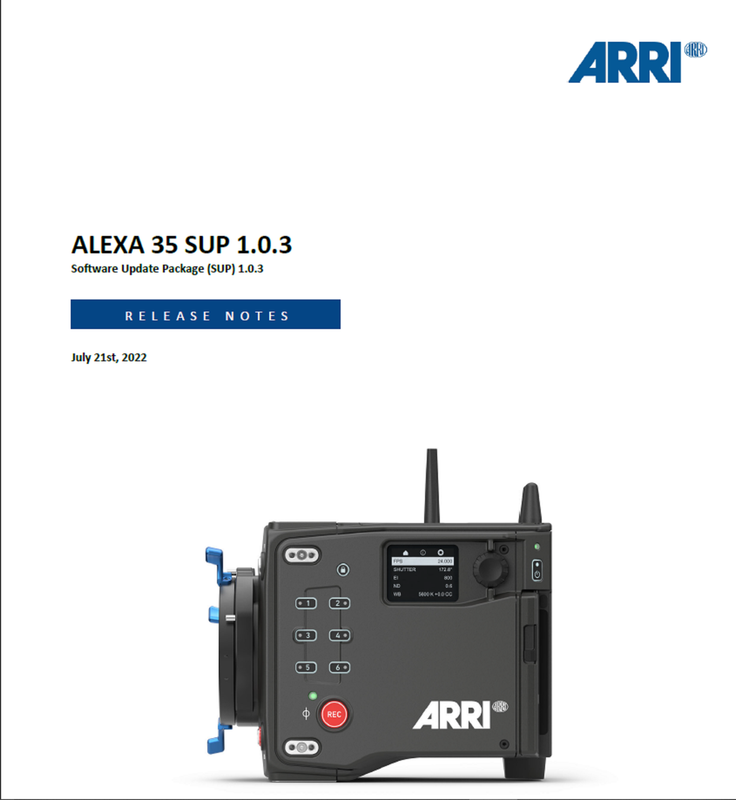
ALEXA 35 SUP 1.0.3 RELEASE NOTES
https://www.arri.com/resource/blob/282226/c5af663e3816fca7ada903fce2ed85bf/release-notes-alexa-35-sup-1-0--data.pdf


Screenshot-5607.png
 
HOW TO MAKE AN ALF4 LOOK FILE FROM A FYLM.Ai COLOR EXTRACTION AI GRADE
With FYLM.Ai 's Version 1.3 Now Available With Updated Ai Functionality, I Wanted To See If I Could Create An ALF4 look File From A Grade Extracted From A Movie Still Image.

IN RESOLVE-PART 1

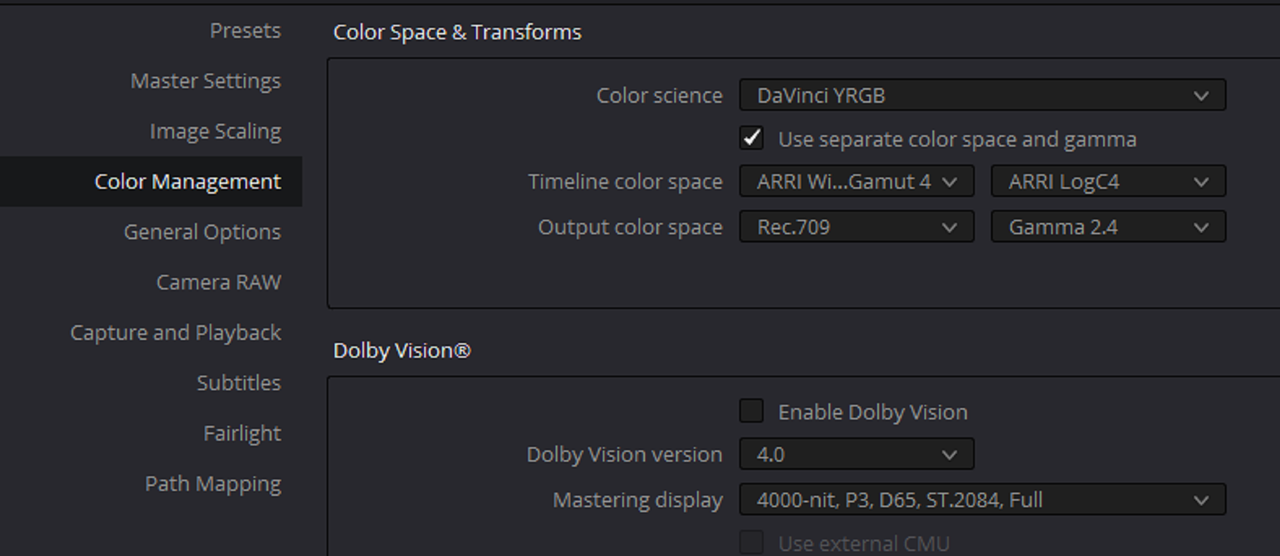
Project Settings And Workflow

1A.png


2.png


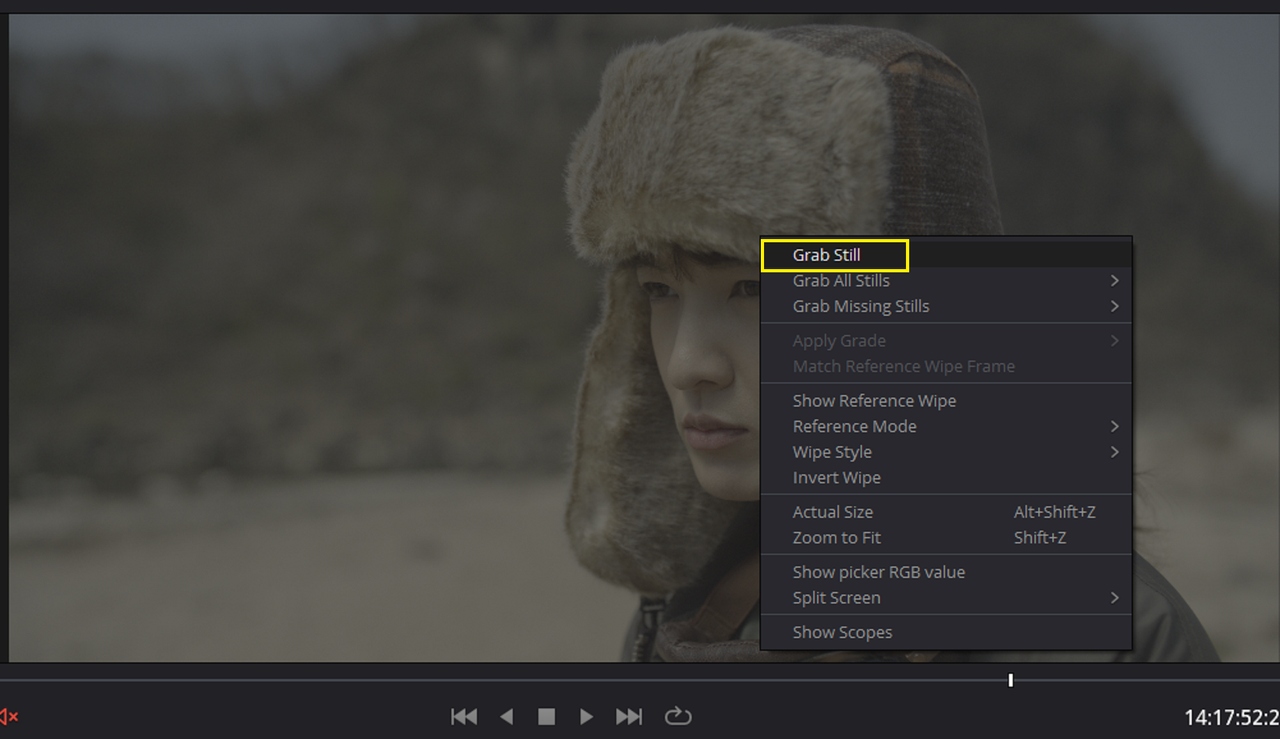
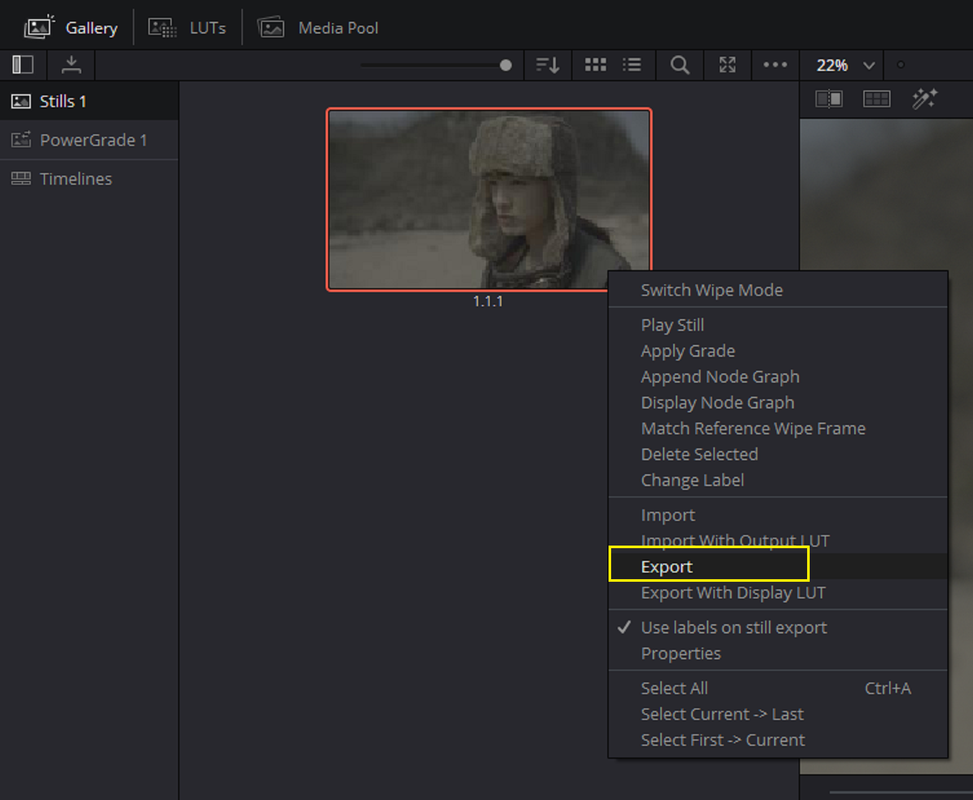
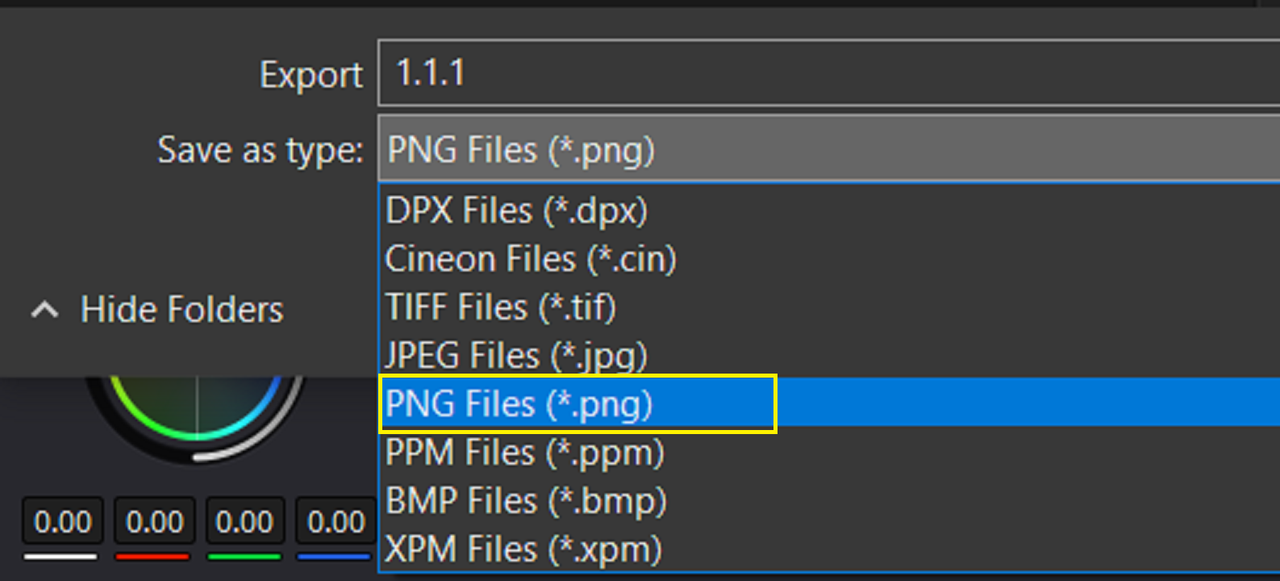
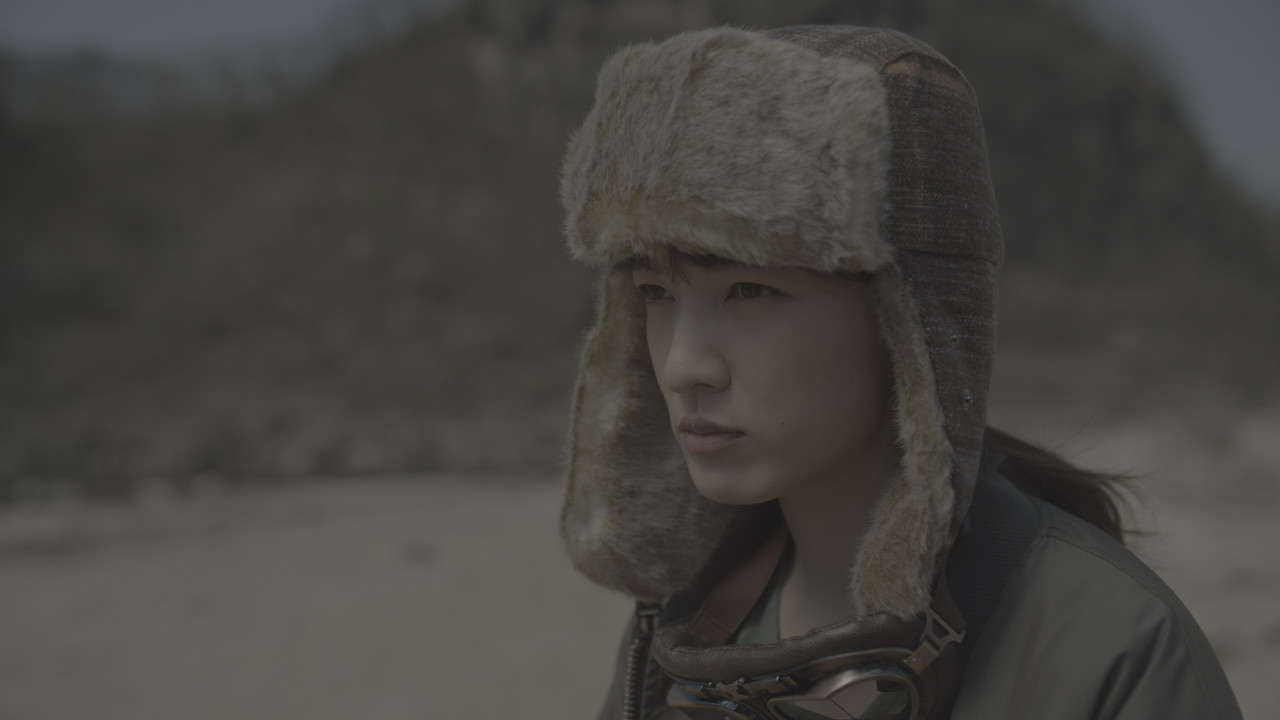
Grab A Still Frame And Export It As A "PNG" File


3.png


4.png

4b.png


5.jpg


PART 2 NEXT IN FYLM.AI....................
 
Last edited:
FYLM AI- PART 2 SECTION 1


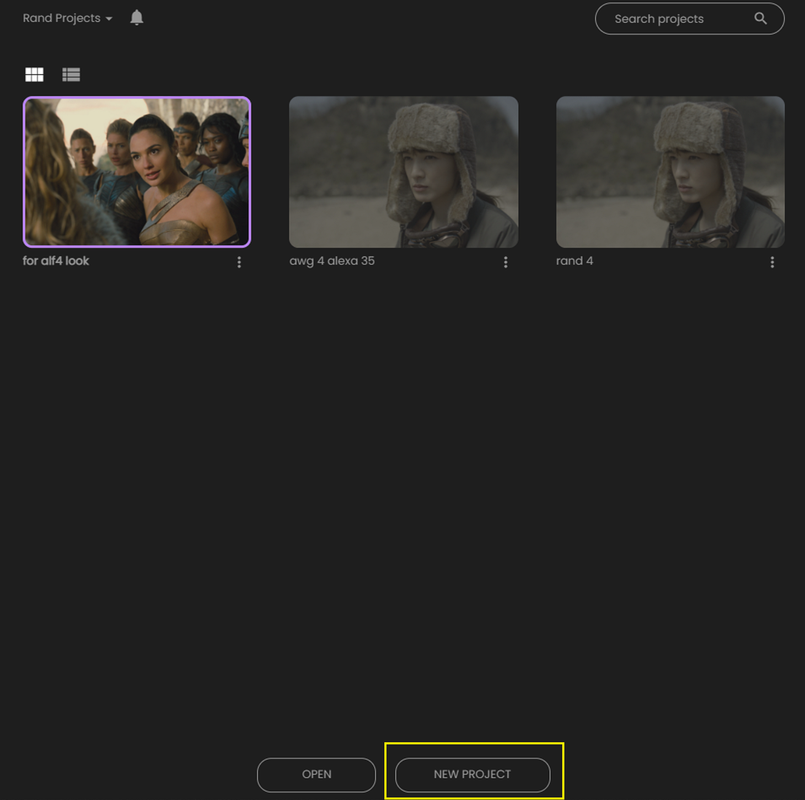
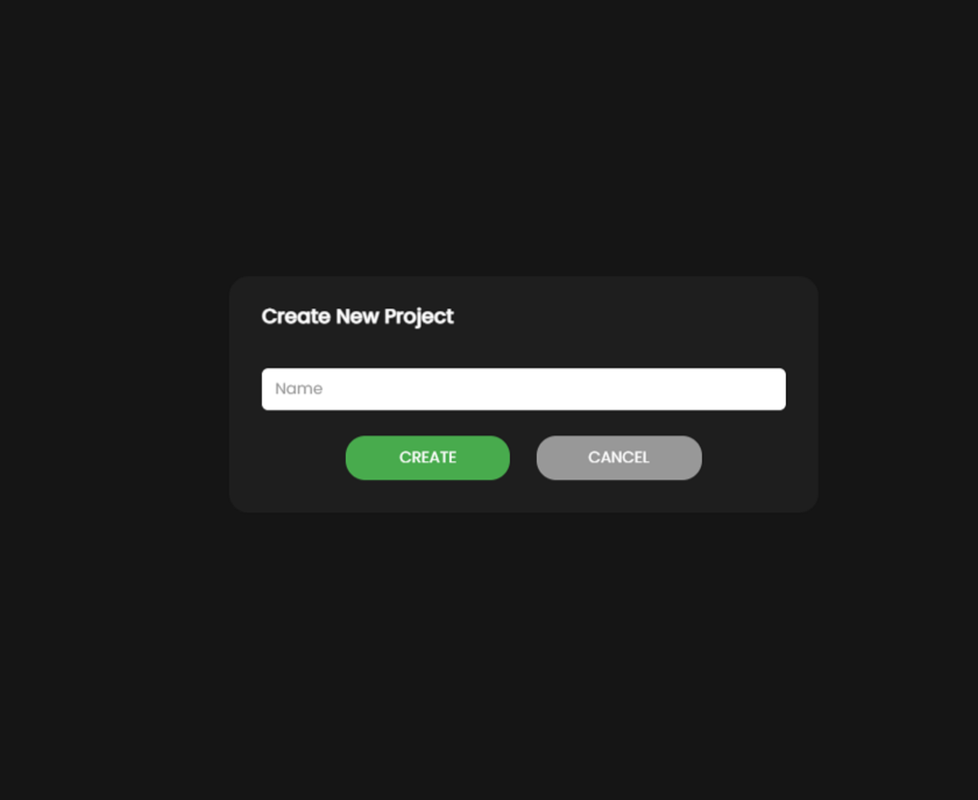
1) FIRST, LOG IN AFTER YOU HAVE CREATED AN ACCOUNT. THEN CLICK ON THE 'NEW PROJECT" BUTTON AND GIVE IT A NAME AND PRESS "CREATE"

FYLM. Ai WEBSITE
fylm.ai - AI Powered Colour Grading and Collaboration in Cloud


APP WEBSITE
fylm.ai - Colour Grading and Collaboration Software in Cloud


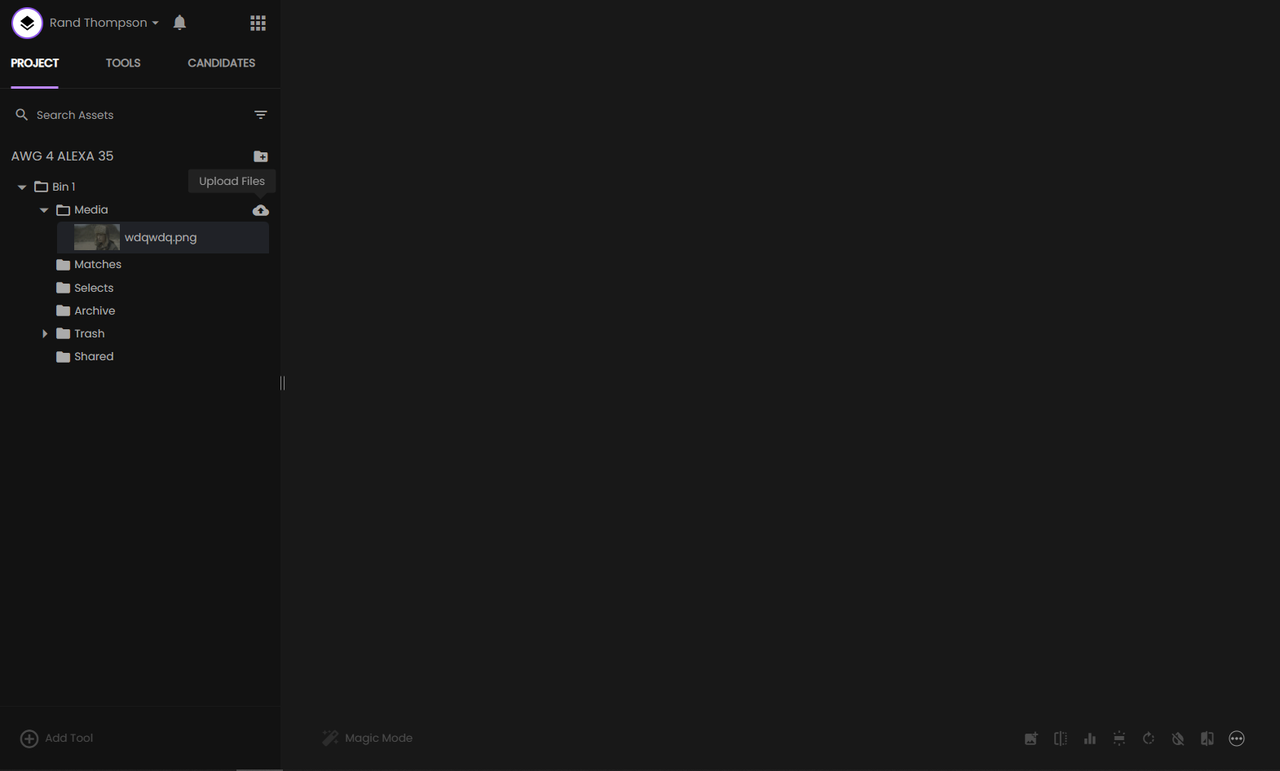
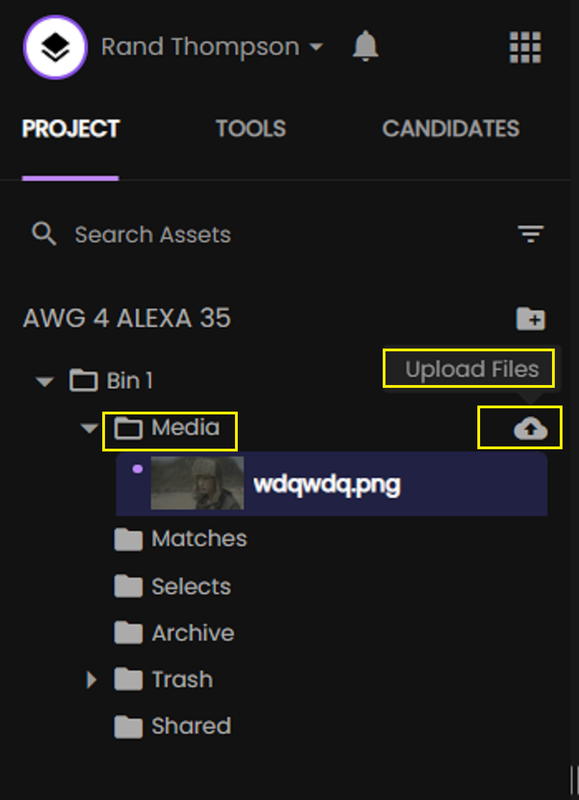
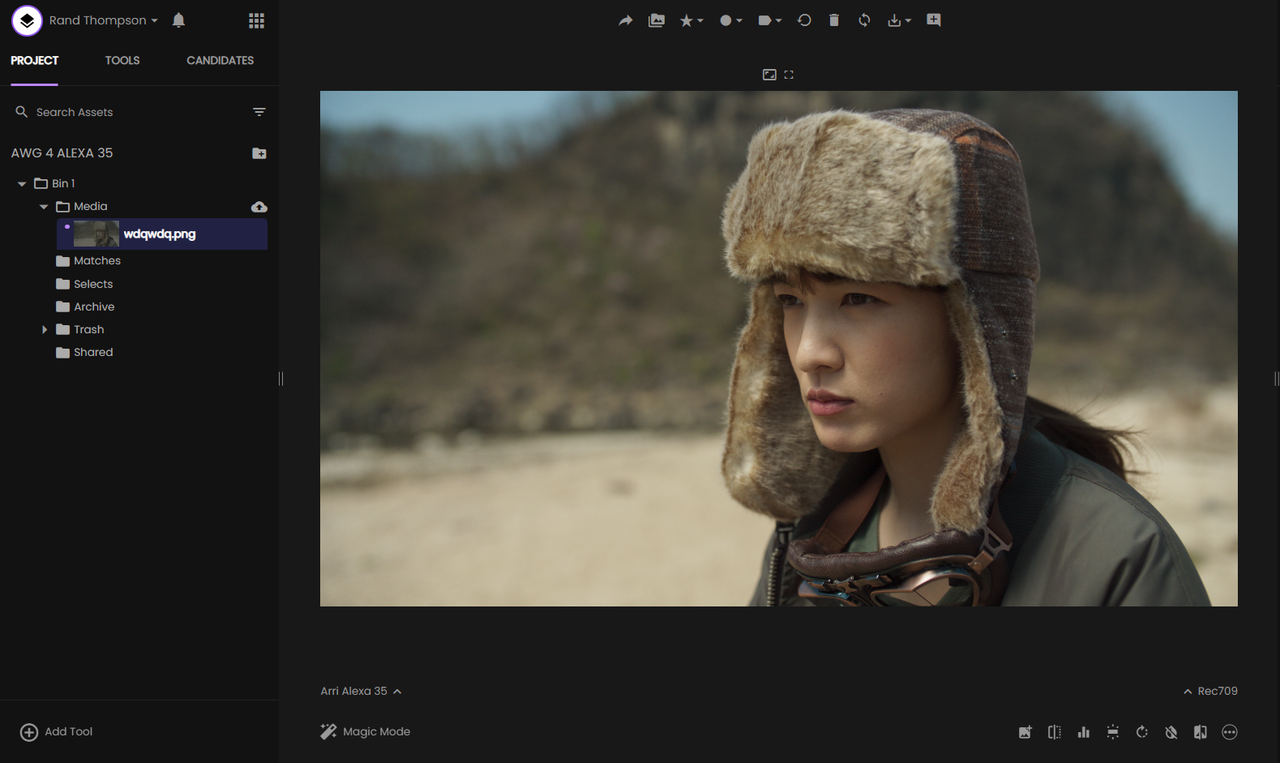
2) INSIDE OF FYLM AI , YOU WILL FIRST SEE AN EMPTY STARTING PAGE. CLICK THE "ARROW" NEXT TO "BIN" TO SHOW THE OTHER SUBFOLDERS. NEXT TO "MEDIA", CLICK THE CLOUD WITH THE BLACK ARROW IN IT TO "UPLOAD" THE LOG AWG4/ALC4 IMAGE YOU EXPORTED OUT OF RESOLVE. THEN "DOUBLE-CLICK" ON THE THAT IMAGE ICON.


8.png


9.png


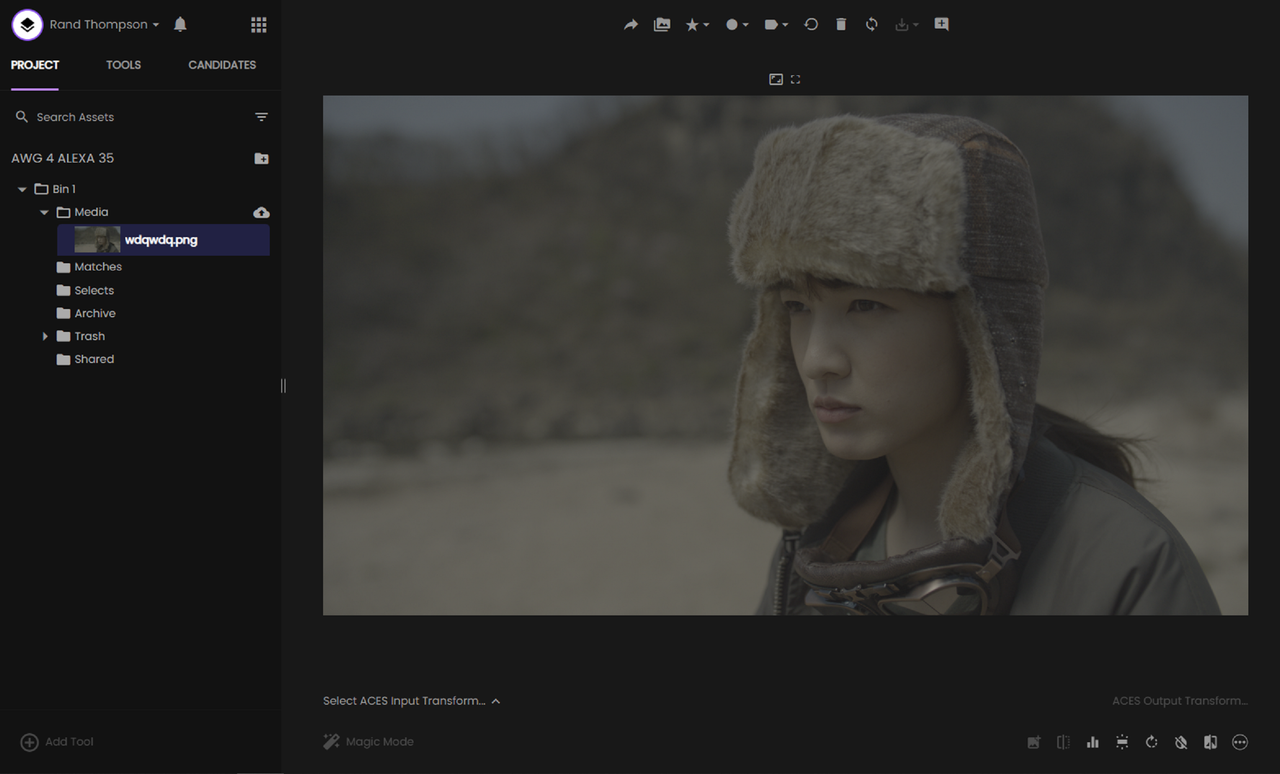
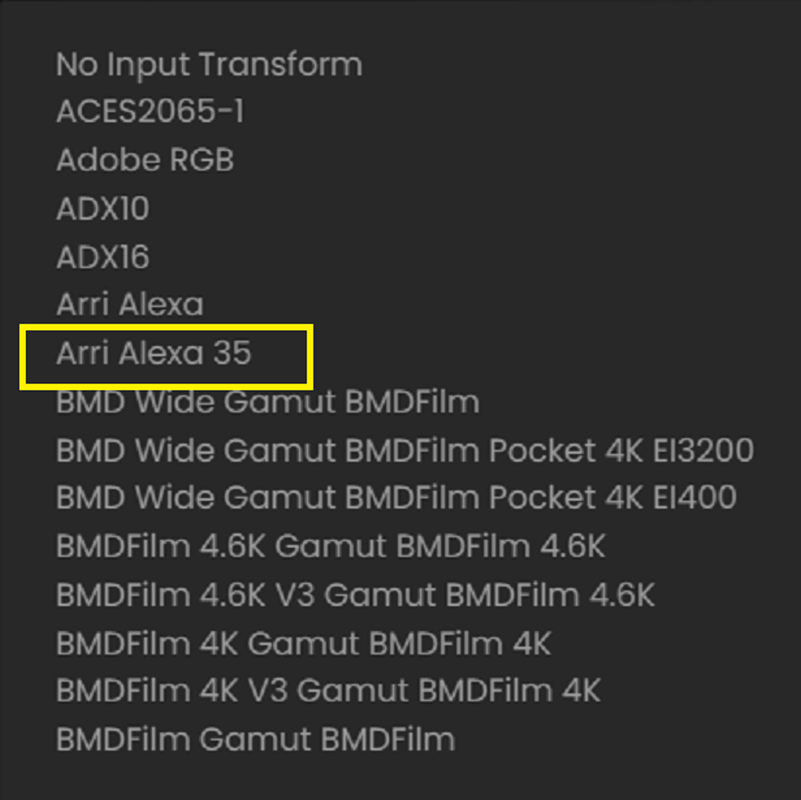
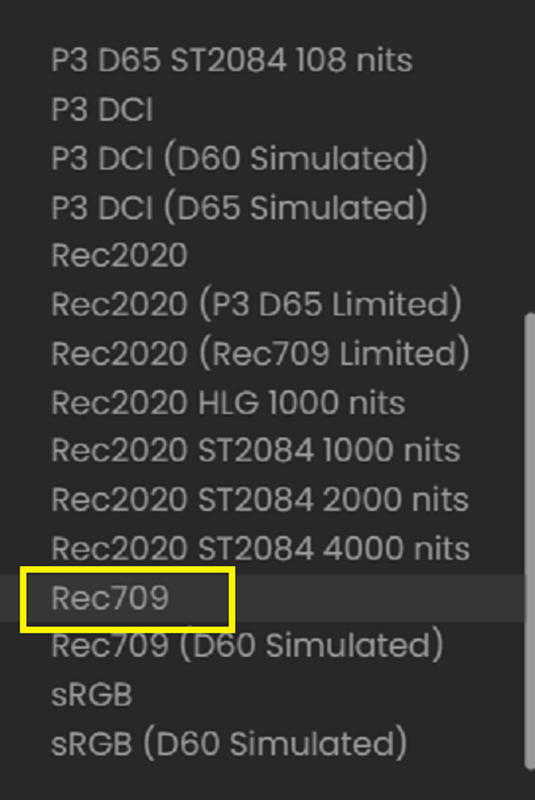
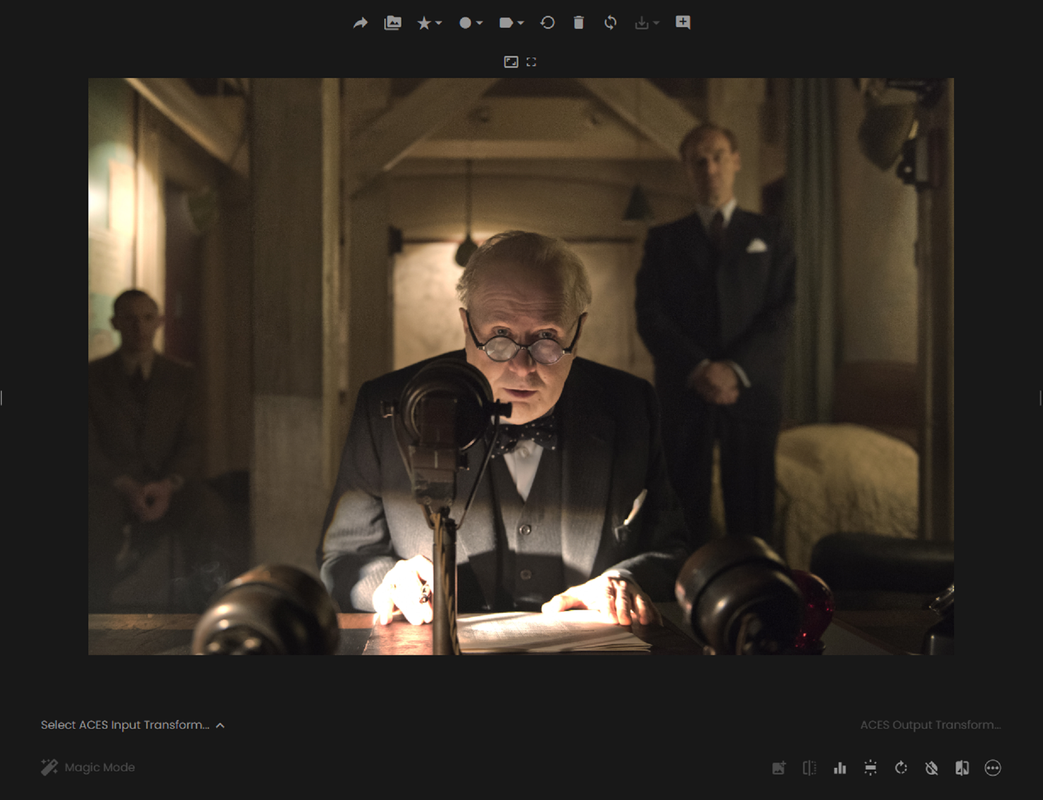
3) HERE IS THE LOG AWG4/ALC4 IMAGE THAT WAS EXPORTED OUT OF RESOLVE. NOW ASSIGN THE CORRECT IDT AND ODT TO THE IMAGE

6.png


6a.png


6b.png


7.png


NEXT FYLM AI PART 2 SECTION 2......................
 
Last edited:
FYLM AI PART 2 SECTION 2-(IMPORTING STILLS TO USE AS MATCHES)

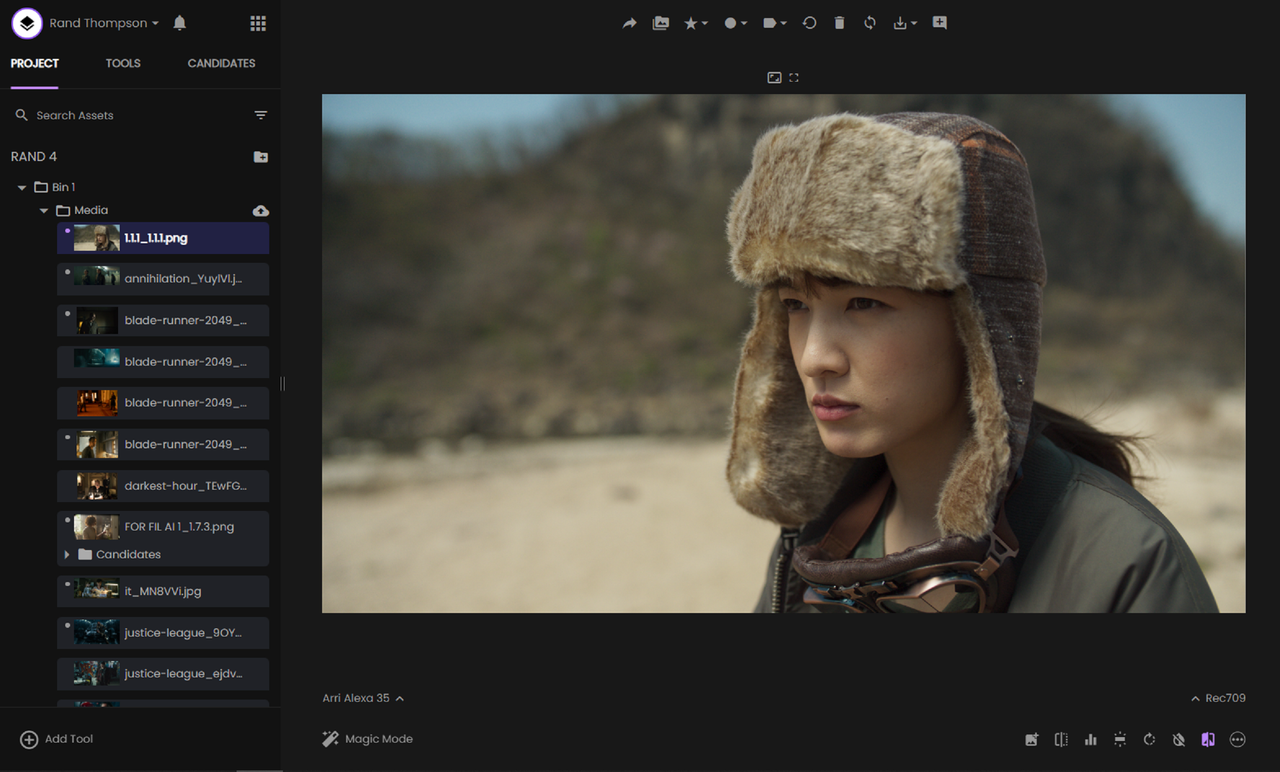
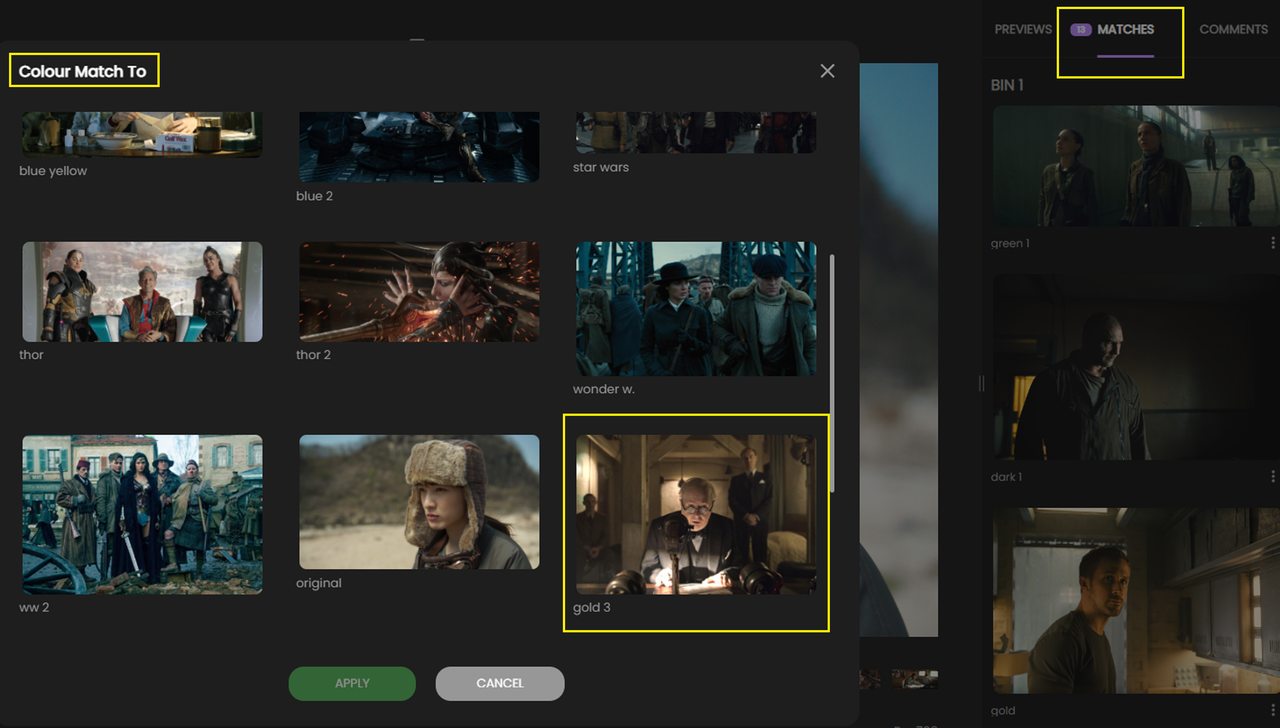
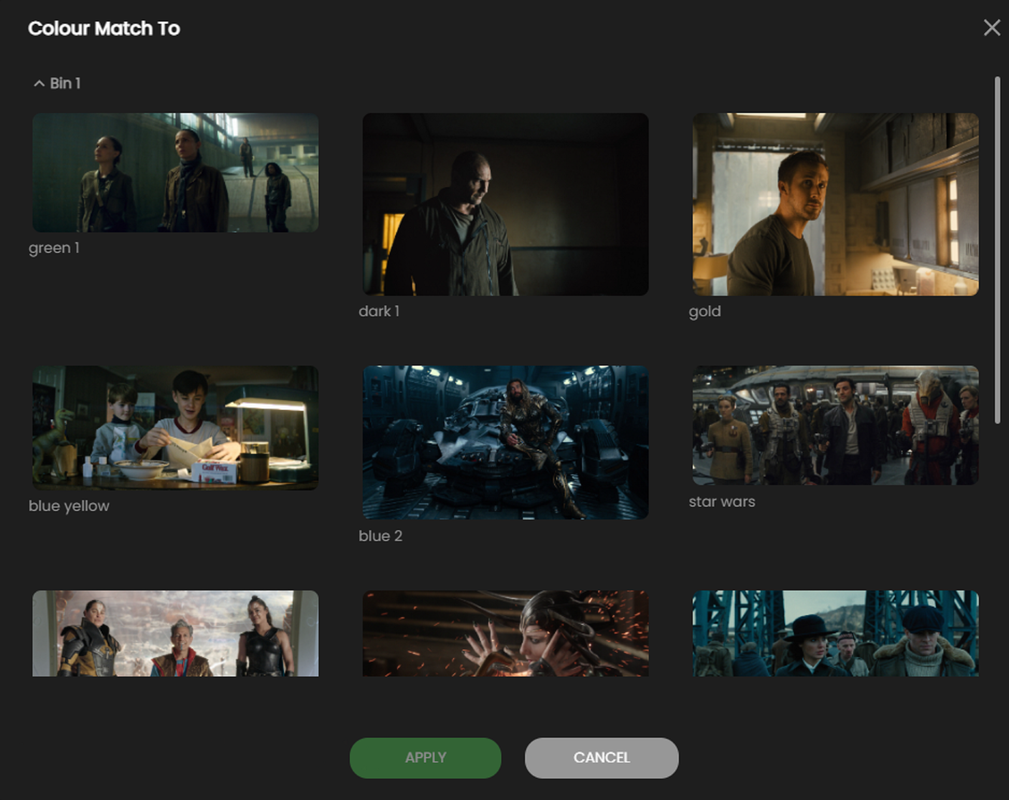
1) FIND AND IMPORT HIGH QUALITY MOVIE STILL IMAGES FROM WHEREEVER YOU CAN FIND THEM AND IMPORT THEM INTO FYLM AI.

14.png

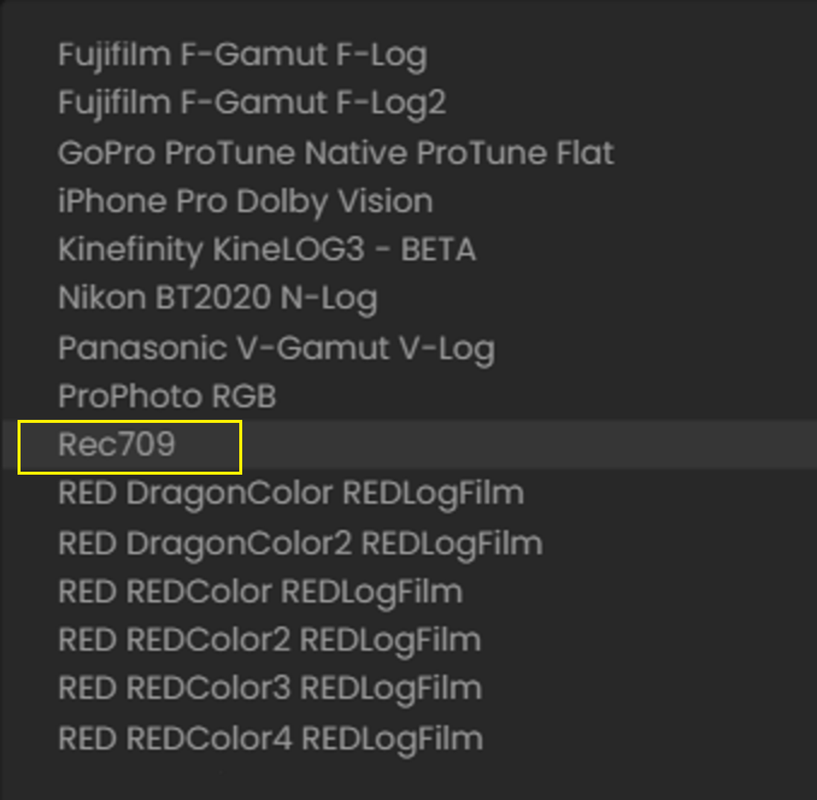
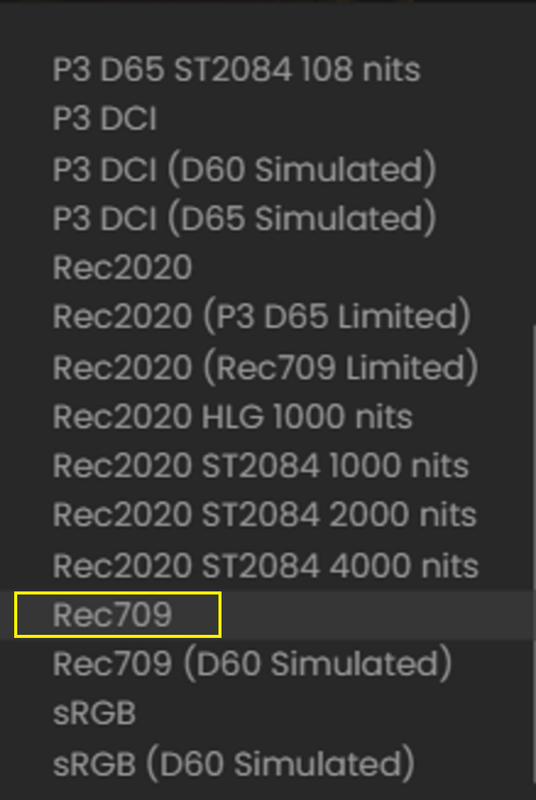
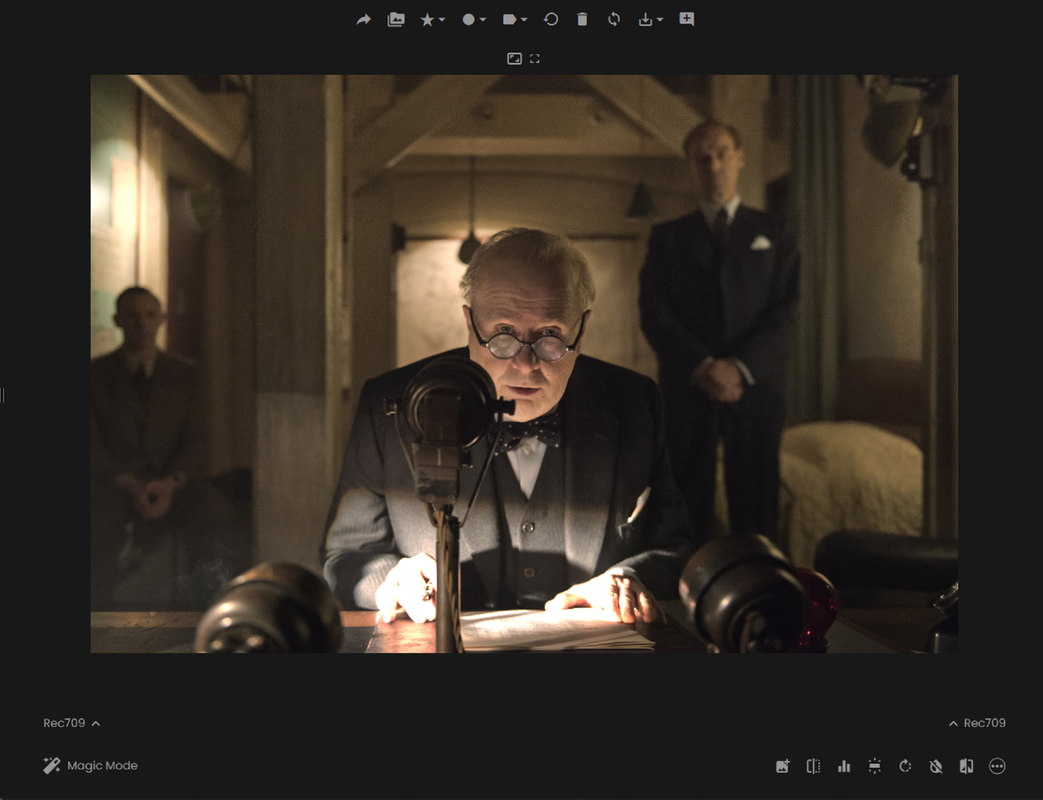
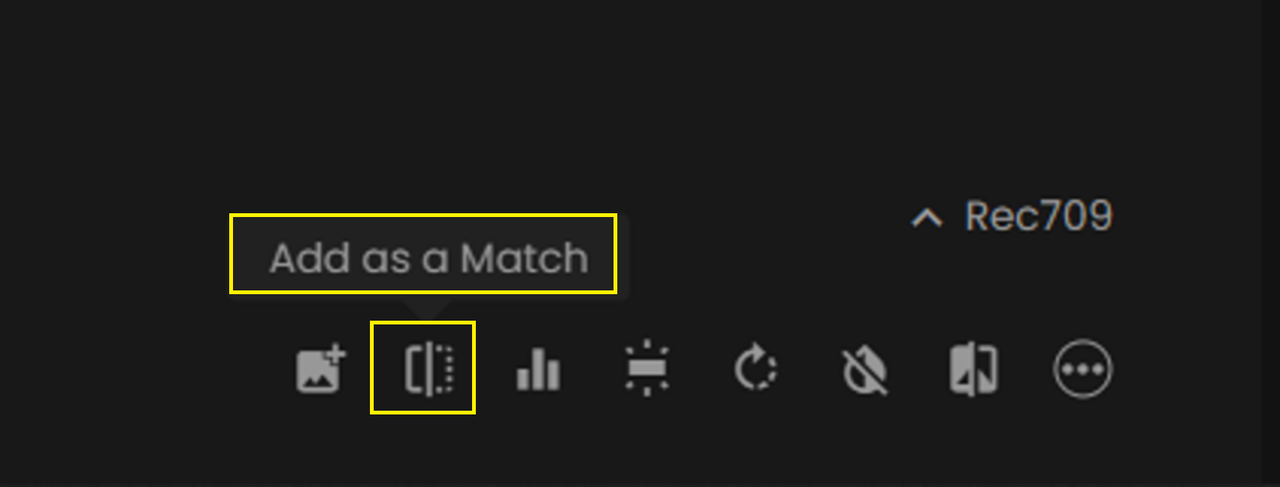
2) YOU CAN'T ENABLE THE MENU BUTTONS THAT WILL ALLOW YOU TO ADD THE STILLS AS "MATCHES" TO BE USED TO EXTRACT COLORS FROM UNTIL YOU ASSIGN THE STILLS AN IDT AND ODT. IN THE CASE OF THE STILL BELOW I USED "REC709" AS BOTH THE IDT AND ODT" BECAUSE I BELIEVED THEY WERE FROM A REC709 DISPLAY-REFERRED PROJECT. AFTER THE IDT AND ODT ARE ASSIGNED, THE STILL CAN BE ADDED TO THE "MATCH' GALLERY.

15.png

16.png

17.png

18.png


18-1.png

19.png


Screenshot-5697.png


NEXT FYLM AI PART 2 SECTION 3......................
 
Last edited:
FYLM AI PART 2 SECTION 3-(USING ONE OF THE Ai EXTRACTION TOOLS AND EXPORTING A FINAL LUT)

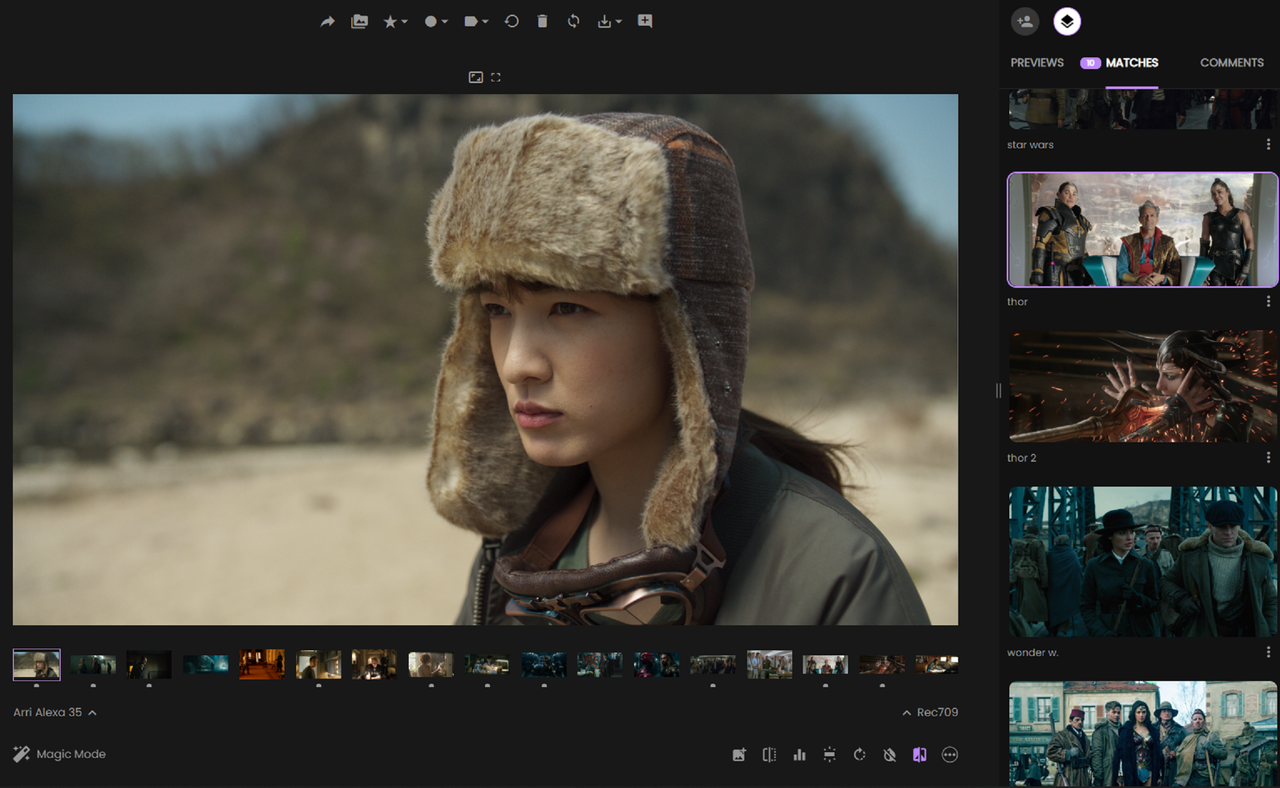
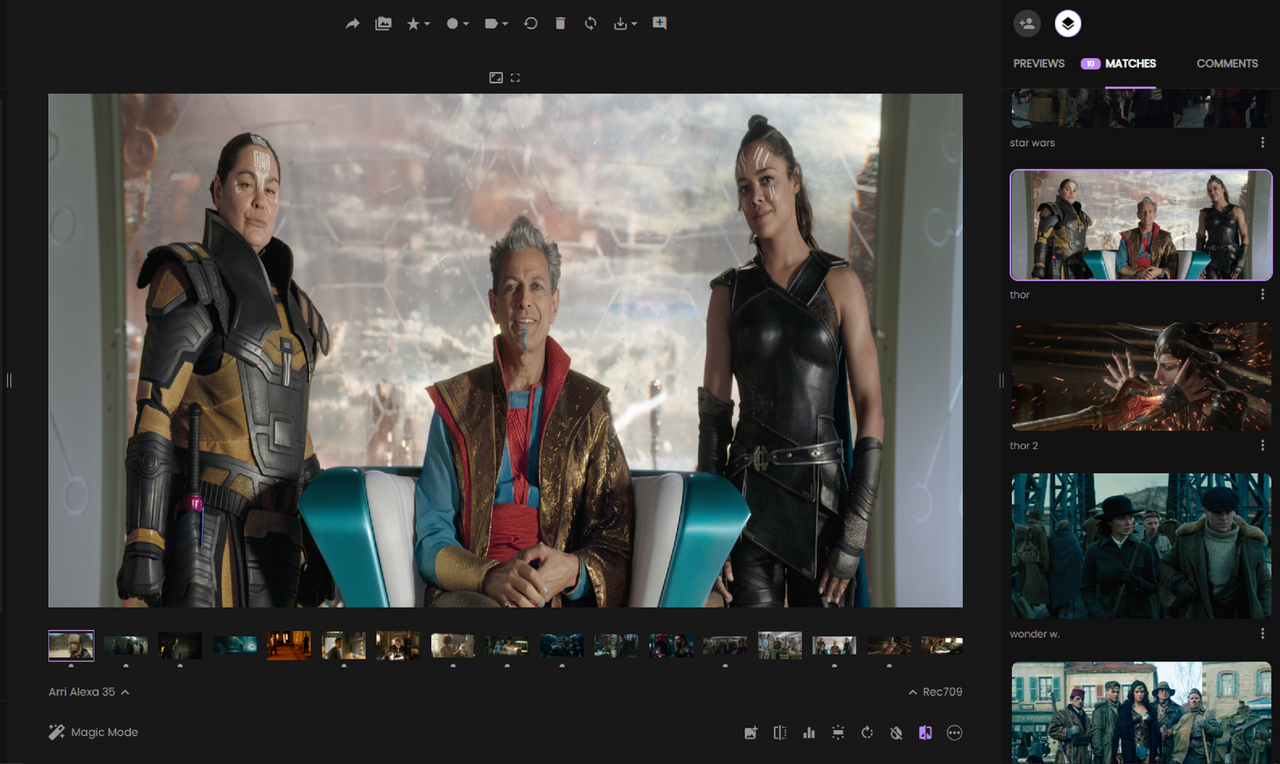
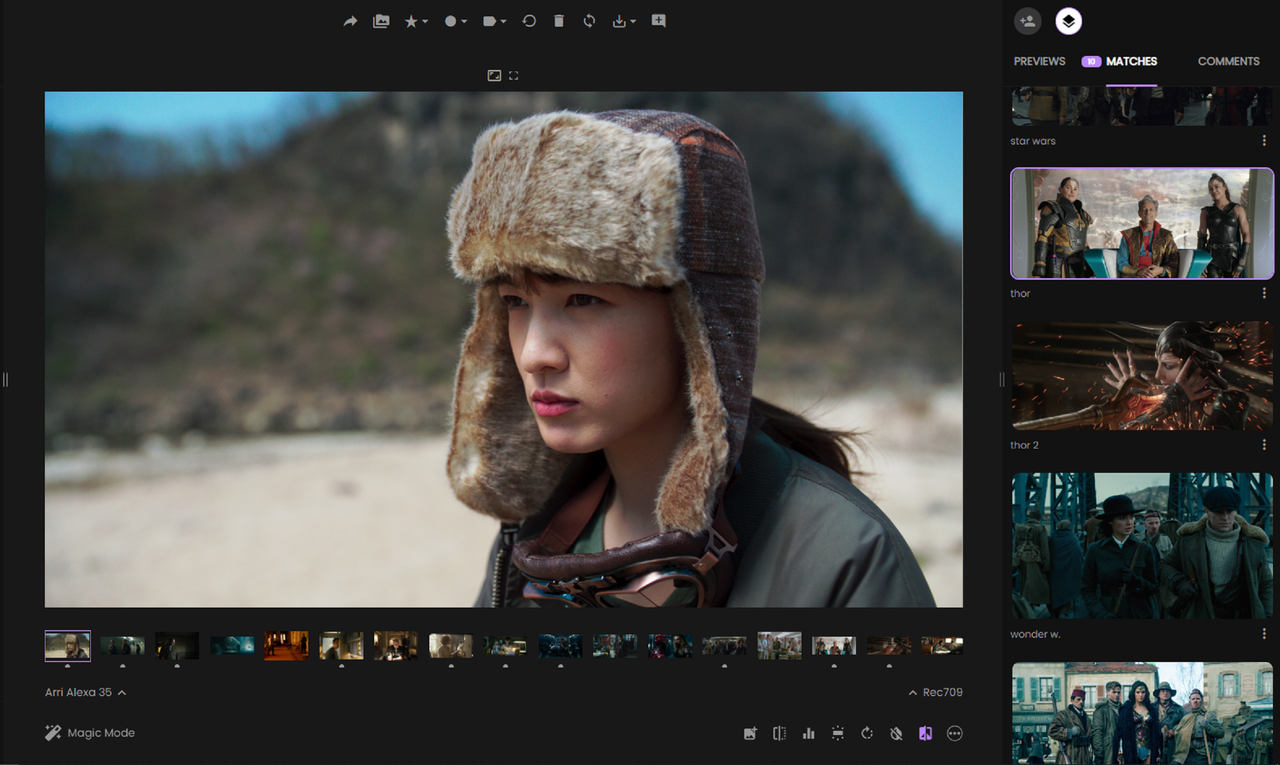
1) FIRST, FIND AN IMAGE IN THE "MATCH" AREA YOU WANT TO TAKE THE COLORS FROM. HERE IS THE ALEXA 35 IMAGE AND HERE IS A STILL FROM A SCENE FROM ONE OF THE "THOR" FILMS I WANT THE COLORS FROM.

8.png


9.png


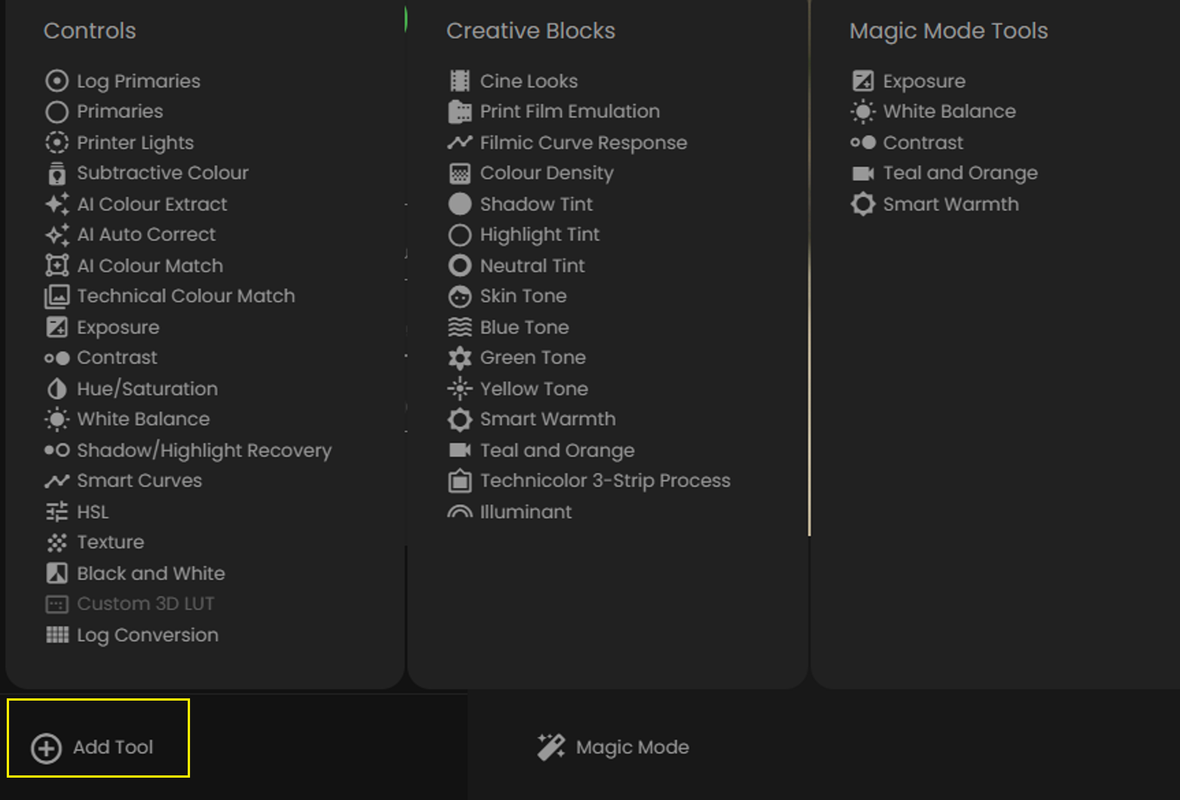
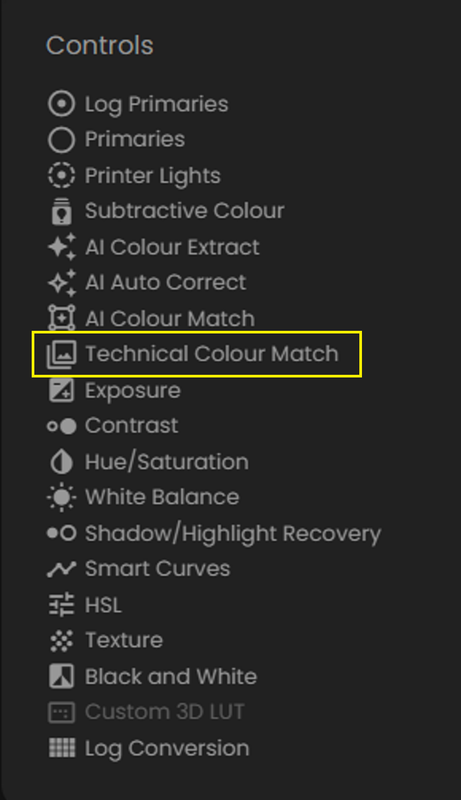
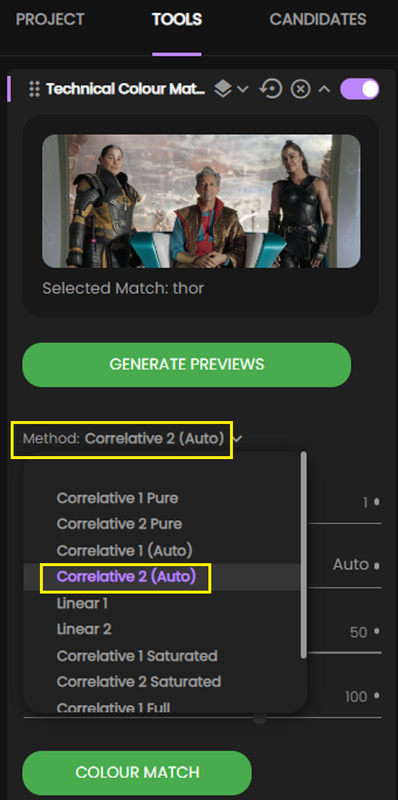
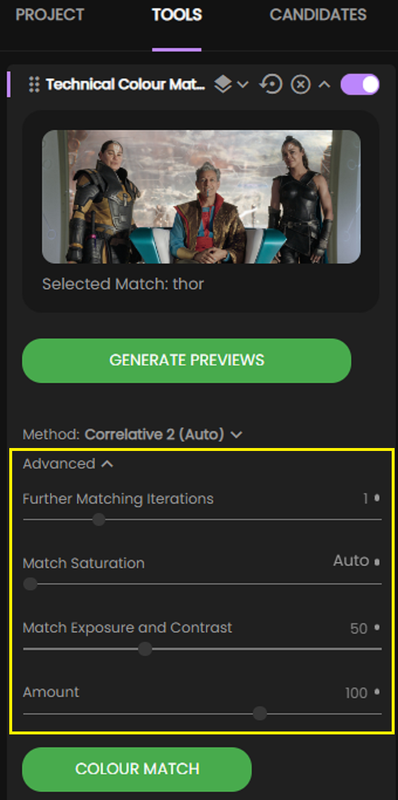
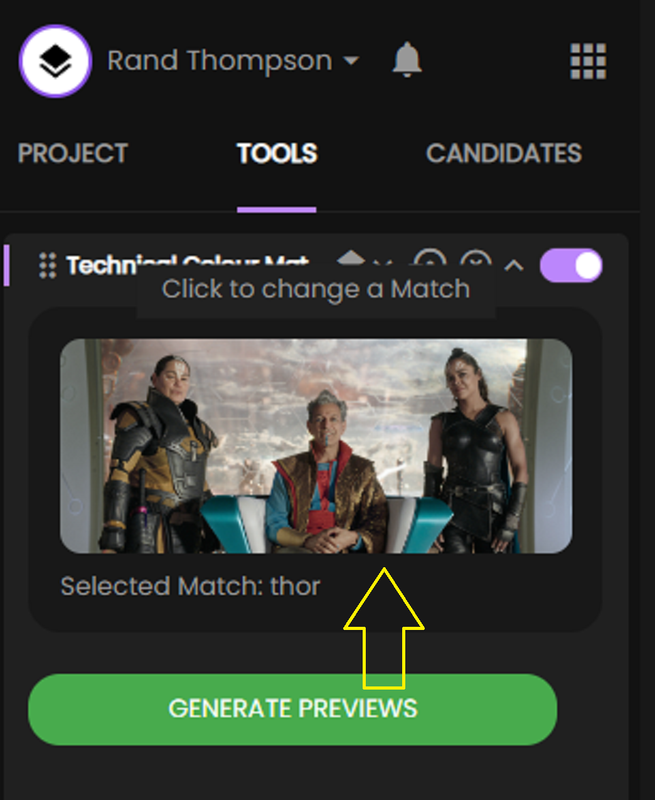
2) NOW, LOCATE THE "ADD TOOLS" ICON AT THE BOTTOM "LEFT-HAND" SIDE OF THE GUI. I'M GOING TO USE THE "TECHNICAL COLOR MATCH" TOOL TO EXTRACT THE COLORS FROM THE "THOR" MOVIE STILL. I ADD THIS UNDER MY "TOOLS" HEADING AND I CAN CHOOSE WHAT STILL I WANT TO USE BY CLICKING IN THE PICTURE IMAGE SECTION OF THE "TECHNICAL COLOR MATCH" TOOL. NEXT CHOOSE THE PARAMETERS THAT GIVE YOU THE BEST RESULTS.

9A-1.png


9A-2.png

25.png

26.png


10.png

11.png


12.png


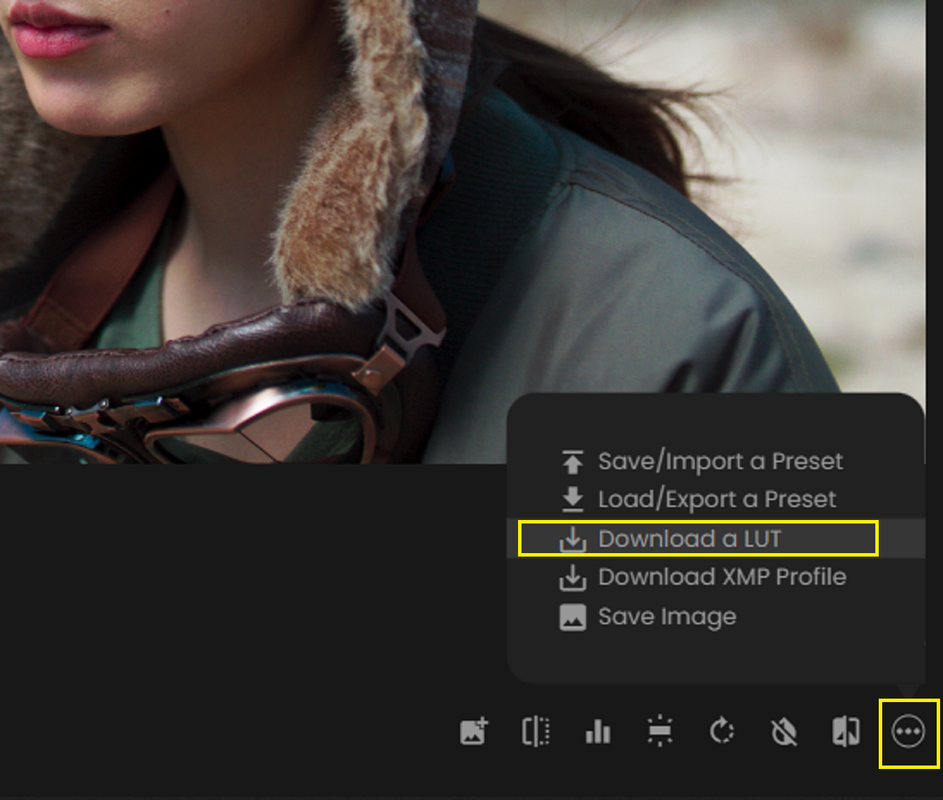
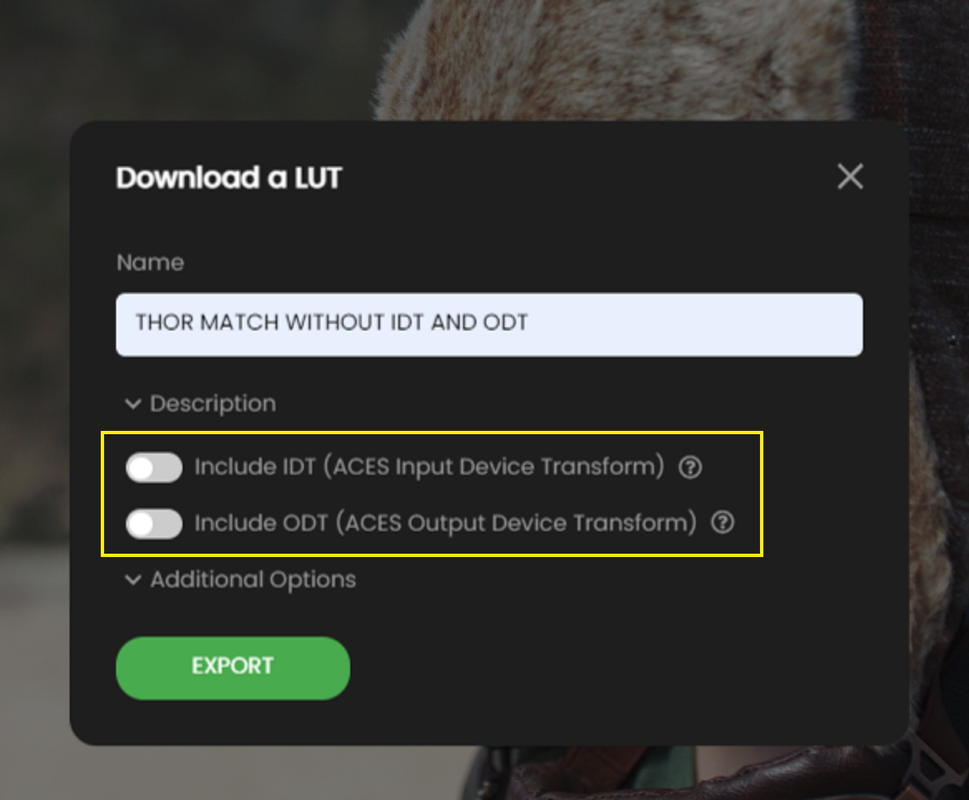
3) NOW, EXPORT THE A LUT TO TAKE BACK INTO RESOLVE. DISABLE BOTH THE "IDT" AND THE "ODT" FOR THIS LUT.

13.png

14.png


NEXT, BACK INSIDE OF RESOLVE....................
 
BACK INSIDE OF RESOLVE-PART 1(IMPORTING THE "THOR MATCH" LUT BACK INSIDE RESOLVE)

PROJECT SETTINGS AND WORKFLOW

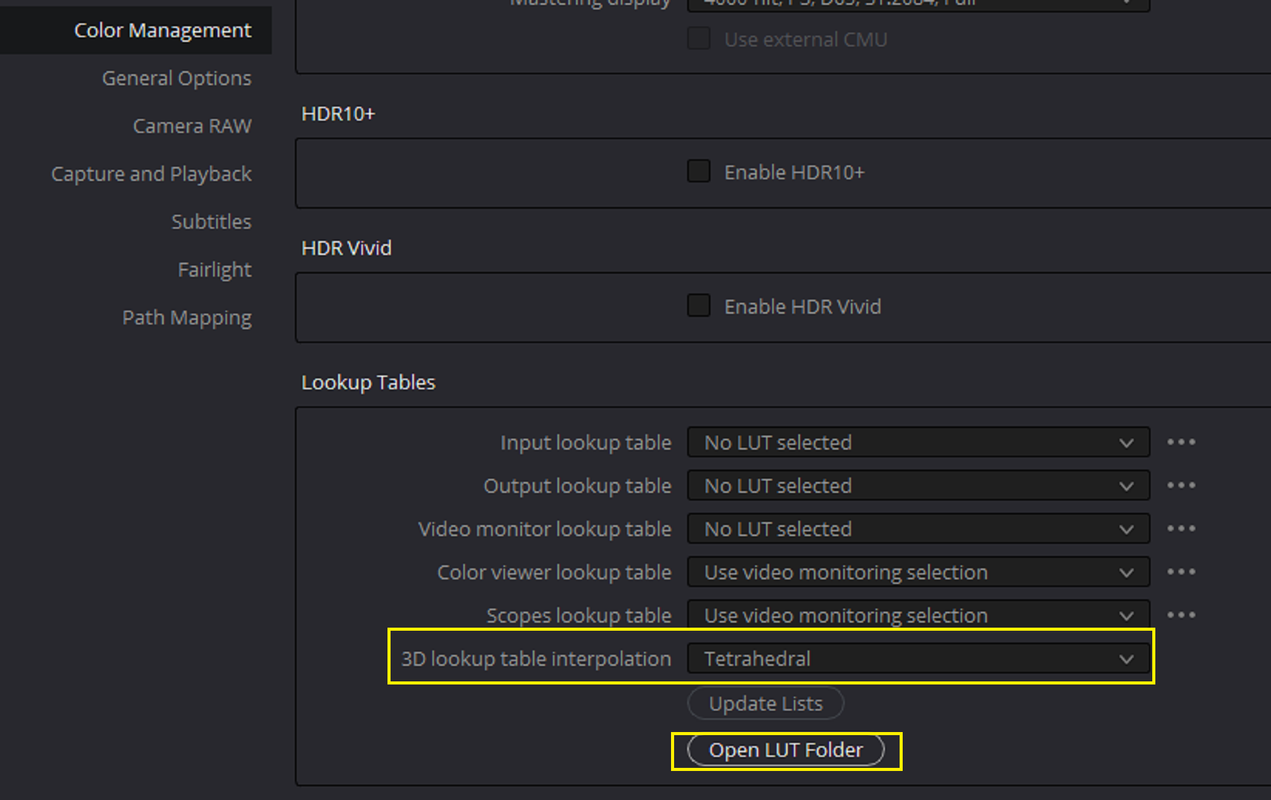
1A.png


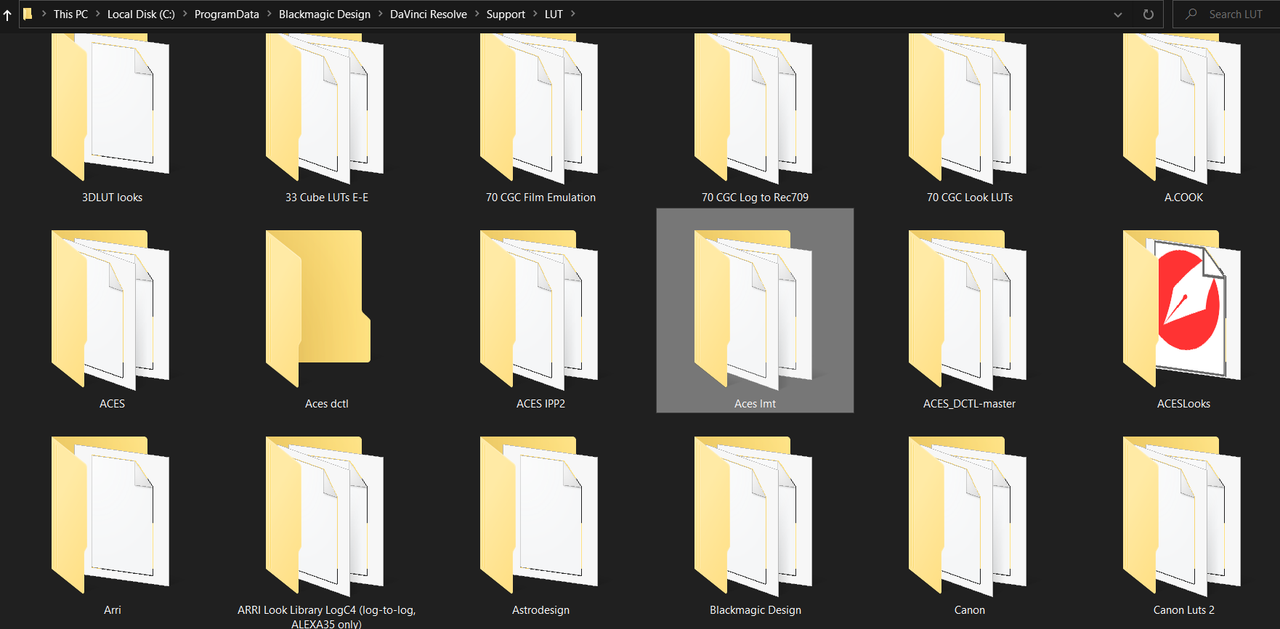
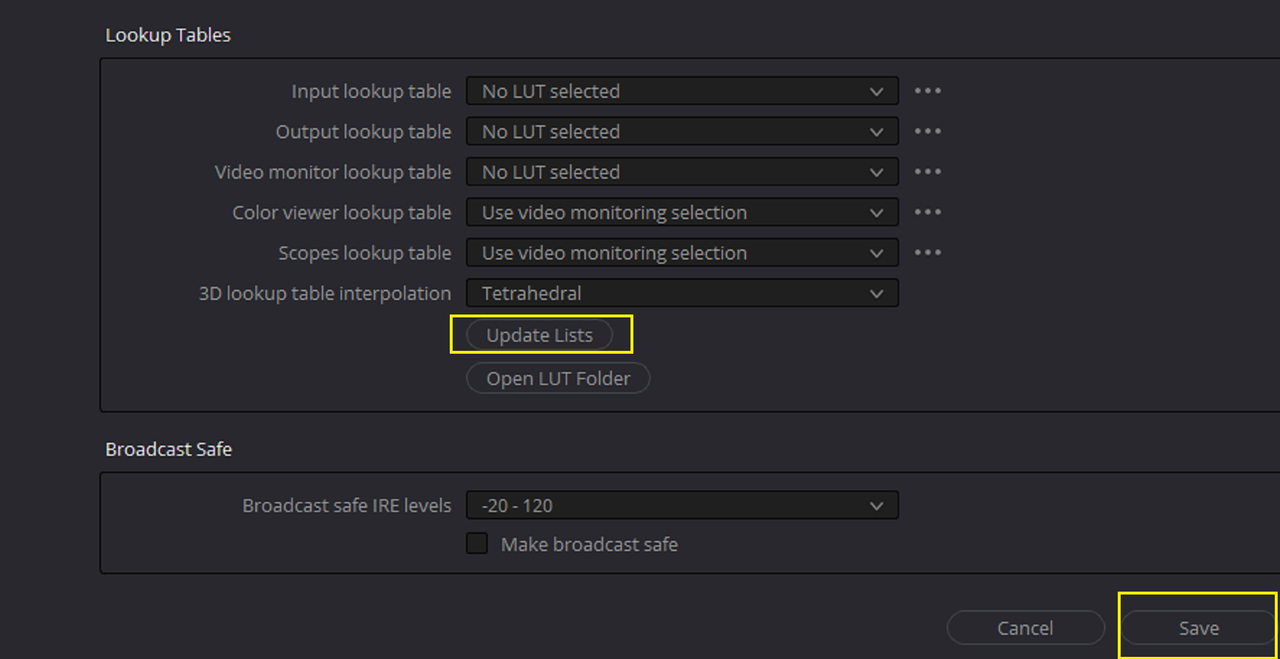
YOU CAN IMPORT THE "THOR MATCH" LUT INTO YOUR LUT FOLDER BY SELECTING "OPEN LUT FOLDER". THEN IMPORT THE LUT INTO A FOLDER OR CREATE A FOLDER TO PUT IT INTO. THEN CLOSE THE LUT FOLDER AND SELECT "UPDATE LIST' THEN "SAVE".


33.png


34.png


Screenshot-5701.png


NEXT, BACK INSIDE OF RESOLVE PART 2..................
 
Last edited:
BACK INSIDE OF RESOLVE PART 2 (USING THE "THOR MATCH LUT")


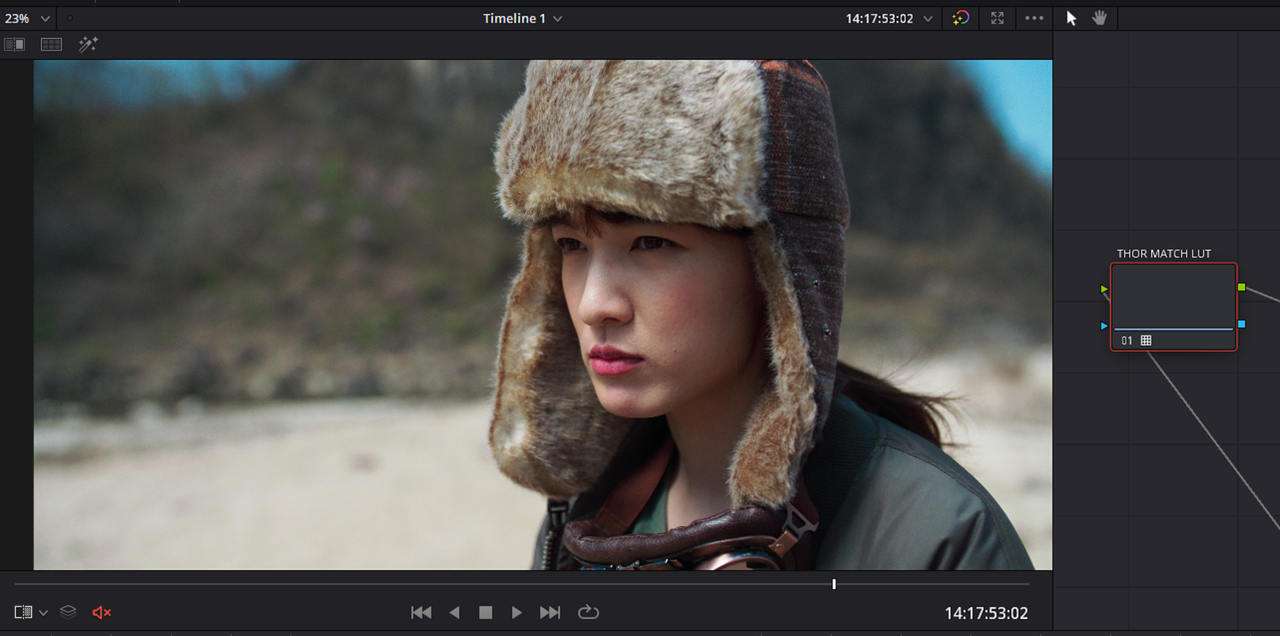
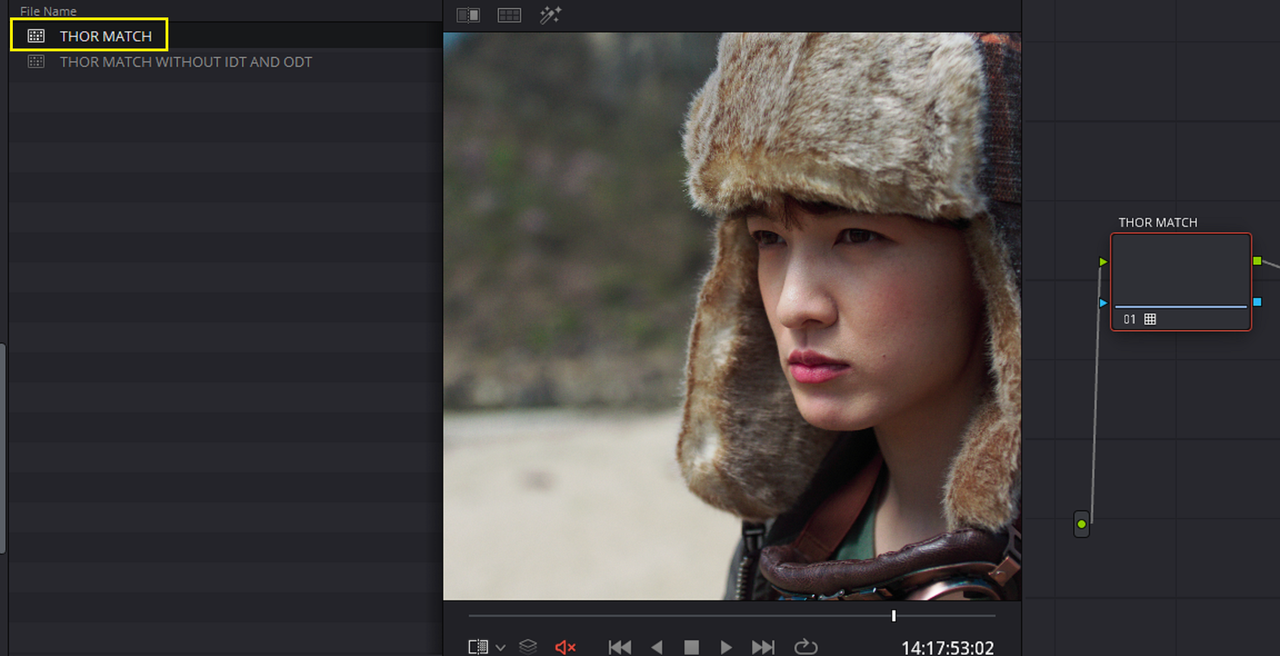
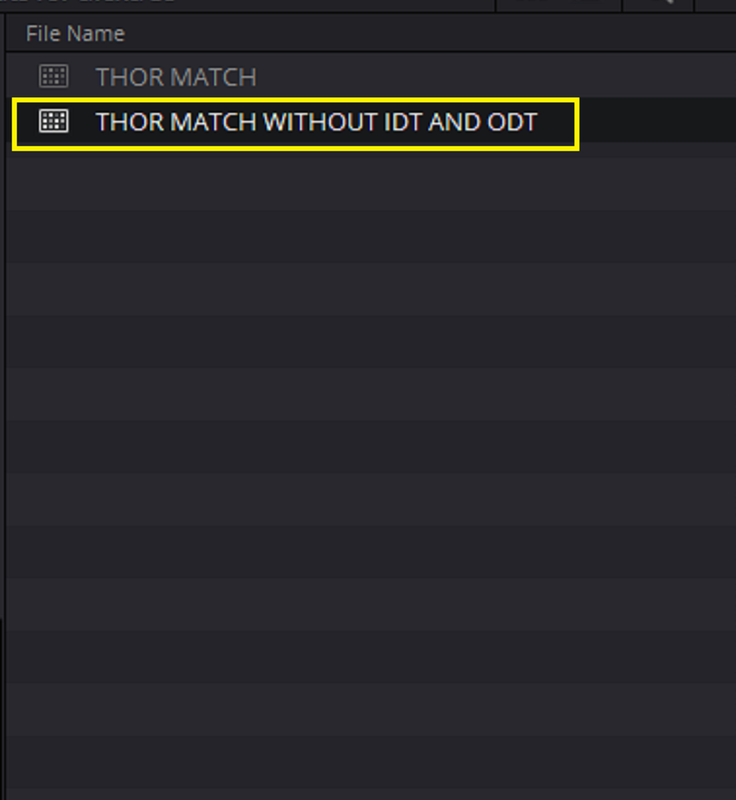
FIRST, HERE IS A "THOR MATCH" LUT FROM FYLM AI WITH BOTH AN "IDT" AND "ODT" THAT FULLY BRINGS THE IMAGE FROM SCENE-REFERRED TO A REC709 DISPLAY-REFERRED IMAGE, WITH NO ARRI AWG4/ALC4 TO REC709 TRANSFORM NEEDED. ALTHOUGHT THIS CAN BE USED TO GRADE OTHER AWG4/ALC4 IMAGES, IT'S NOT THE "LOG-TO-LOG" SCENE-REFERRED LUT NEEDED TO MAKE AN ALF4 LOOK FILE WITH.

1.png

2.png


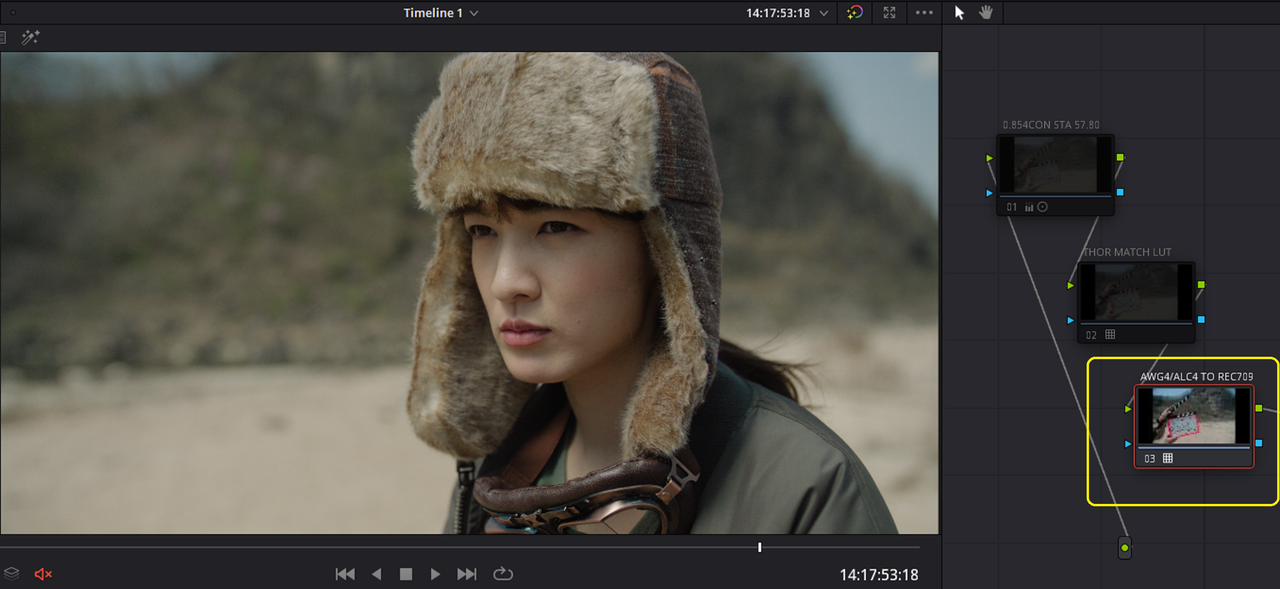
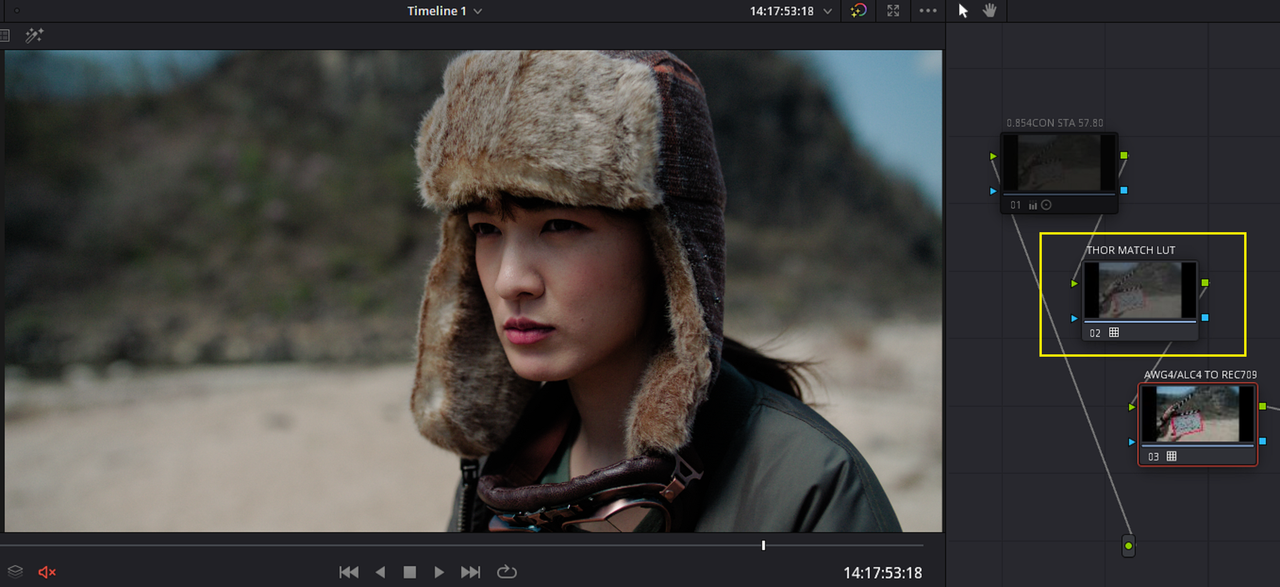
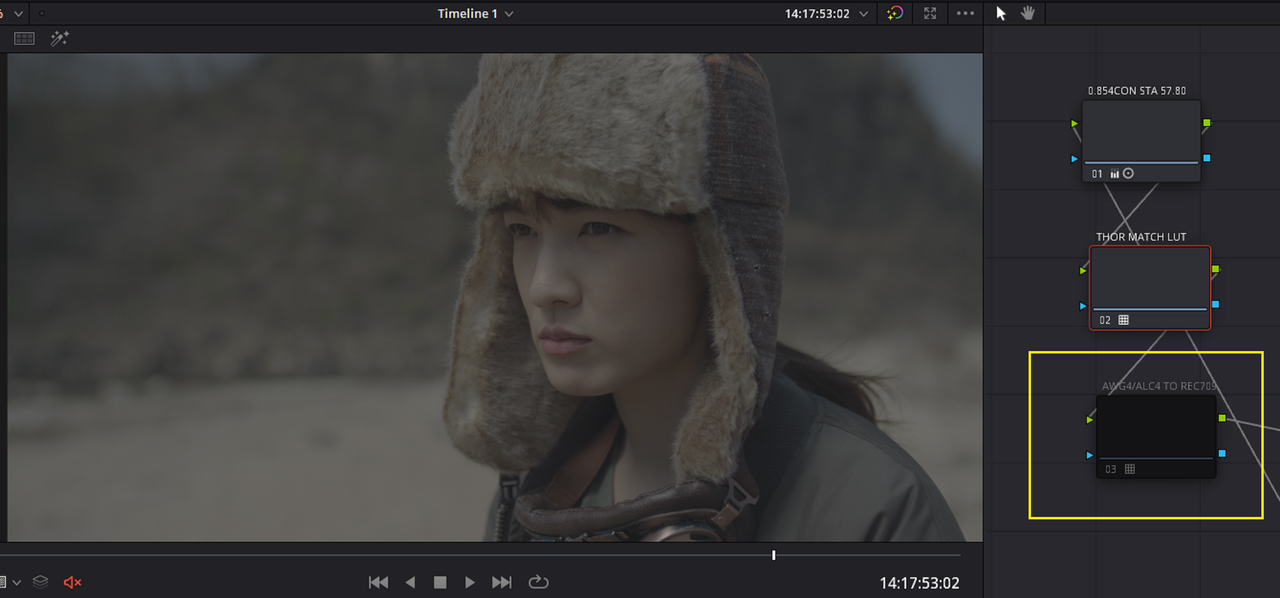
HERE IS THE ARRI ALEXA 35 IMAGE WITH AN ARRI ALEXA 35 AWG4/ALC4 TO REC709 LUT APPLIED IN THE LAST NODE OF THE NODE TREE. NOW HERE IS THE "THOR MATCH" LUT FROM FYLM AI WITHOUT AN "IDT" OR "ODT" THAT WE WILL NEED TO HELP MAKE AN ARRI ALF4 LOOK FILE FROM. WHEN YOU APPLY IT TO THE NODE BEFORE THE ARRI LUT IT
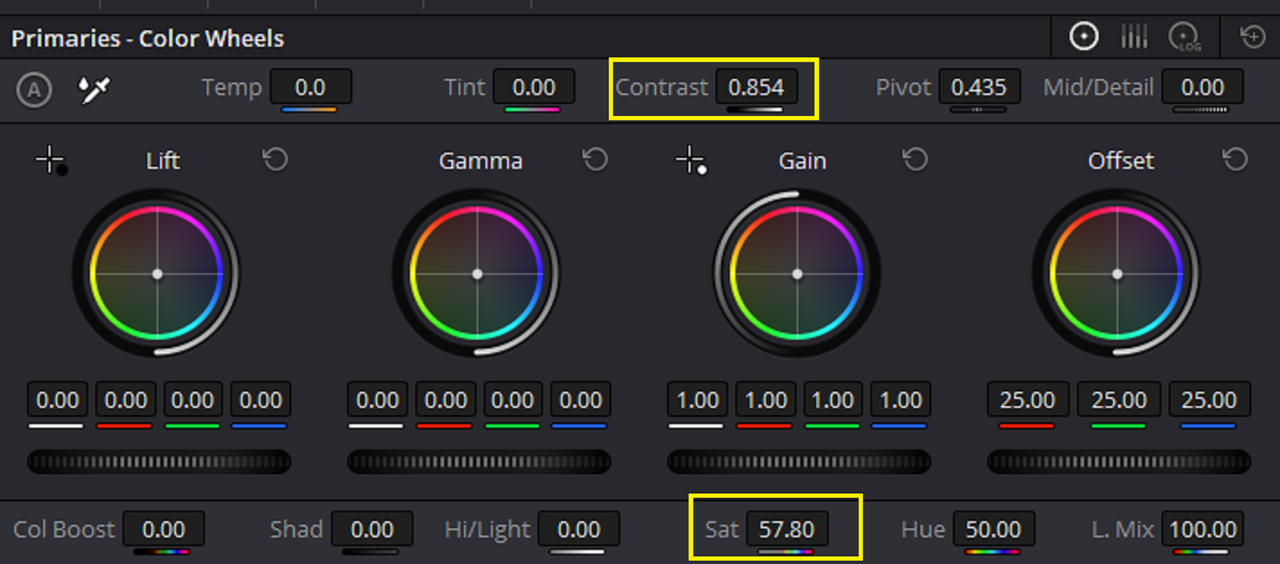
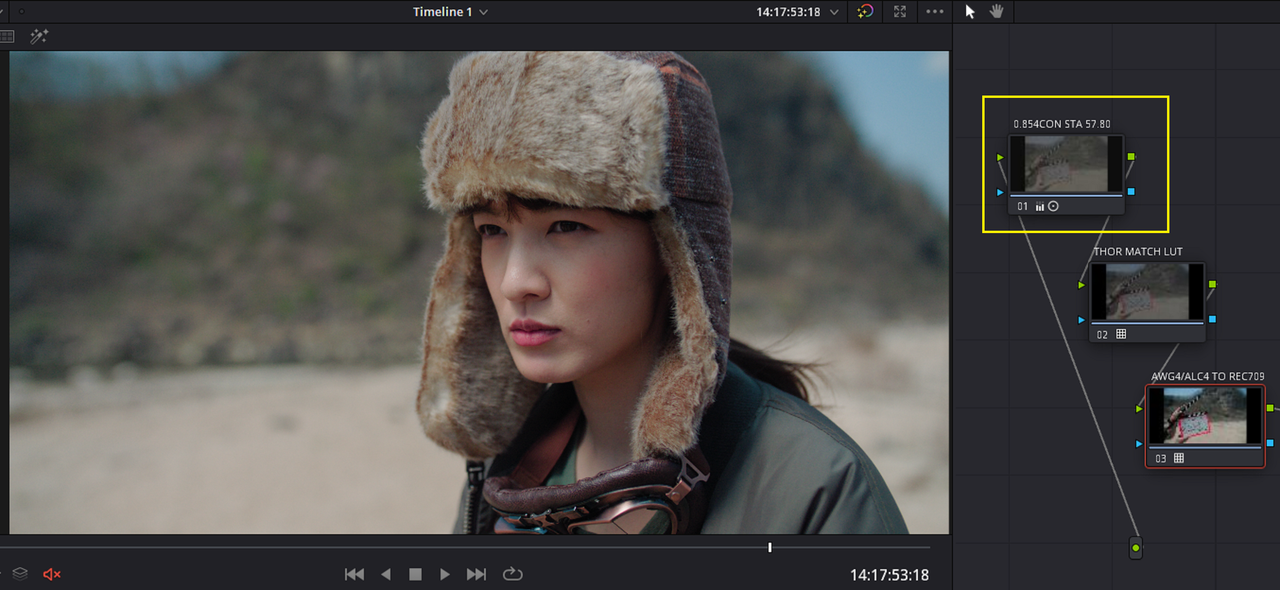
LOOKS REALLY TOO CONTRASTY. SINCE FYLM AI USES ACES FOR IT'S UNDERLYING COLOR MANAGEMENT, SOMETHINGS WILL LOOK A LITTLE WONKY WHEN YOU TRY TO BRING IN A LUT AS A "LOG-TO-LOG" LUT. SO I HAD TO CORRECT IT A LITTLE WITH A NEGATIVE CONTRAST AND NO PIVOT AND ADD A LITTLE SATURATION TO IT.

Screenshot-5669.png


Screenshot-5686.png


Screenshot-5670.png


Screenshot-5693.png


Screenshot-5671.png


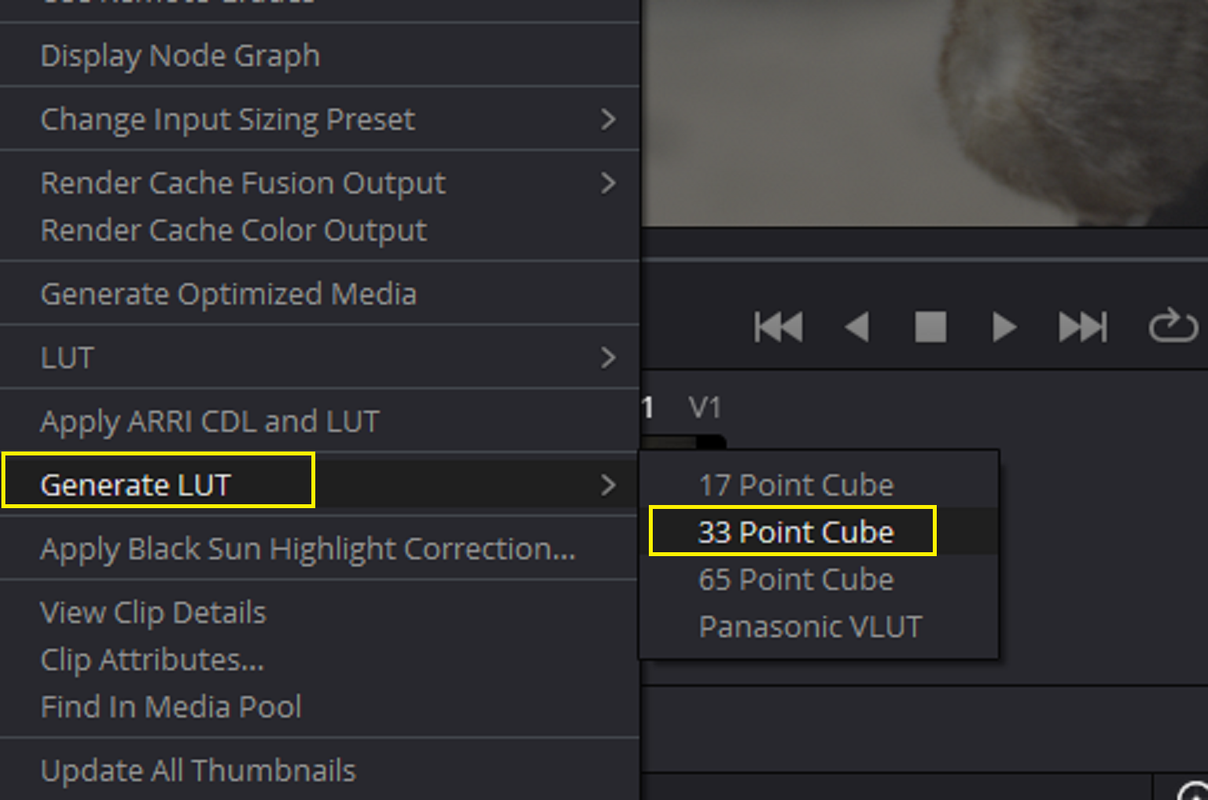
FINALLY, I DISABLE THE ARRI AWG4/ALC4 TO REC709 TRANSFORM LUT IN THE LAST NODE OF THE GRADE AND "RIGHT-CLICK" ON THE CLIP IN THE "CLIP VIEW" AND SELECT "GENERATE LUT" AND "33 POINT CUBE". THIS WILL TAKE US TO THE FINAL STAGE OF THIS PROCESS, THE ARRI REFERENCE TOOL.


20.png


21.png


FINALLY, TO THE ARRI REFERENCE TOOL............
 
THE ARRI REFERENCE TOOL

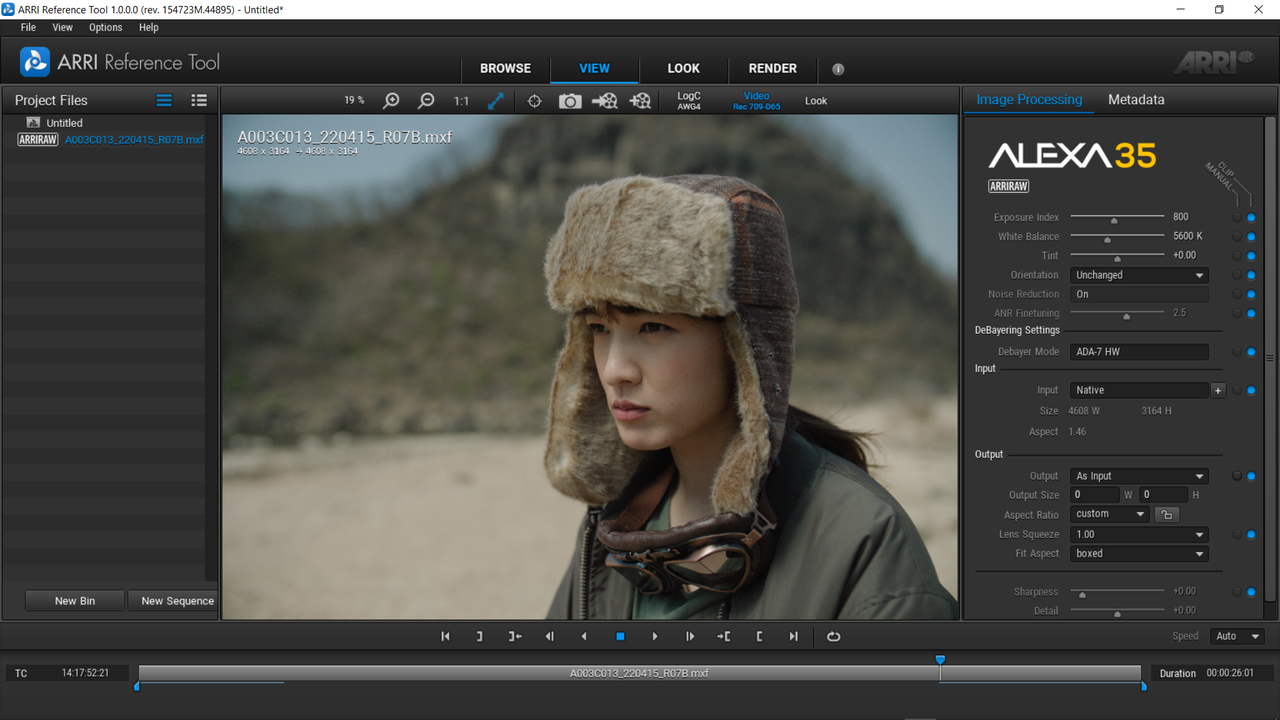
HERE IS THE ARRIRAW FILE THAT WE HAVE GRADED A PNG FILE FROM INSIDE OF THE ARRI REFERENCE TOOL.

22.png


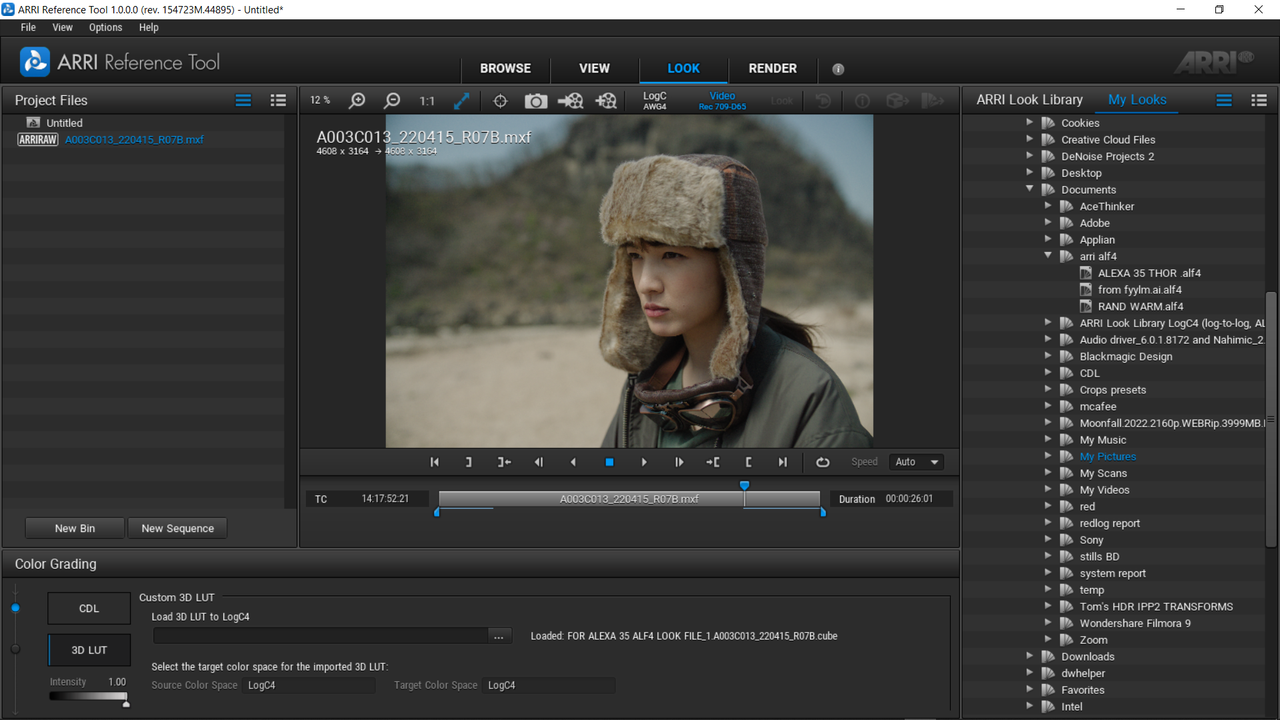
NEXT WE NEED TO GO TO THE "LOOK" AREA OF THE ARRI REFERENCE TOOL .

Screenshot-5702.png


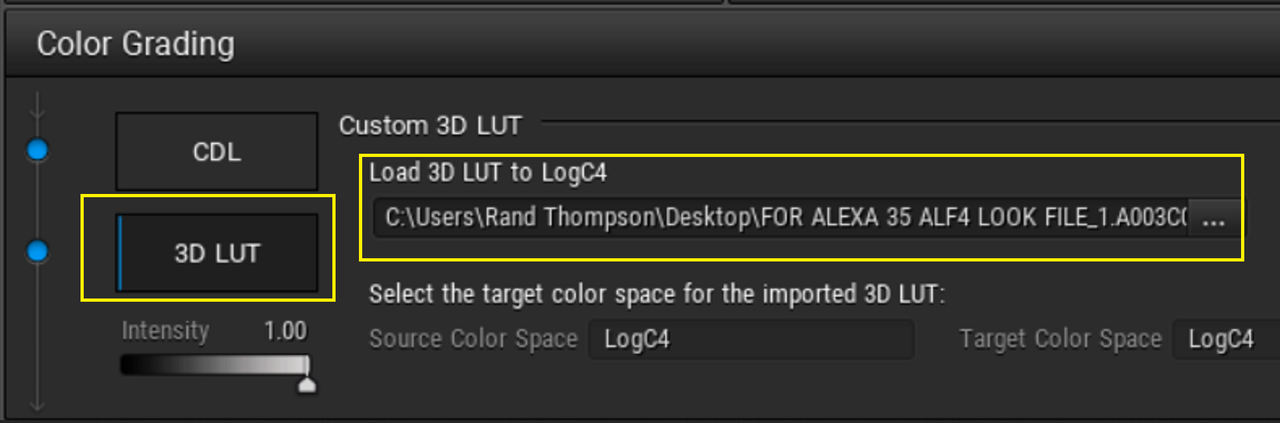
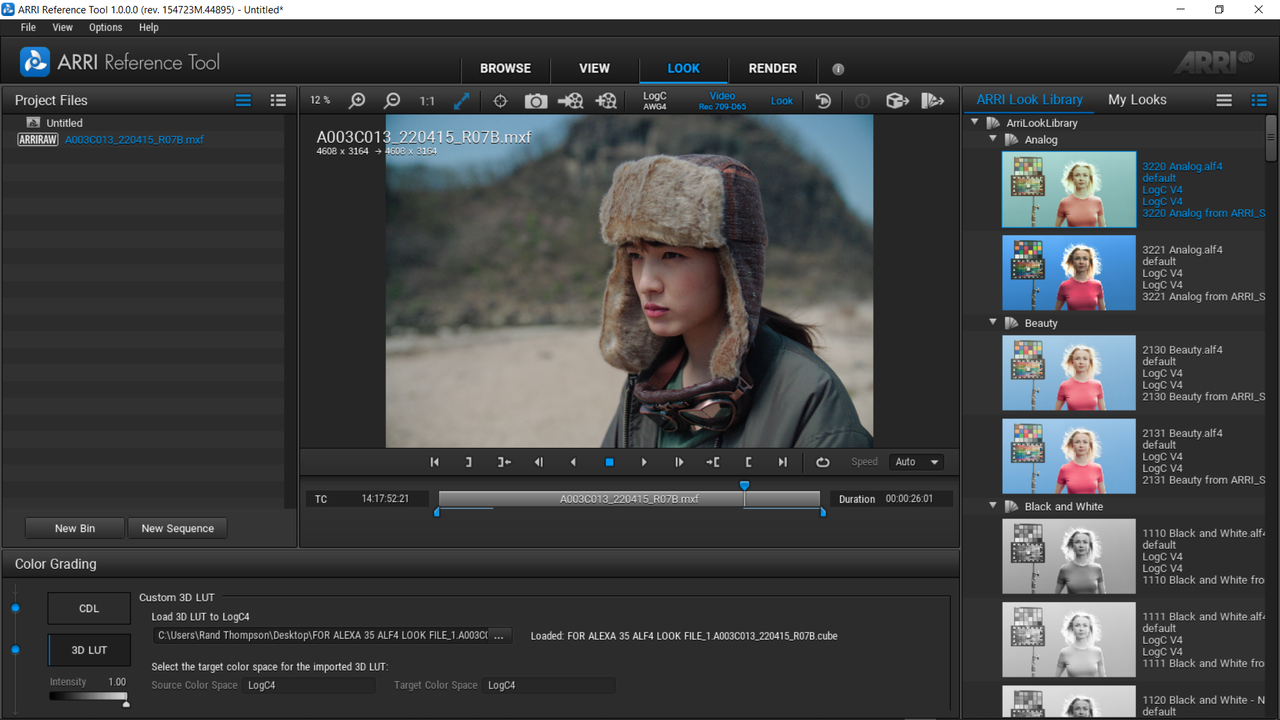
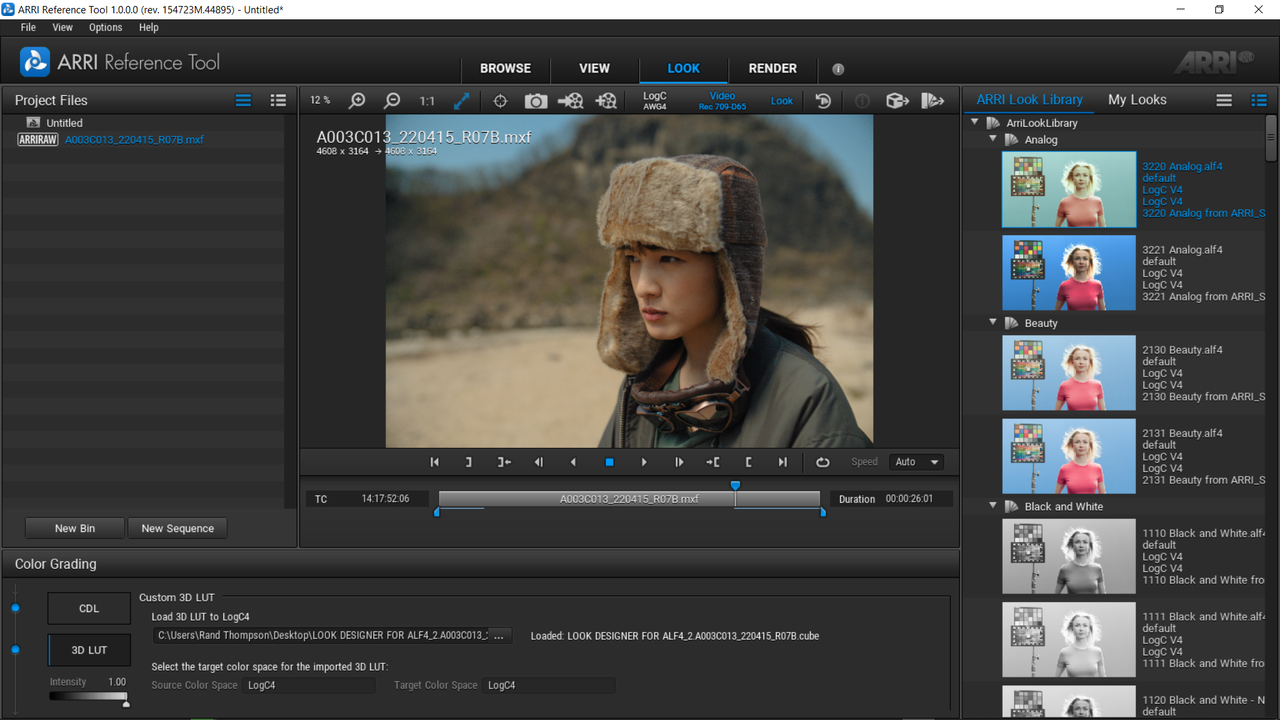
IN THE "COLOR GRADING" AREA OF THE ARRI REFRENCE TOOL, SELECT THE "3D LUT" TAB. NEXT TO THE BOX UNDER "LOAD 3D LUT TO LOGC4", CLICK THE TAB WITH THE THREE DOTS "..." TO SELECT THE LUT THAT WAS EXPORTED OUT OF THE SECOND TIME OF BEING IN RESOLVE THAT INCLUDED THE "THOR MATCH" LUT. THIS WILL UPDATE THE "VIEWER WINDOW" WITH THE LOOK OF THAT LUT.


22A.png


23.png


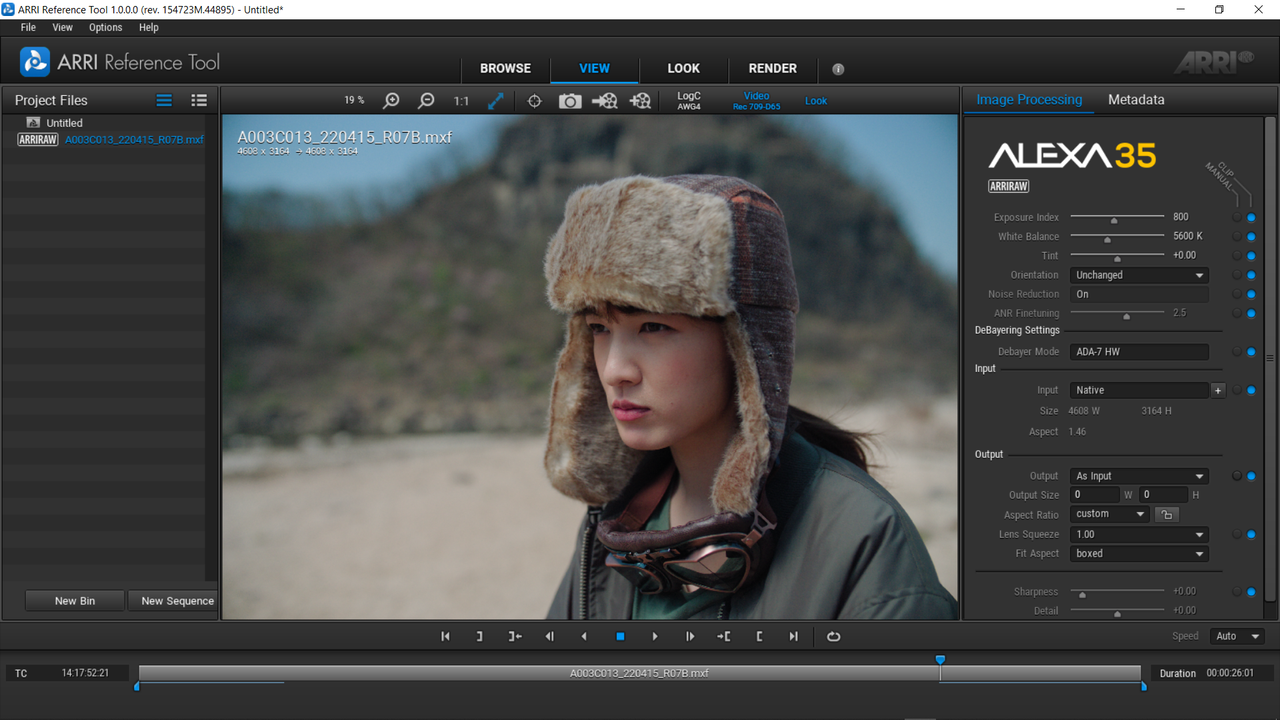
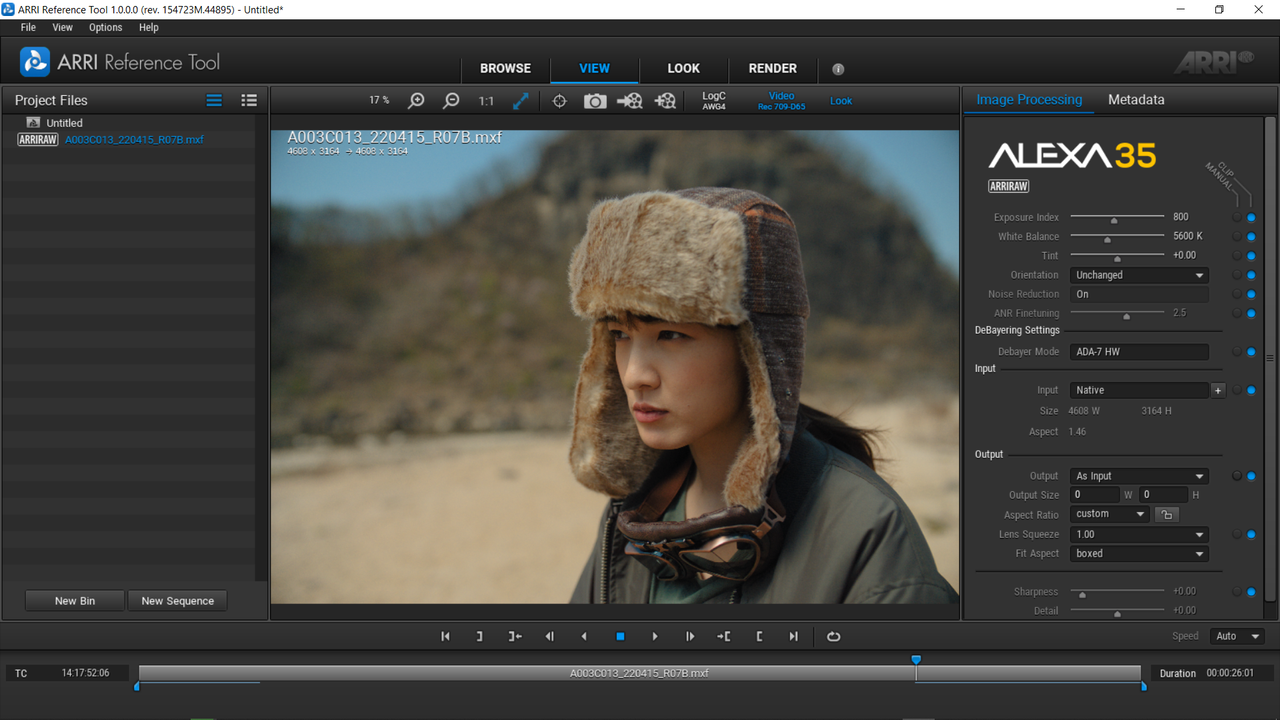
USING "VIEW" AREA TO GET A BETTER LOOK

24.png


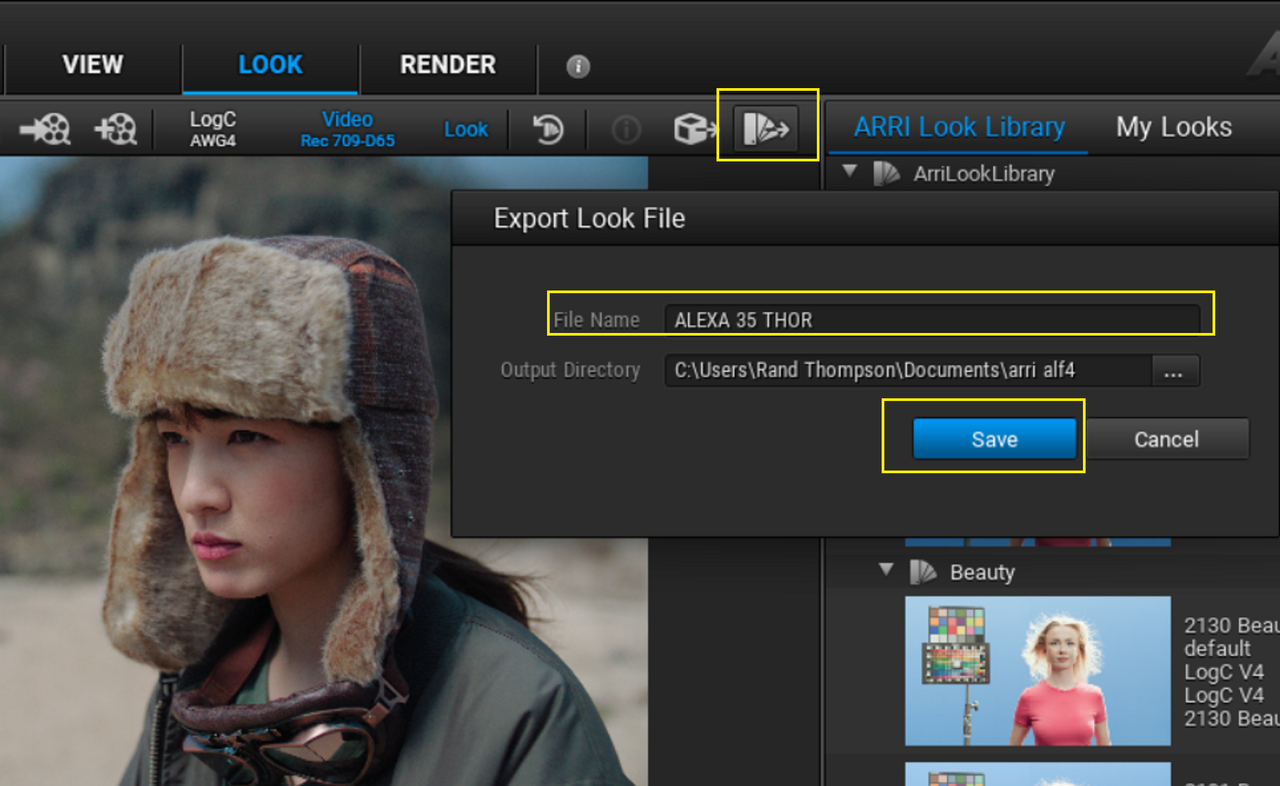
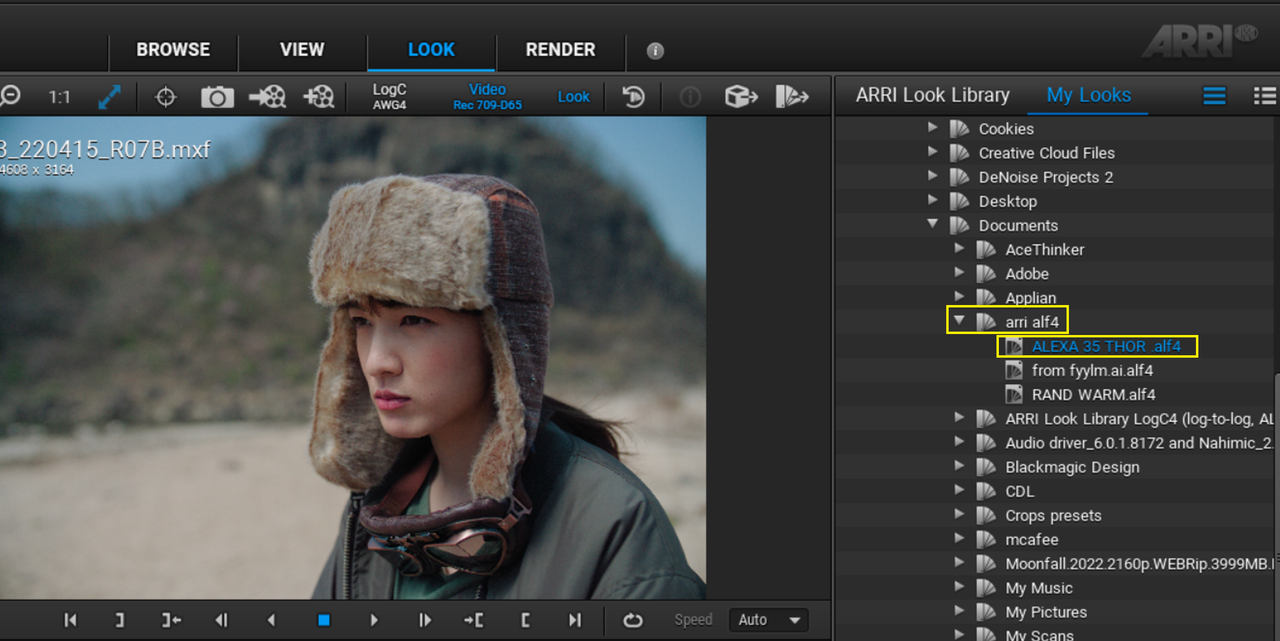
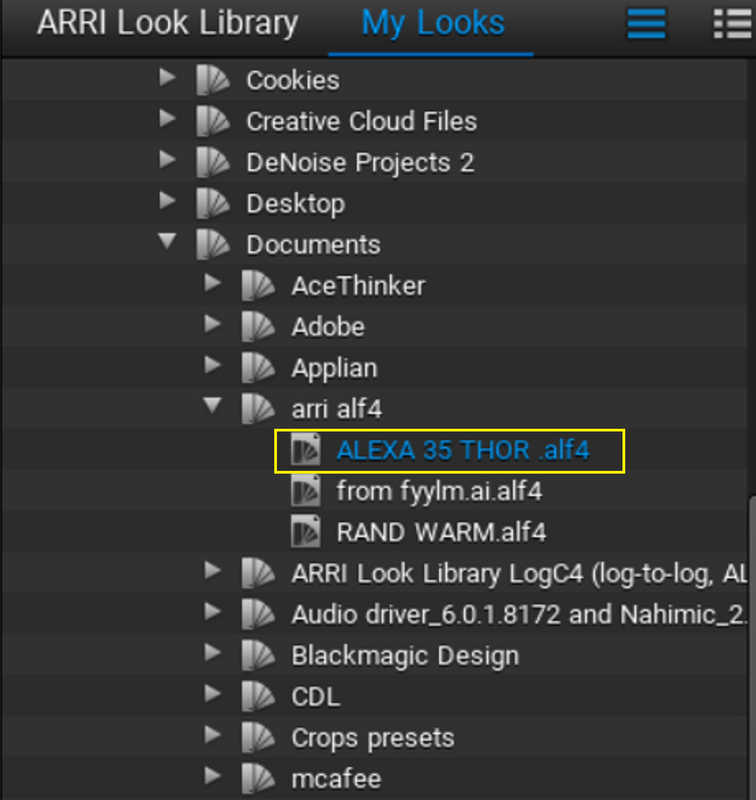
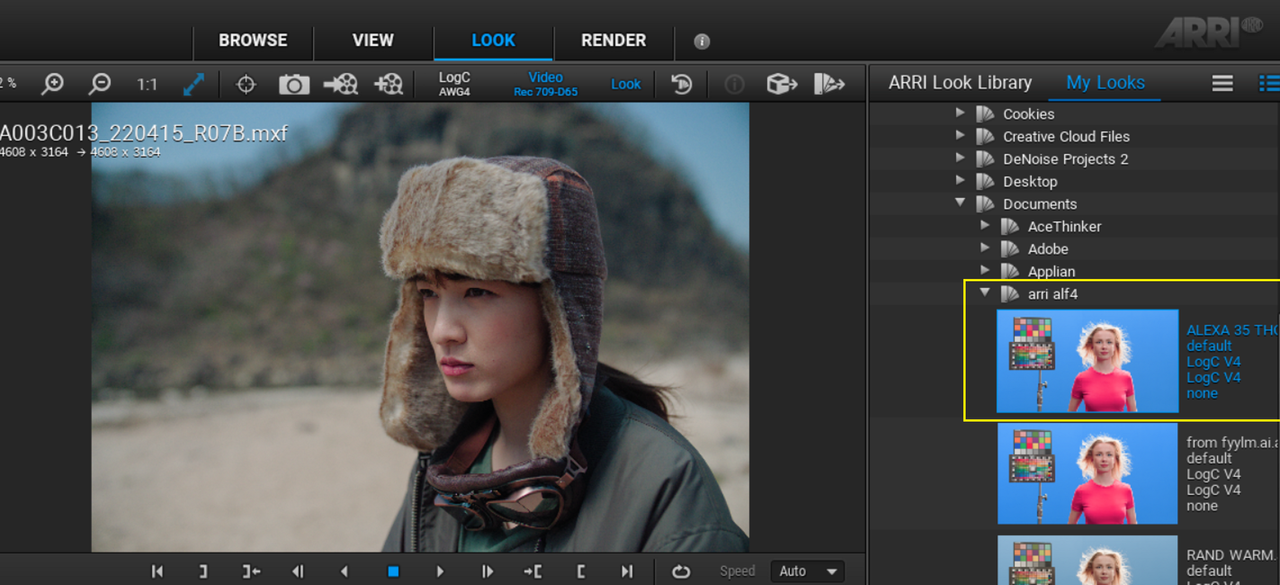
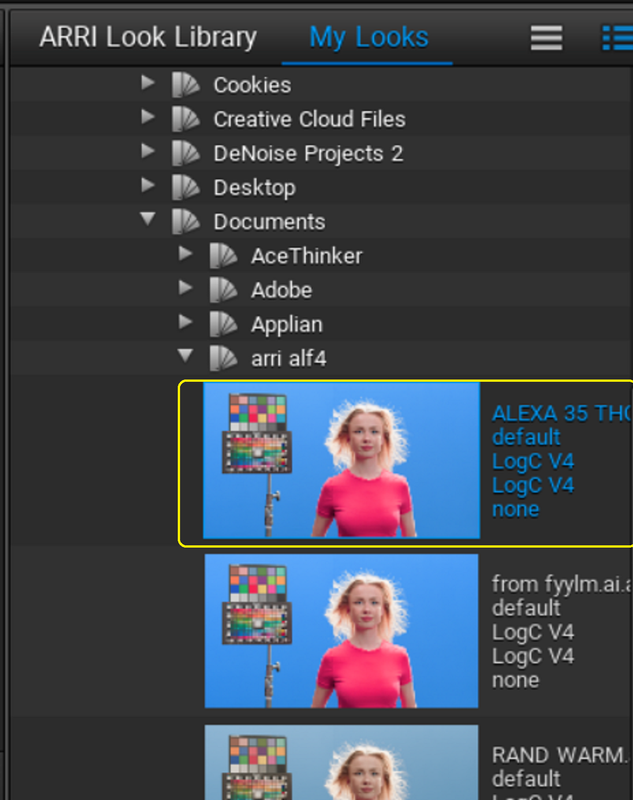
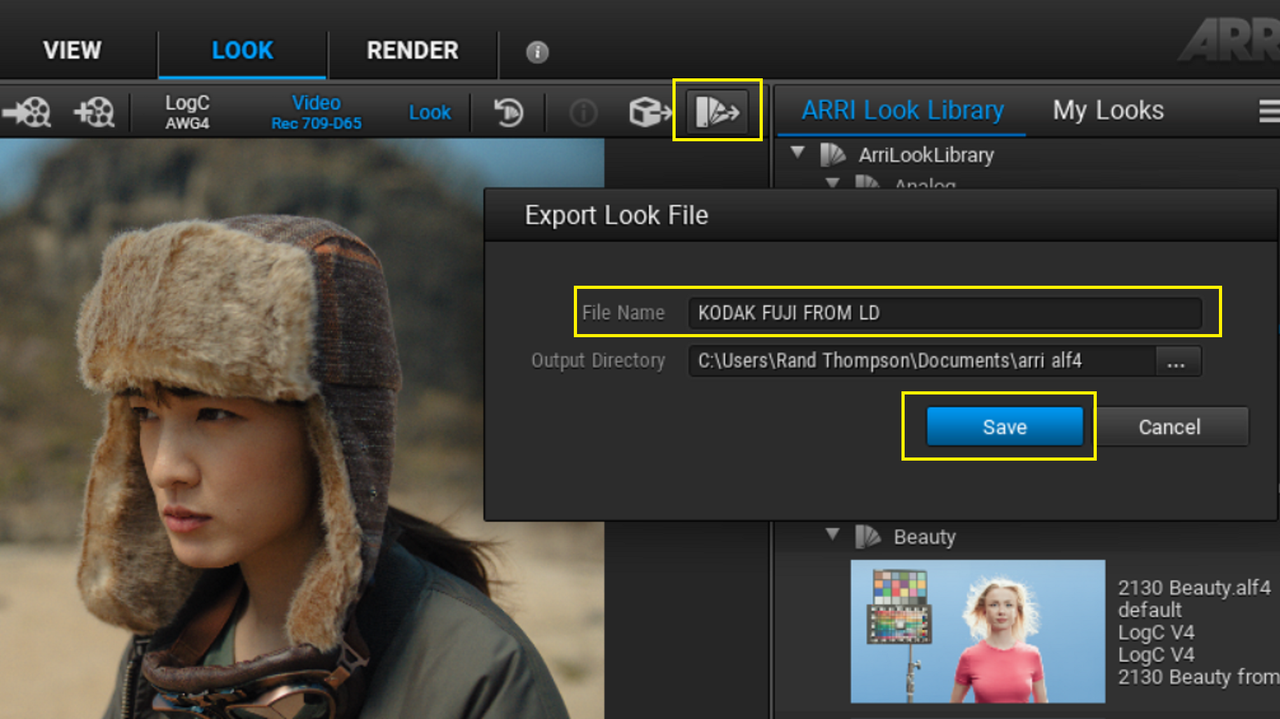
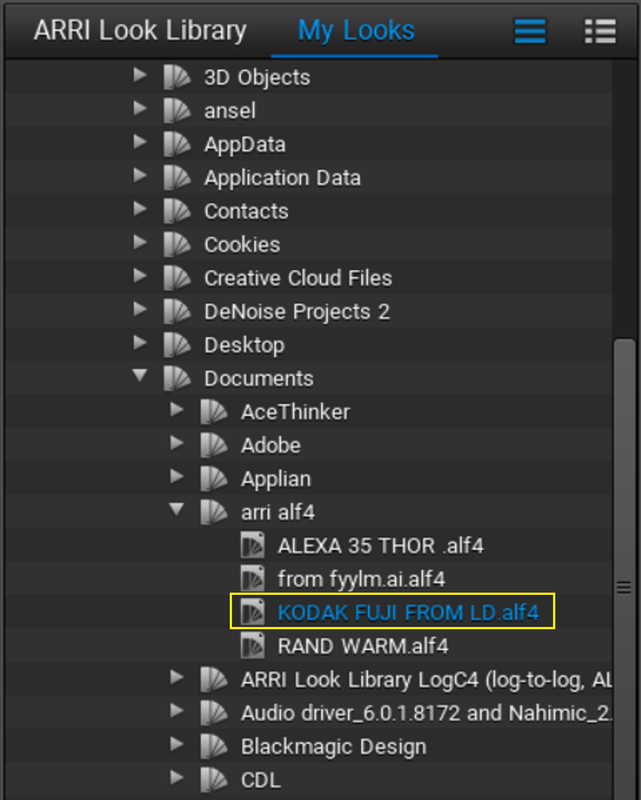
NOW GO BACK TO THE "LOOK" AREA AND SELECT THE "EXPORT LOOK" ICON AT THE TOP "RIGHT-HAND" PART OF THE UI AND EXPORT AN ALF4 LOOK FILE.

25.png

26.png


54.png


27.png


6.png


ARRI IMAGE WITH ARRI AWG4/ALC4 TO REC709 TRANSFORM LUT APPLIED TO IMAGE

with-awg4-lut-1-2-1.jpg


ARRI IMAGE WITH ARRI AWG4/ALC4 TO REC709 TRANSFORM LUT APPLIED TO IMAGE WITH "ALEXA 35 THOR" ALF4 LOOK FILE.


with-fylm-ai-lut-and-awg4-lut-1-1-4.jpg
 
Last edited:
ARRI Tech Talk: How to build your ALEXA 35 Production Set

by ARRIChannel

 
HOW TO MAKE AN AWG4/ALC4 LOG-TO-LOG COMPATIBLE LUT FROM A NODE BASED ACES COLOR SPACE TRANSFORM WORKFLOW WITH AN OFX PLUGIN SOFTWARE NOT COMPATIBLE WITH AN AWG4/ALC4 COLOR SPACE

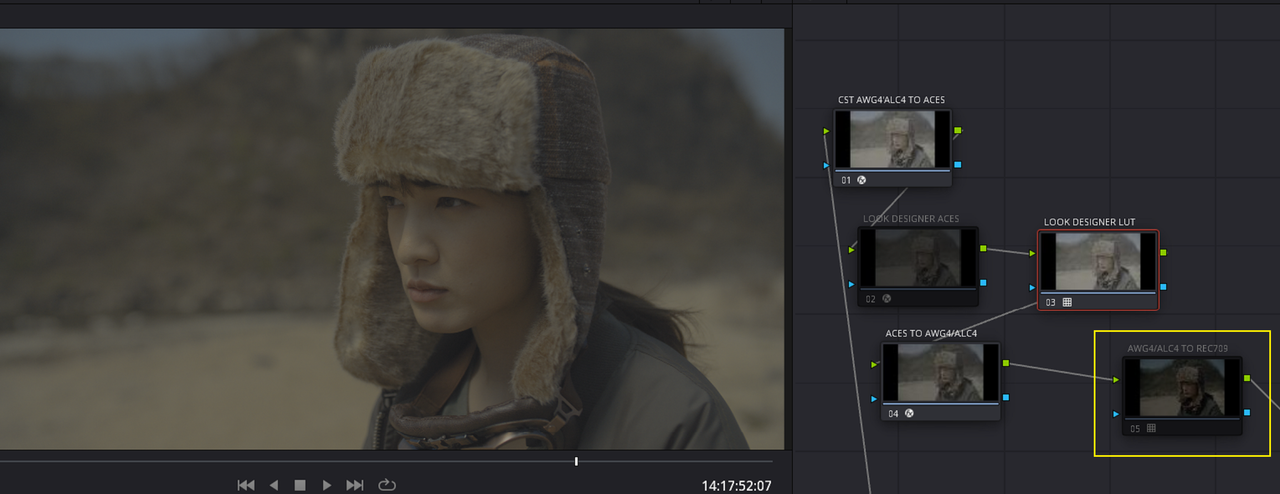
I was trying to find a way to use both "LOOK DESIGNER" (an OFX PLUGIN) and RAVENGRADE (A DCTL PLUGIN), both of which have not been updated for the AWG4/ALC4 ColorSpace , To make an AWG4/ ALC4 Log-To-Log compatible Lut which would also be compatible for an ALF4 Look File.

I use different forms of ACES workflows and I wanted to create this Lut inside of one of those workflows. So below is what I came up with.


IN RESOLVE-Part 1

PROJECT SETTINGS AND WORKFLOW.

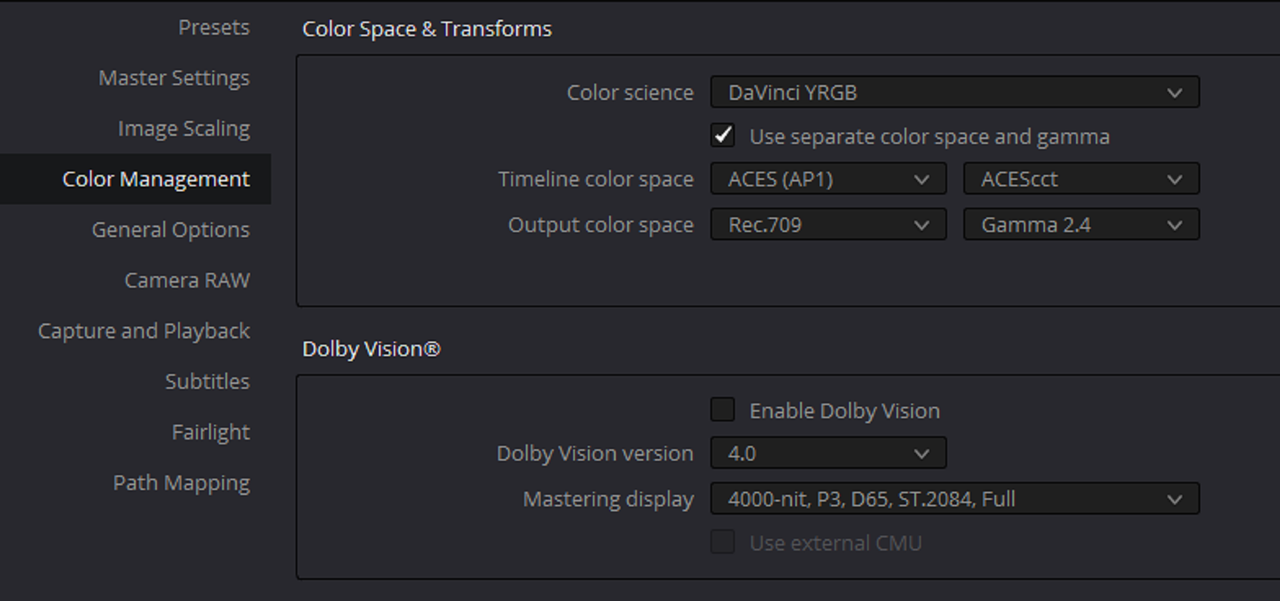
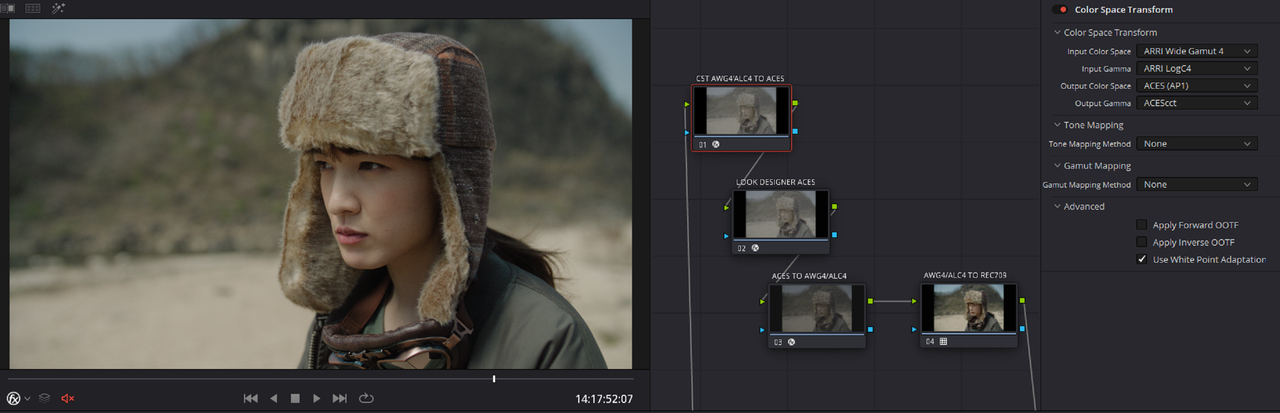
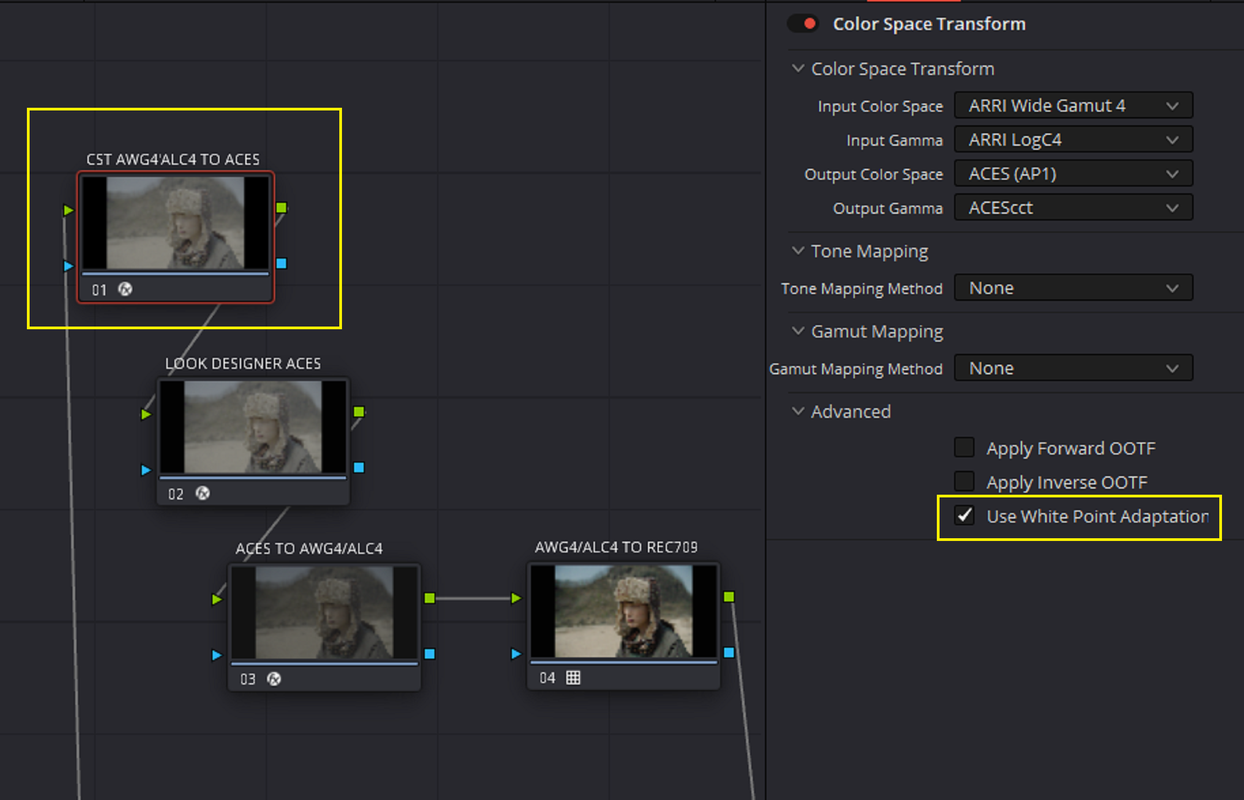
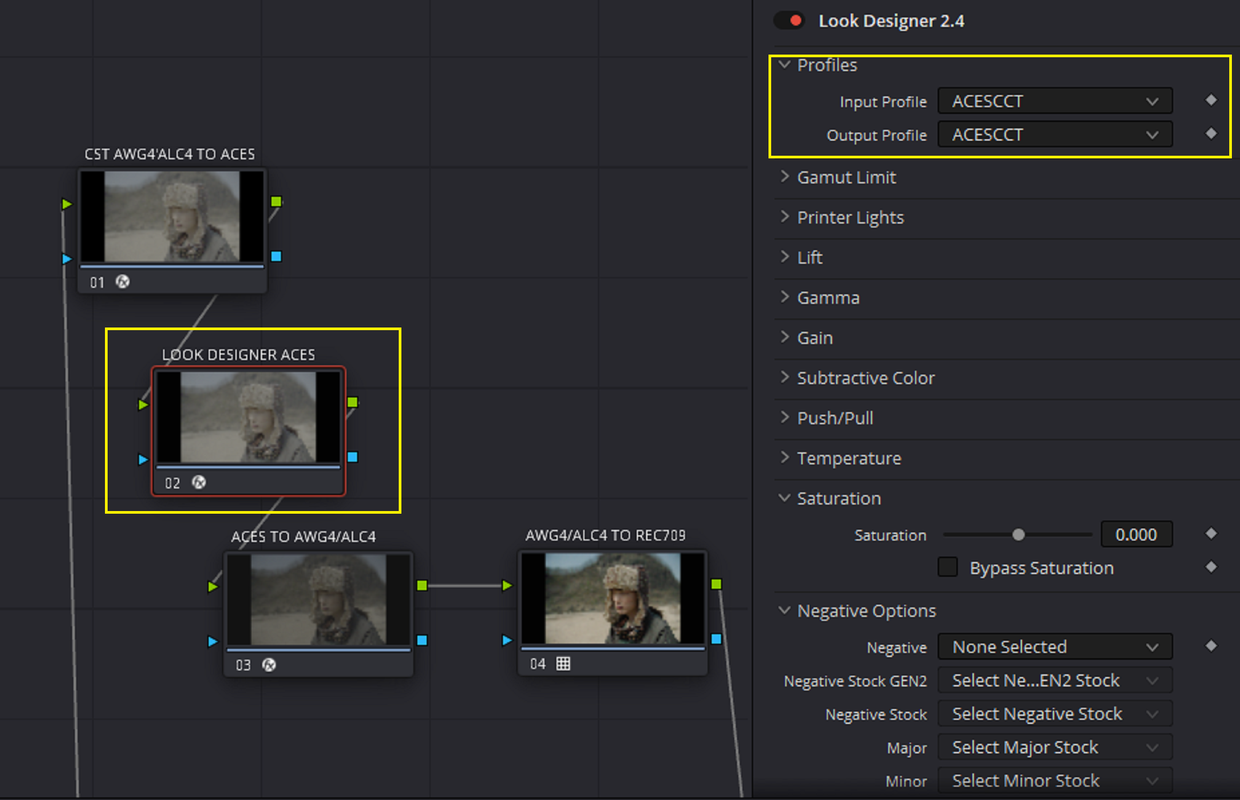
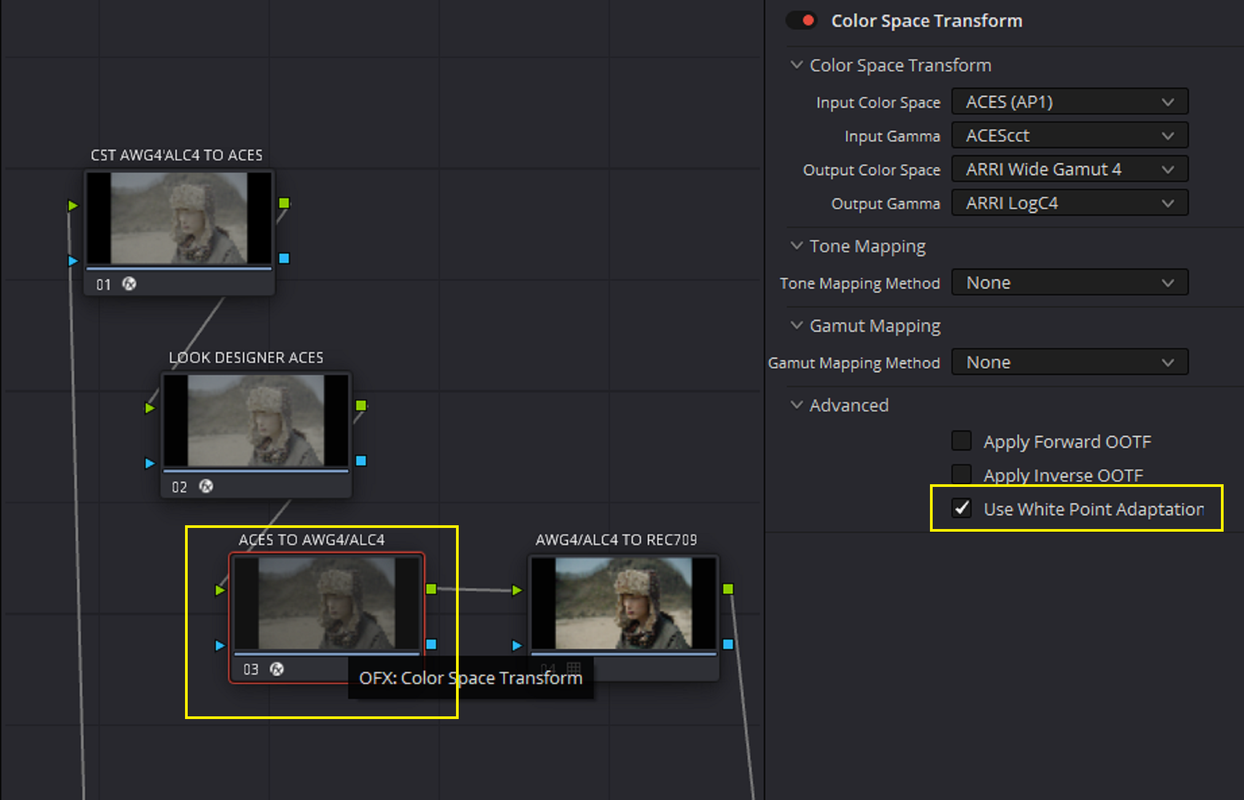
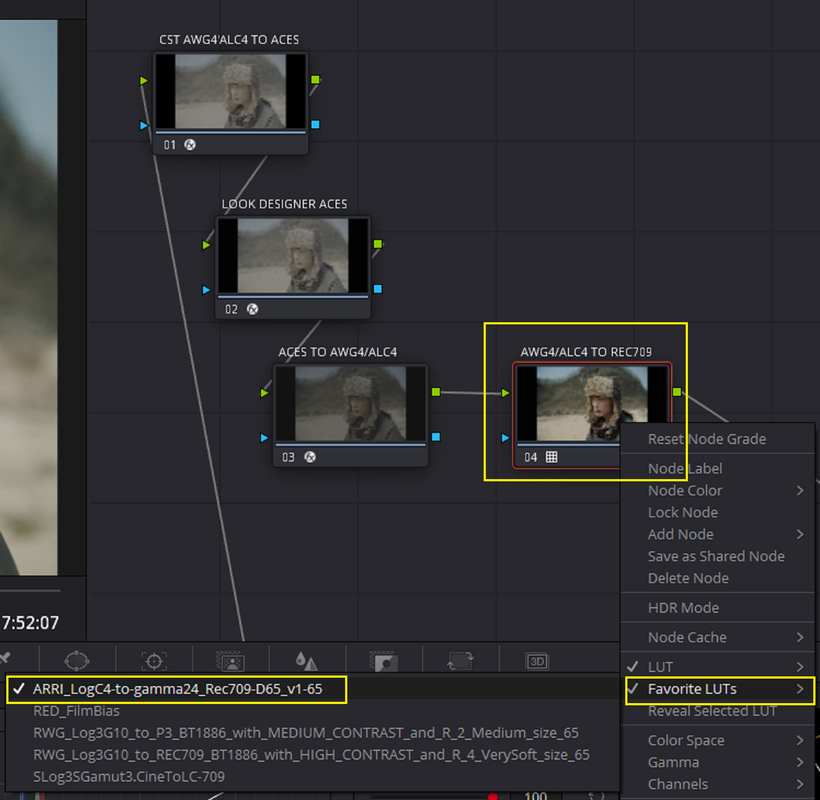
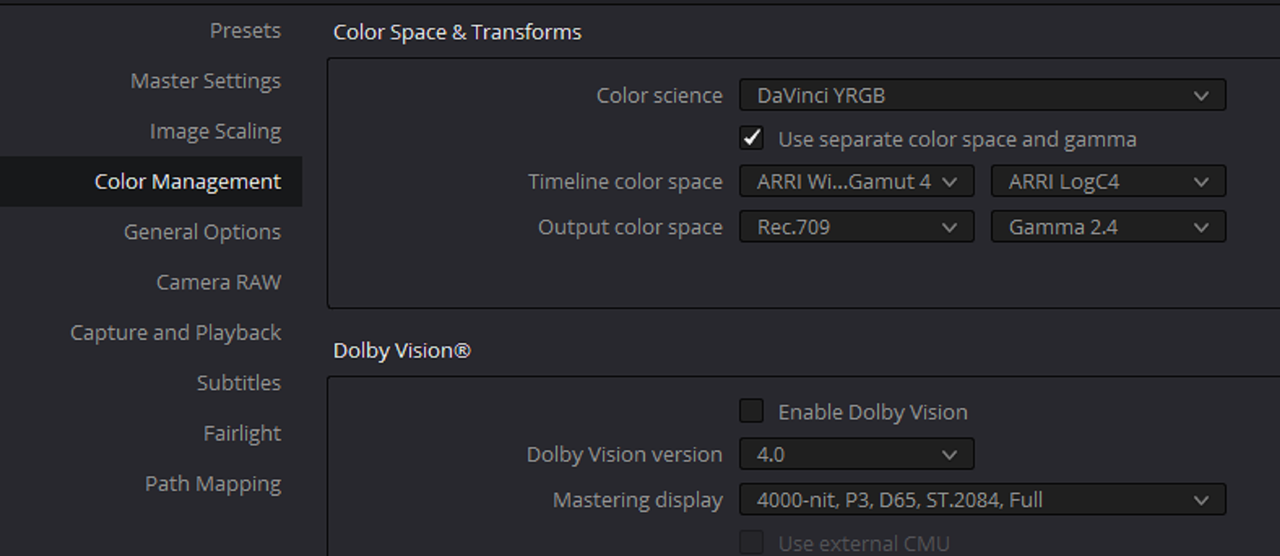
Here is the Project settings and how each of the Node are setup for this workflow.

1.png


2.png


3.png


4.png


5.png


6.png


6A.png


NEXT RESOLVE PART 2................................
 
IN RESOLVE PART 2


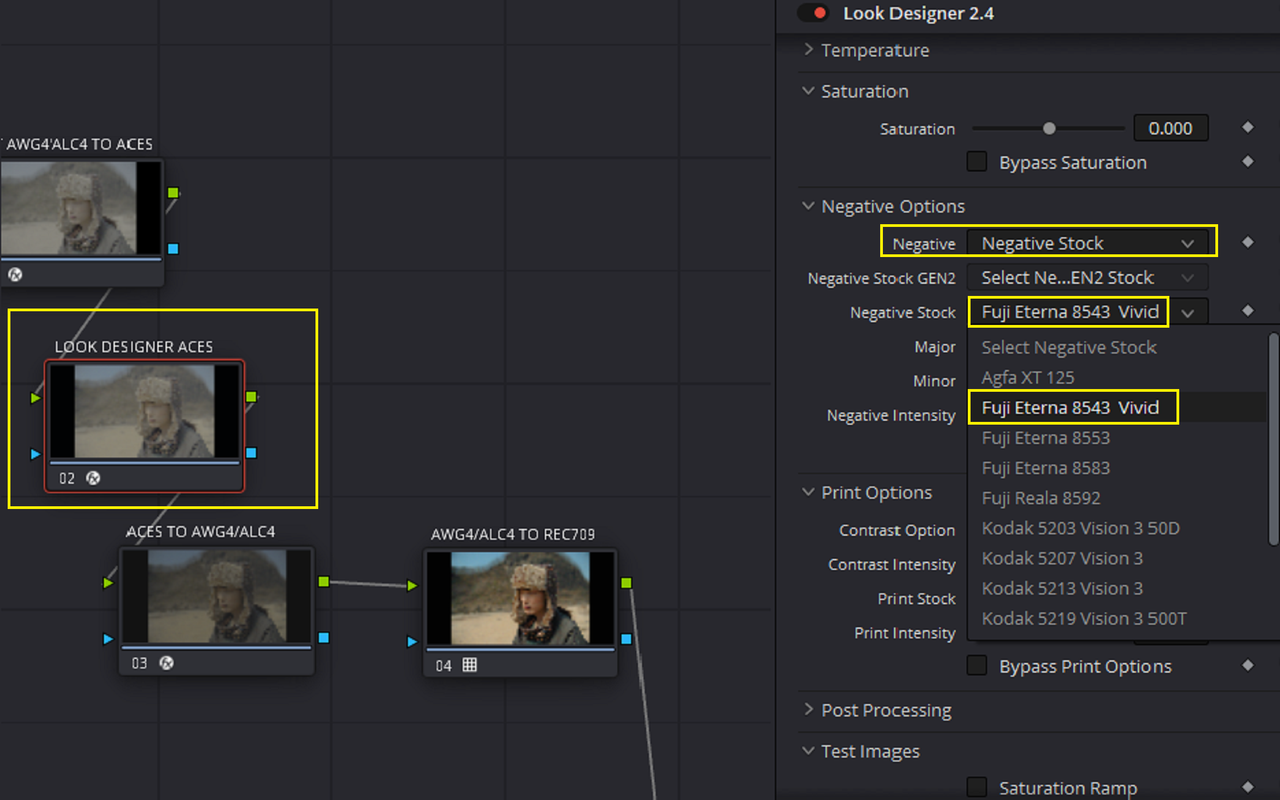
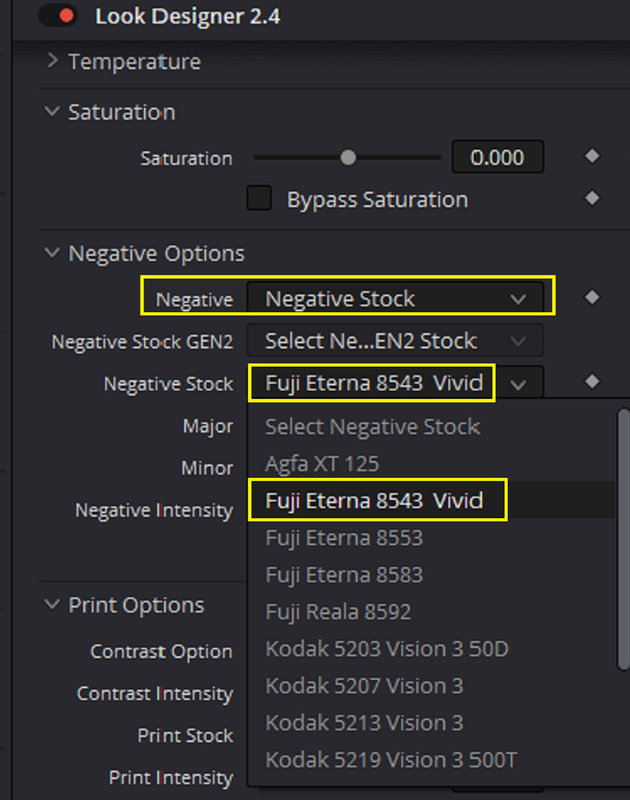
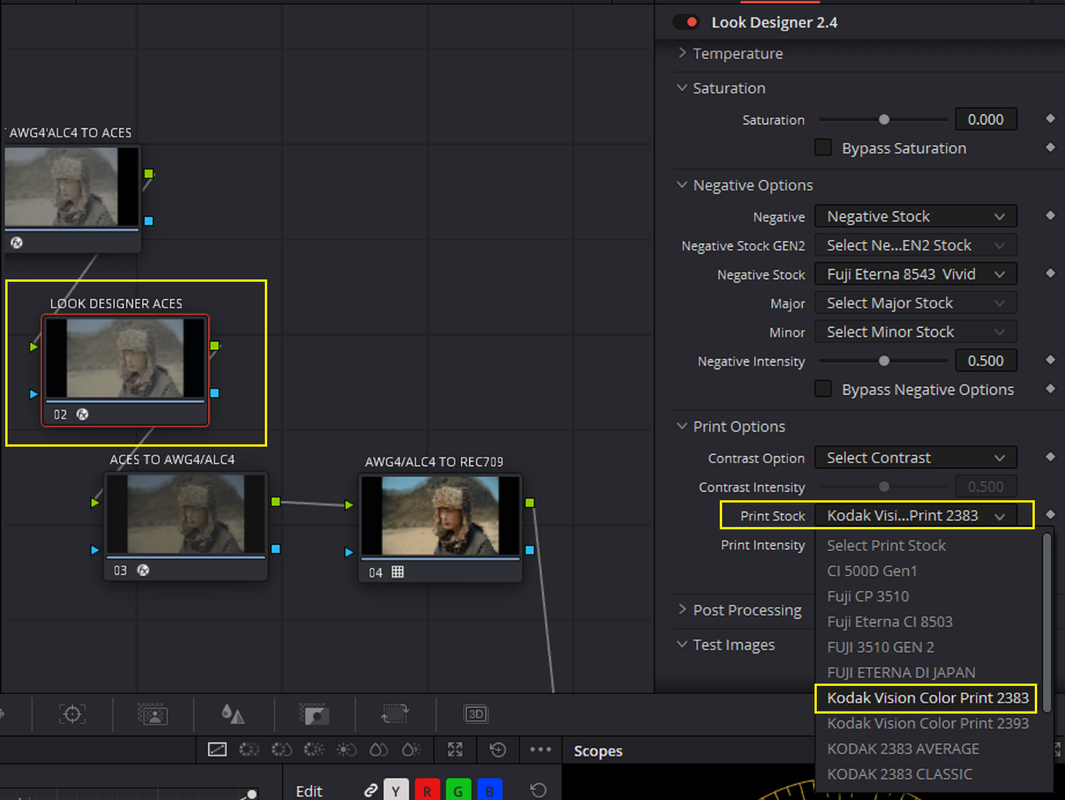
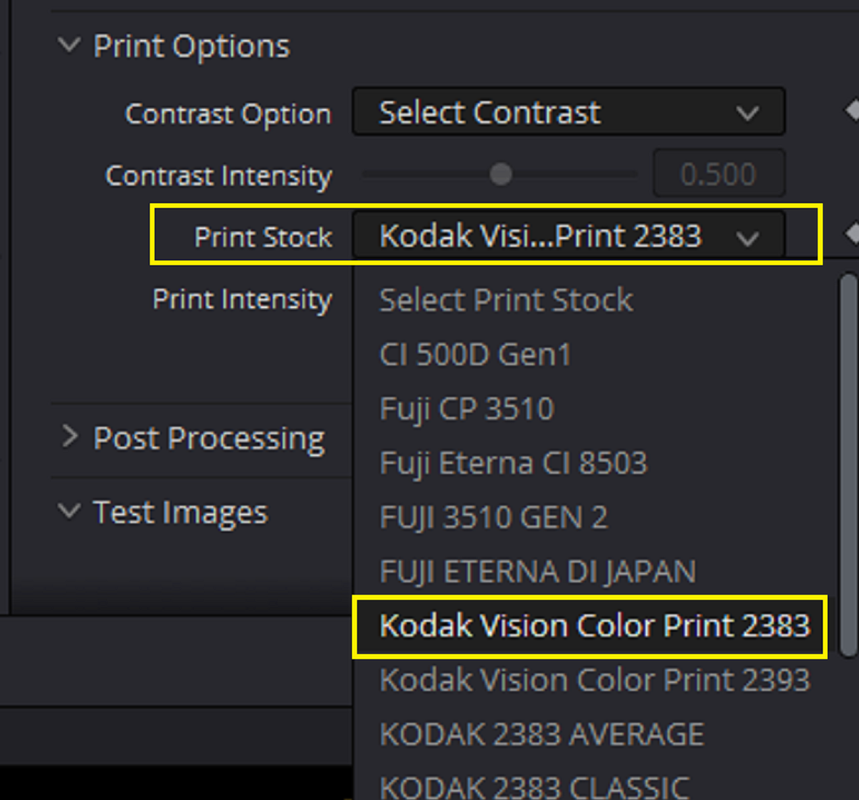
1)Here are both the "NEGATIVE FILM STOCK" and "PRINT FILM STOCK" settings I used in "LOOK DESIGNER" which is in NODE 2.

7.png


72.png


8.png


82.png


6770.jpg


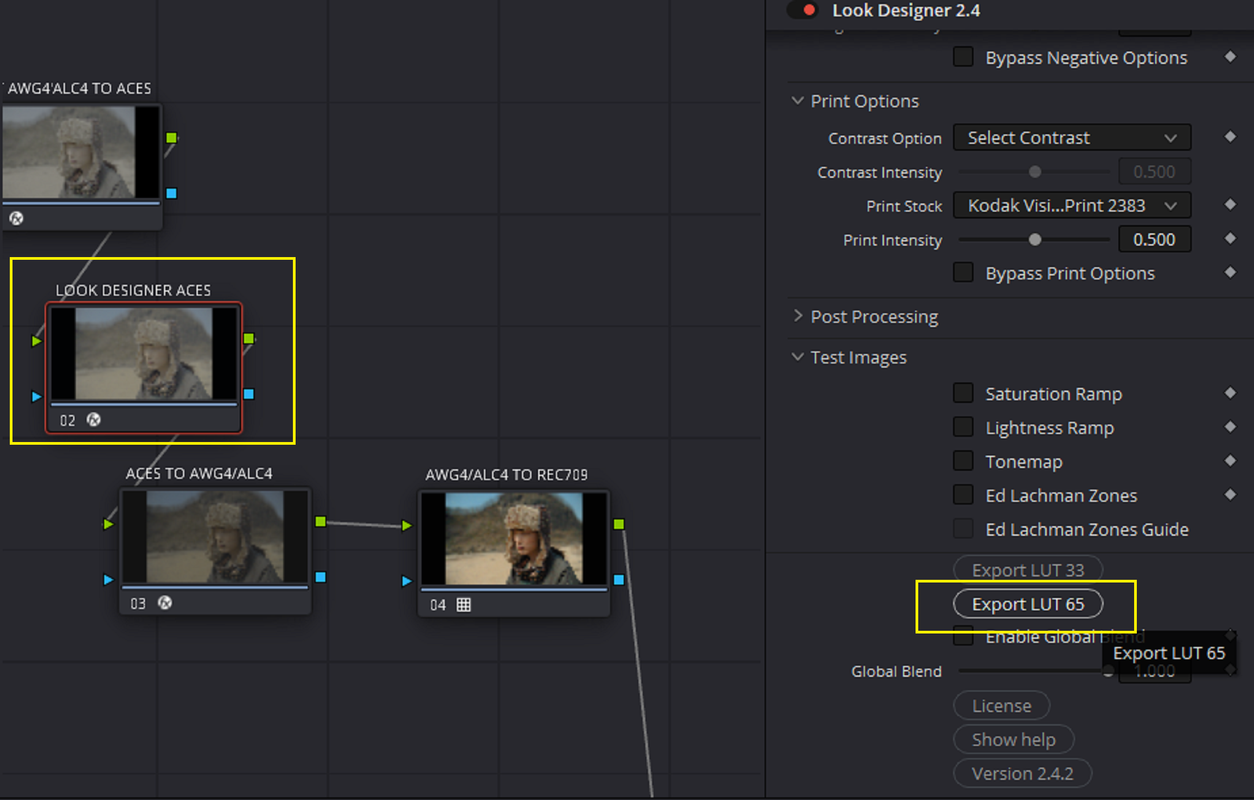
2) Next, I Export Out a "65 CUBE SIZE" Lut from "LOOK DESIGNER"

9.png


10.png


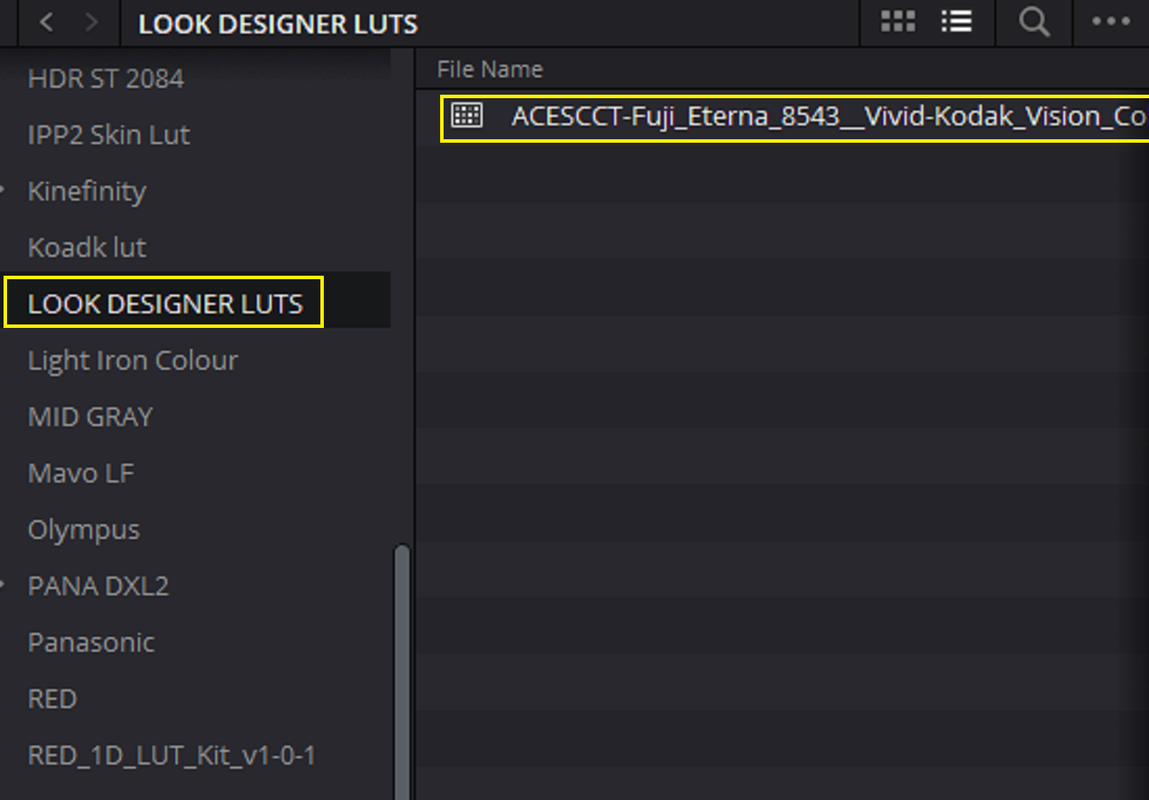
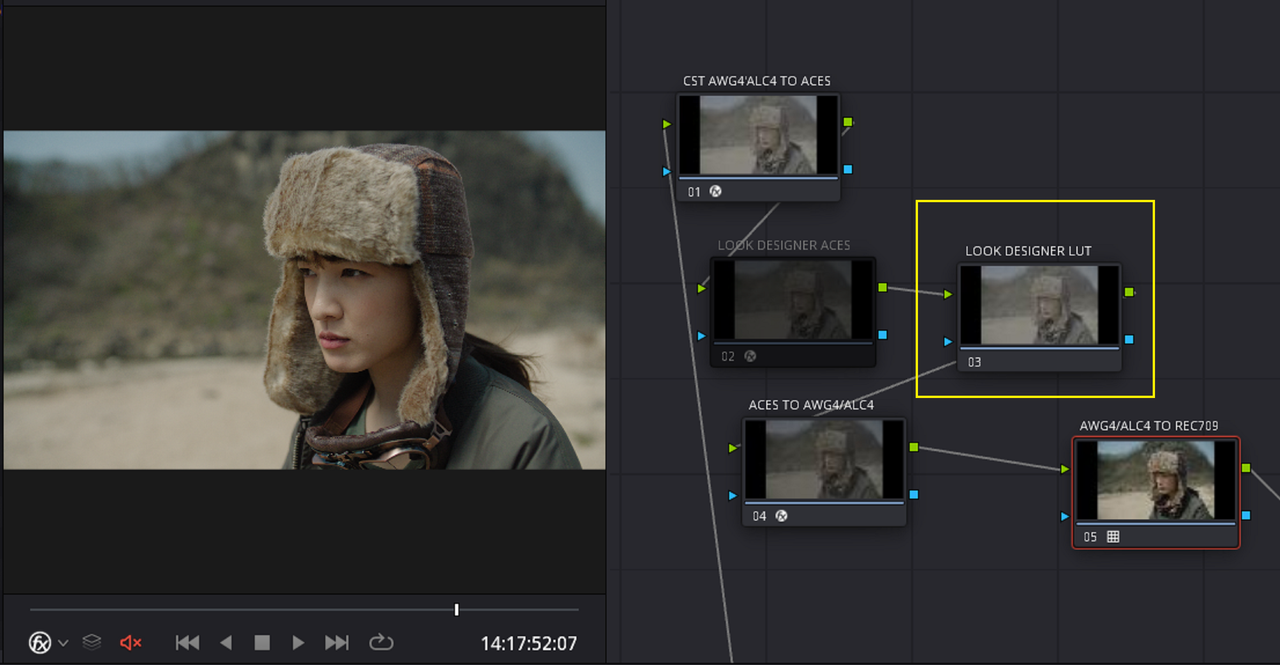
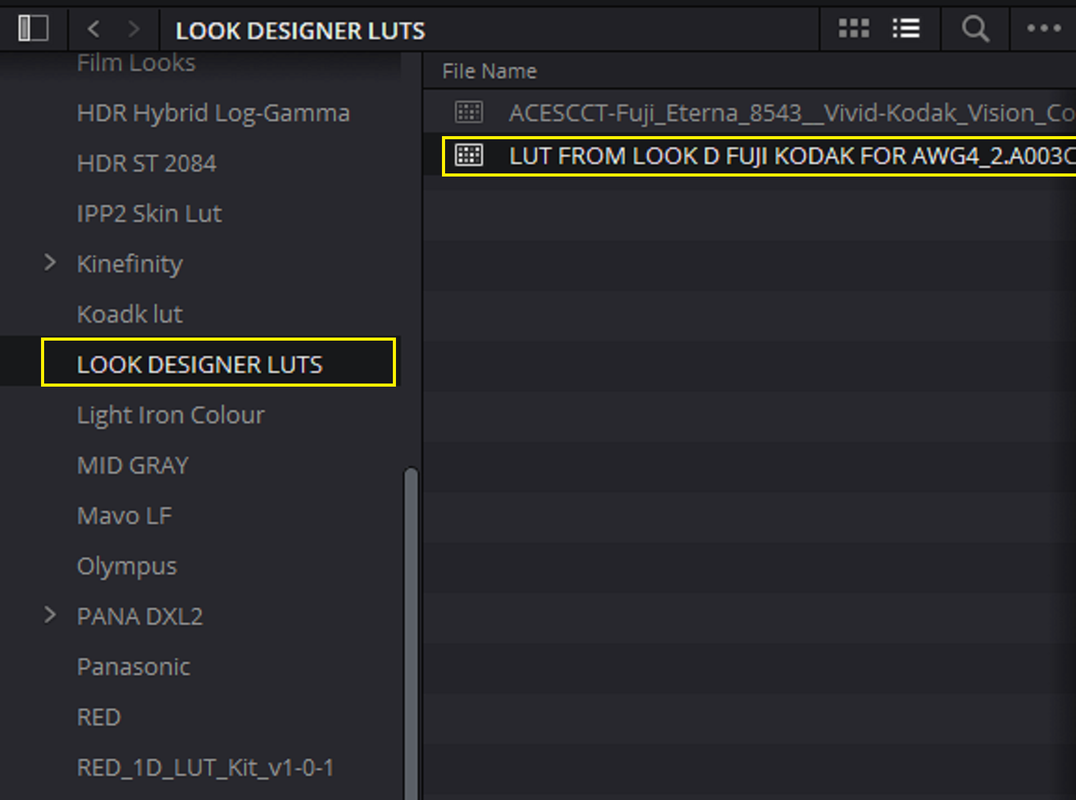
3) Now After I have installed the Lut I exported out of Look Designer into my "LUT FOLDER" , I will 'DISABLED" the Node with the LOOK DESIGNER OFX Plugin in it and add a Node for the LOOK DESIGNER LUT in the Node Tree

11.png


12.png


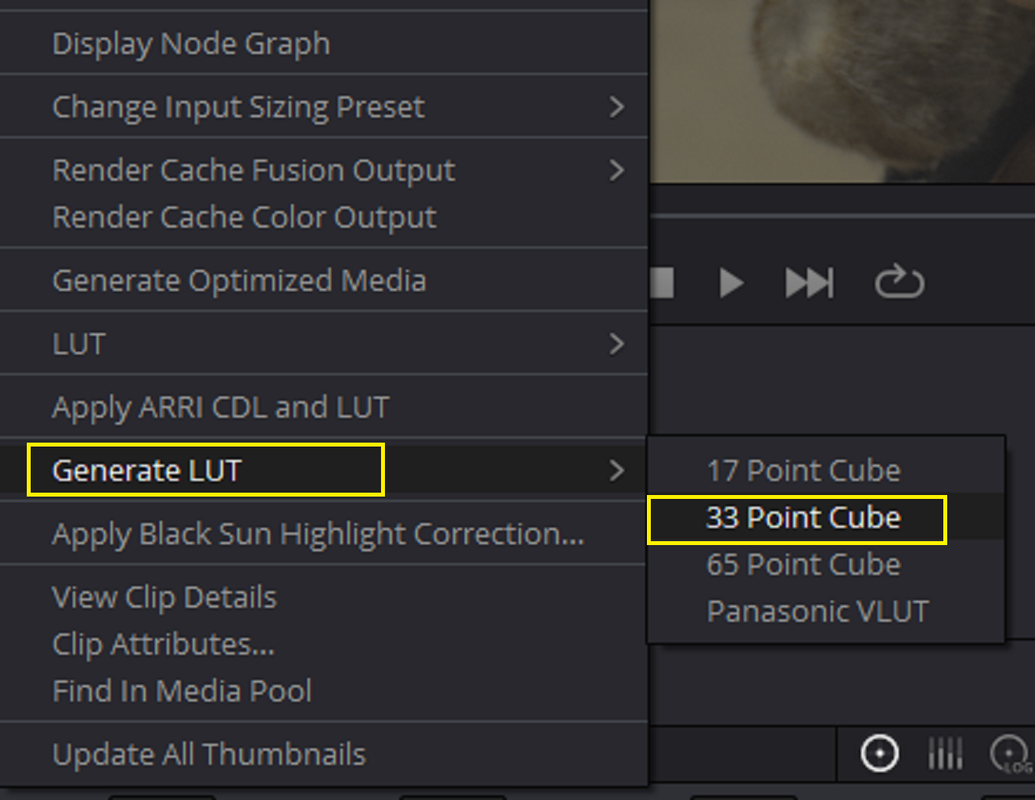
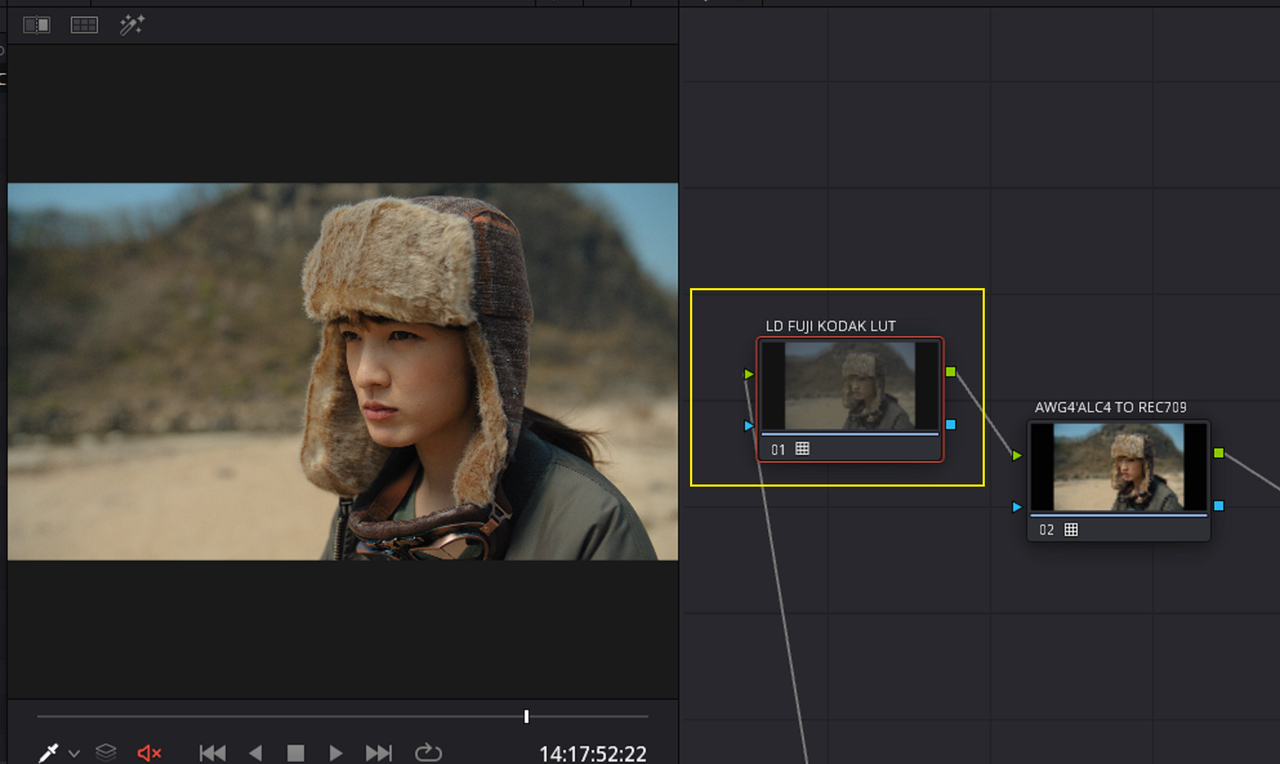
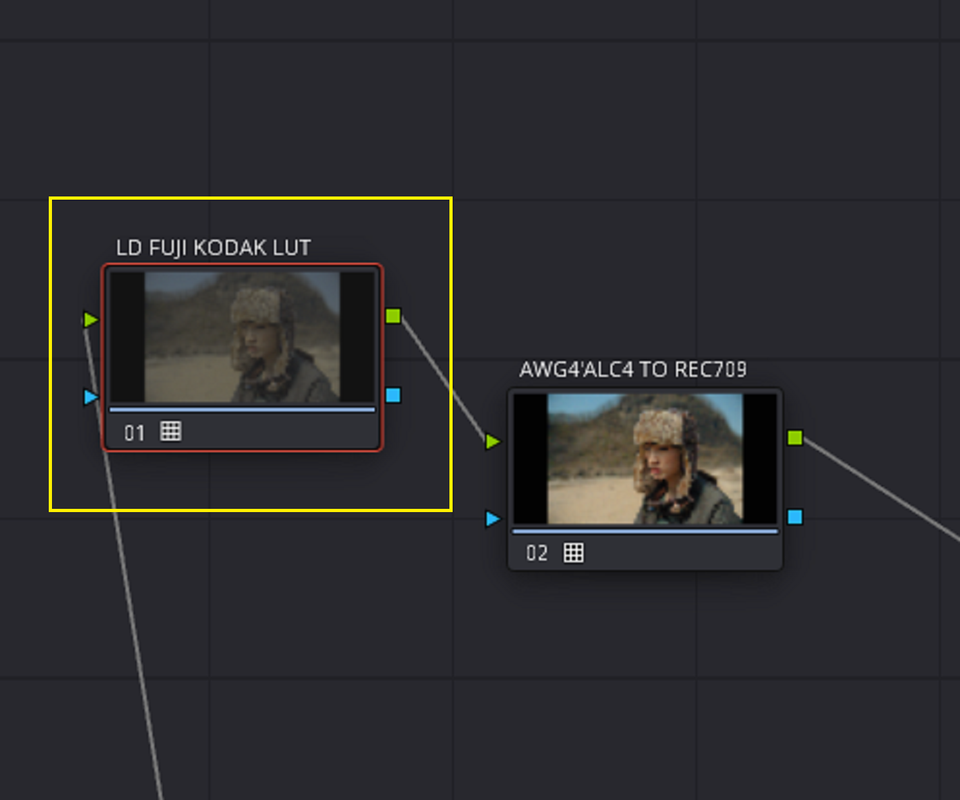
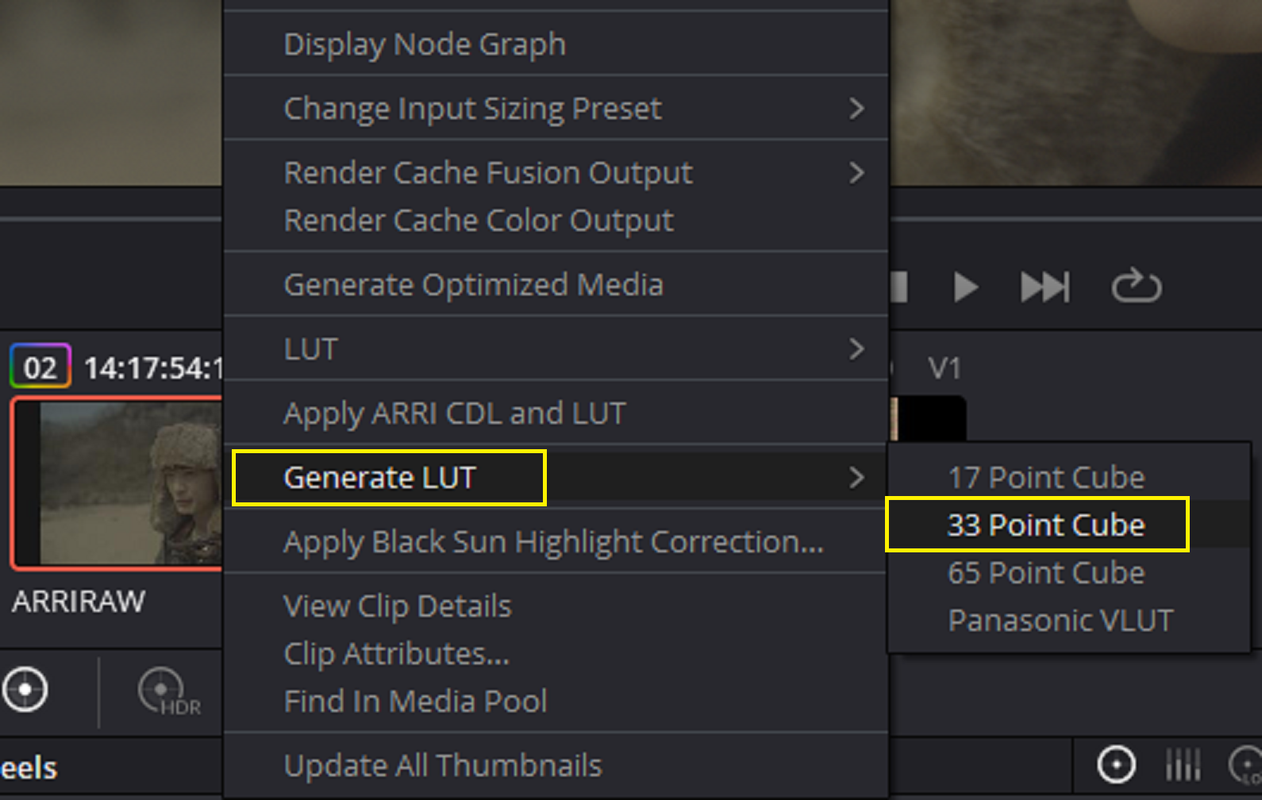
4) Next, I will only Disable the Last Node in the Node Tree, the one with the Official ARRI AWG4/ALC4 to REC709 Transforn Lut In it, and "Right-Click" on the Clip with the grade on it in the "CLIP VIEW" area and Select "GENERATE LUT" then "33 POINT CUBE"

14.png


15.png


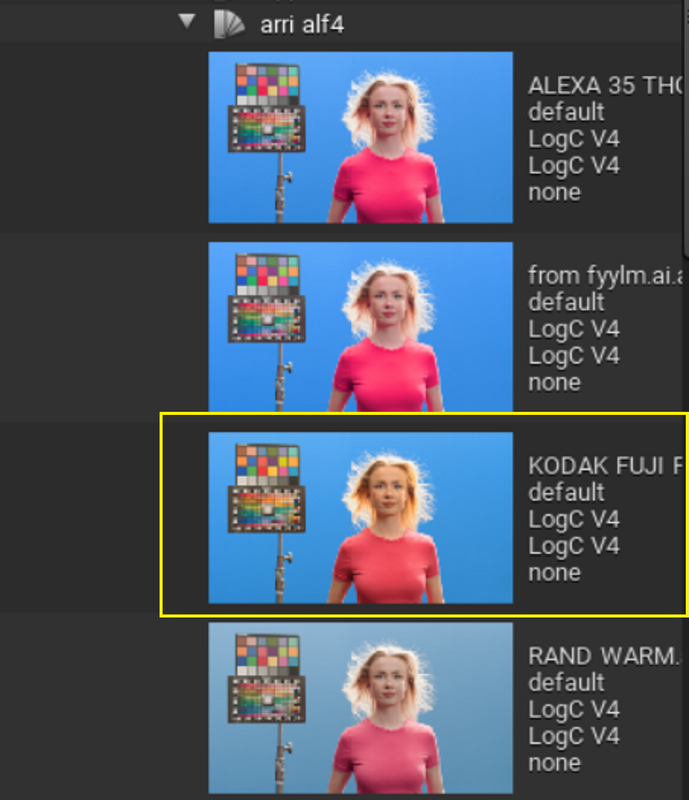
NOW, I can already use this Lut I called " LUT FOR LOOK D FUJI KODAK FOR AWG4" as a "CREATIVE" "LOG-TO-LOG" Lut within a AWG4/ALC4 Lut Based workflow. But I wanted to continue on to the ALF4 LOOK File Creation as well.

32.png


Screenshot-5730.png


Screenshot-5731.png


Screenshot-5732.png


6770.jpg


NEXT PART 3 ARRI REFERENCE TOOL.......................
 
Last edited:
ARRI REFERENCE TOOL


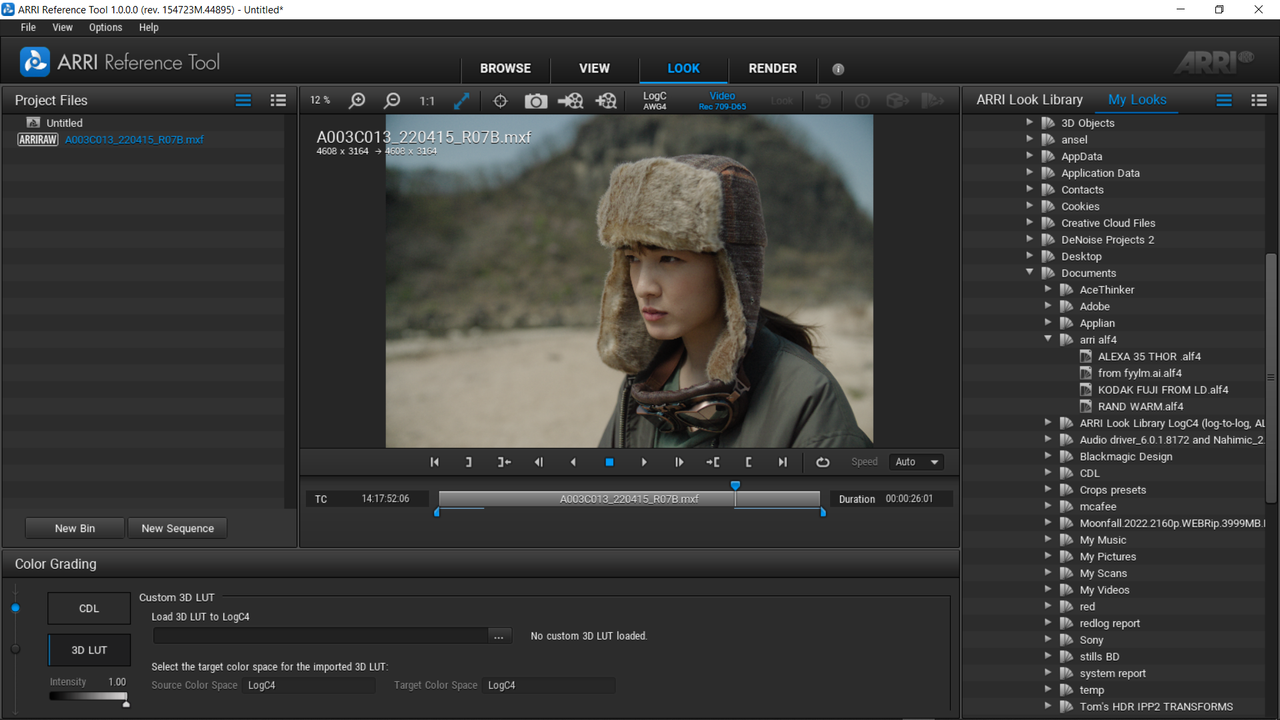
Here I am Back in the ARRI REFERENCE TOOL in the "LOOK" area.

16.png


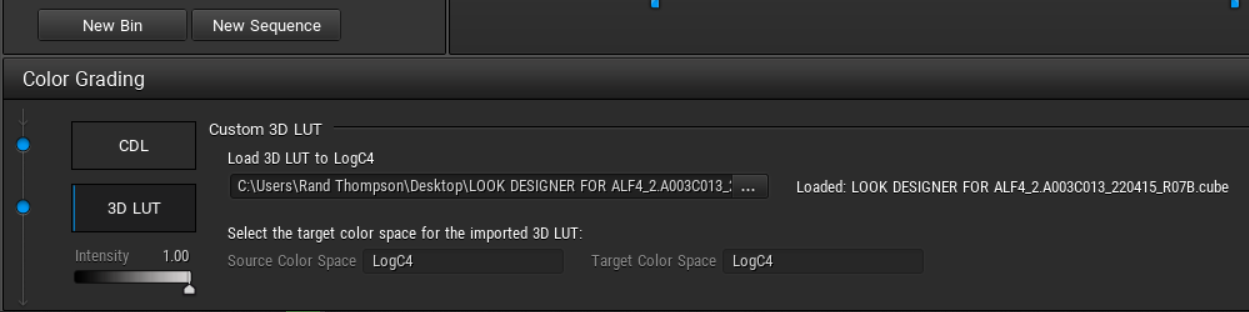
1) Now I go again to the bottom of the UI to the "COLOR GRADING" area and Chose the "3D LUT" button. then use the three dot button "..." to import the Lut from Resolve.

17.png


18.png


19.png


2) Now I just use the "EXPORT LOOK" Icon at the top "Right-Hand" corner on the UI and Export out a ALF4 LOOK FILE Again.


20.png


23.png


24.png


6709.jpg
 
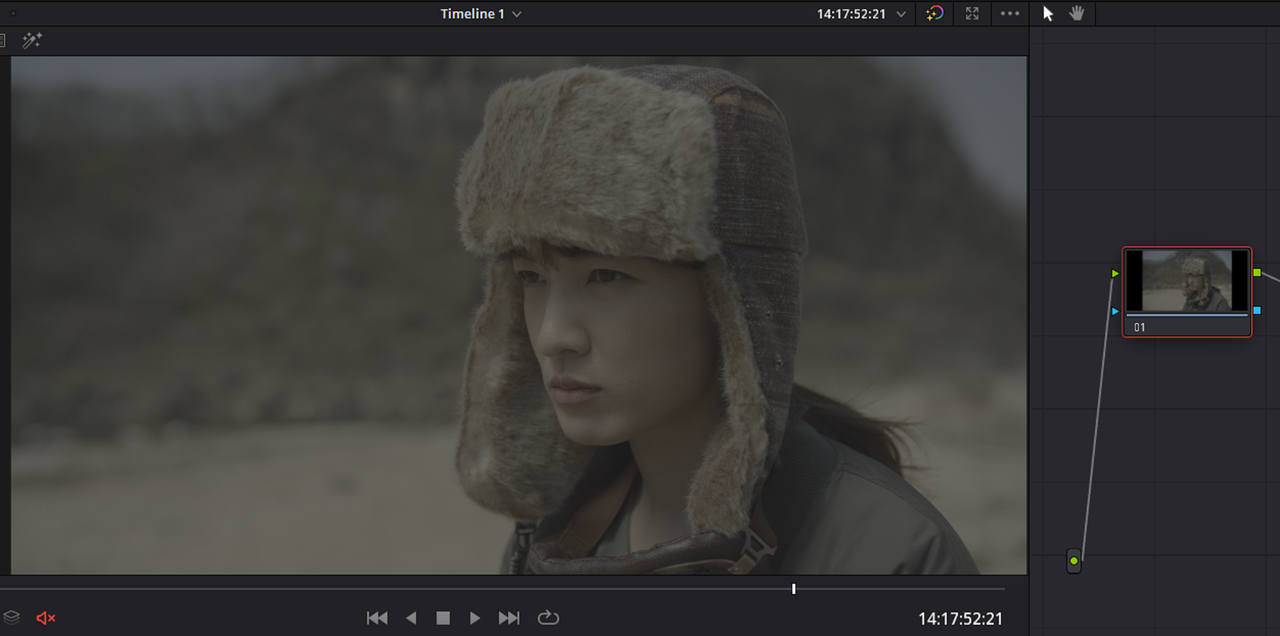
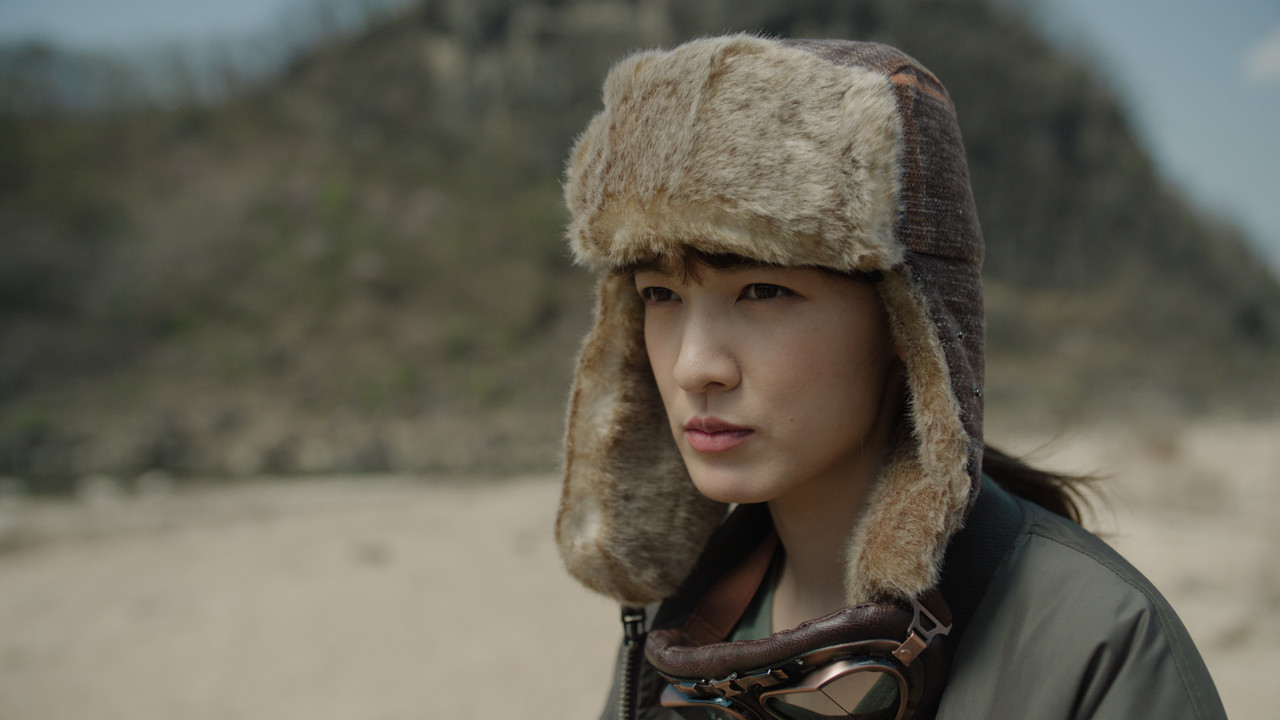
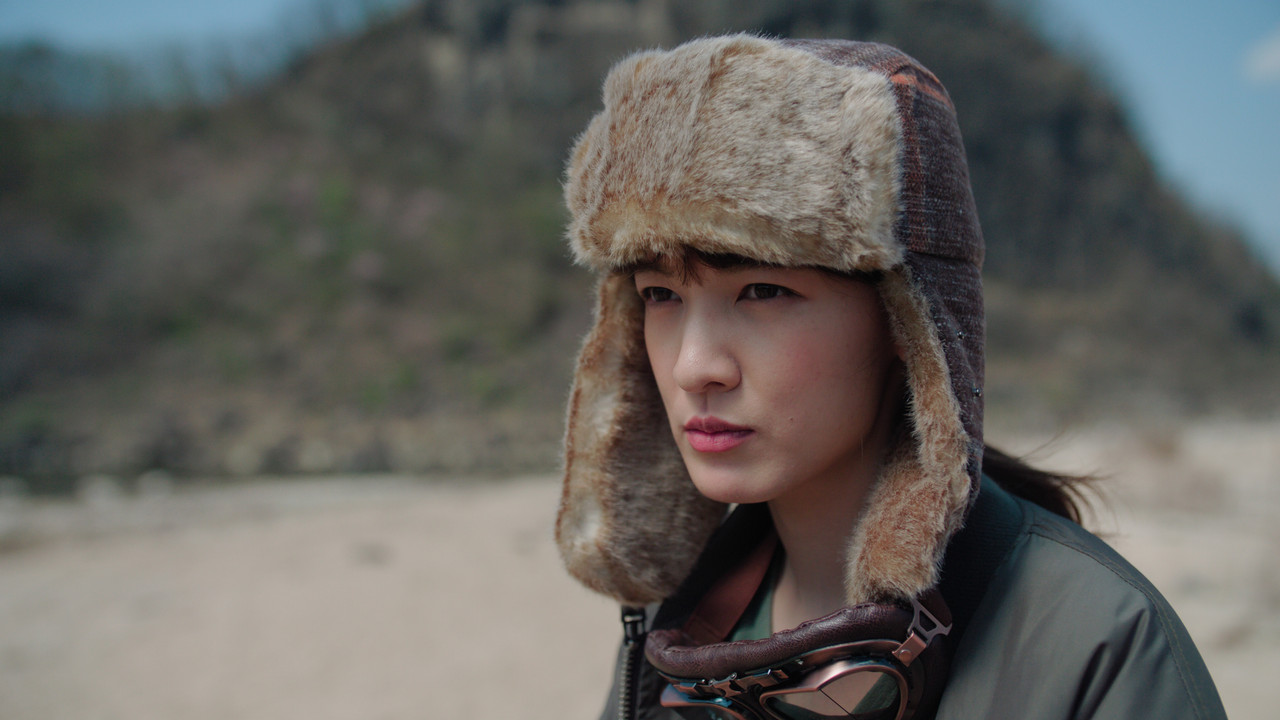
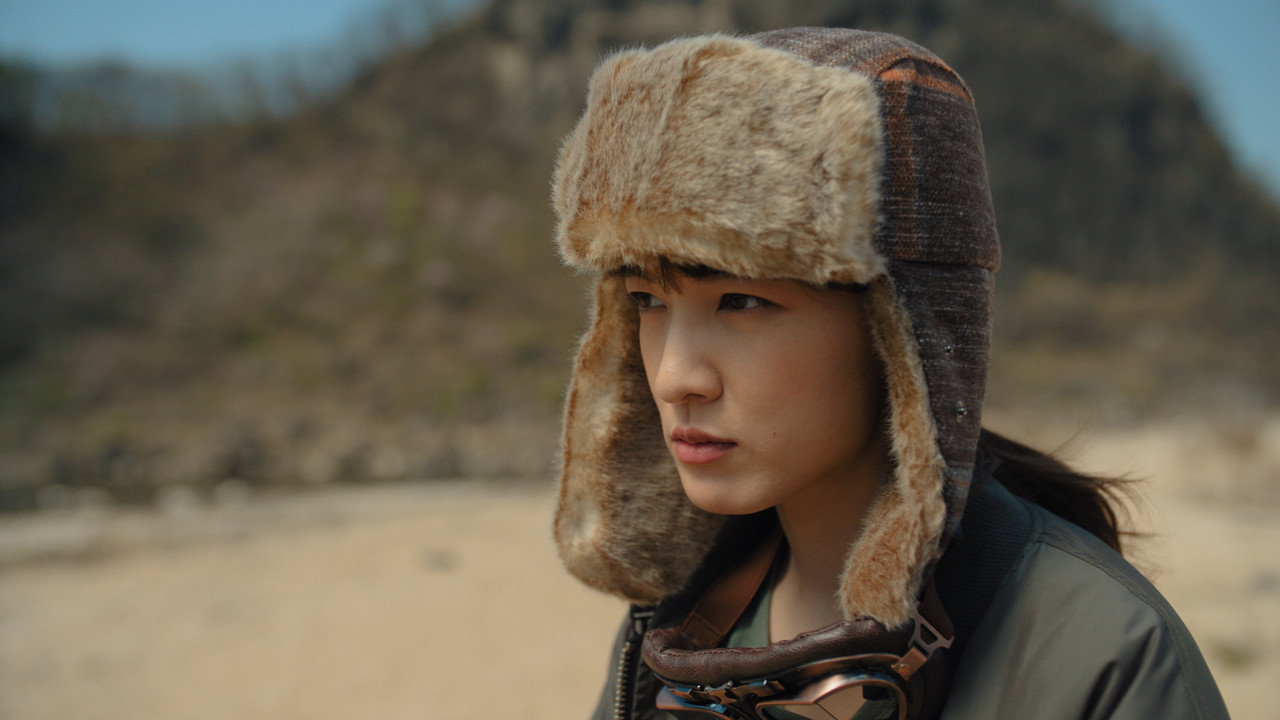
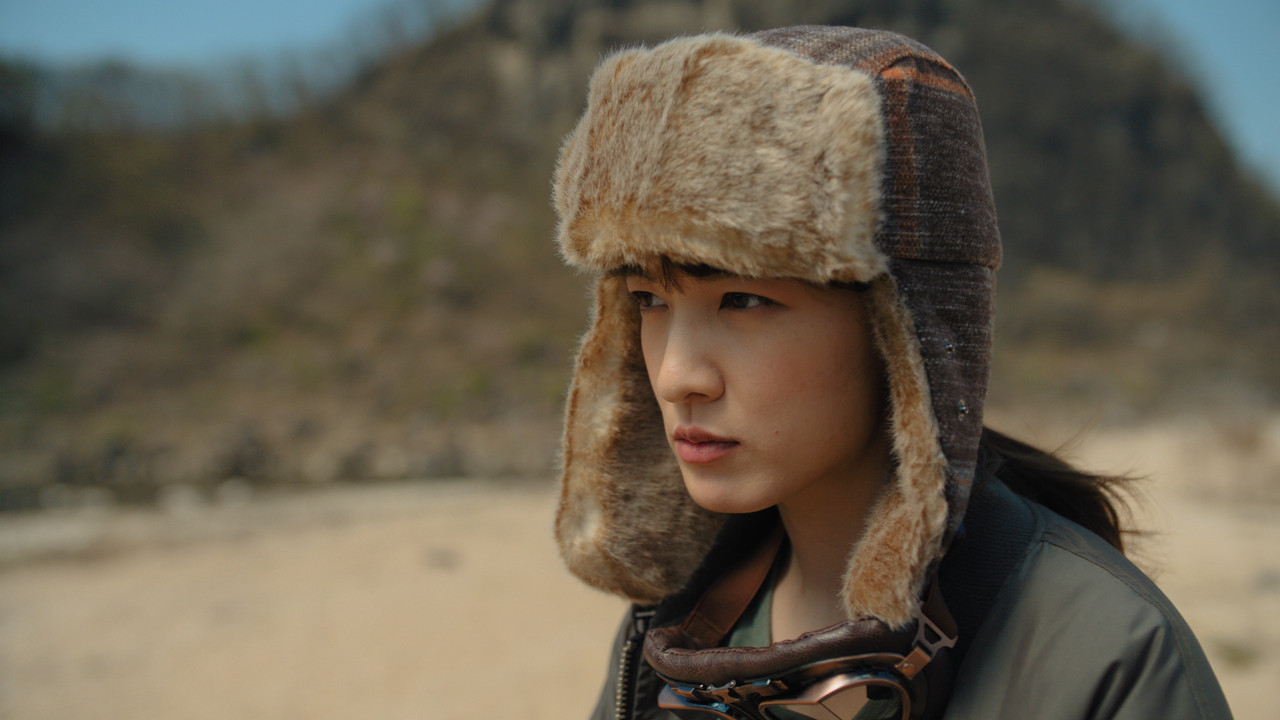
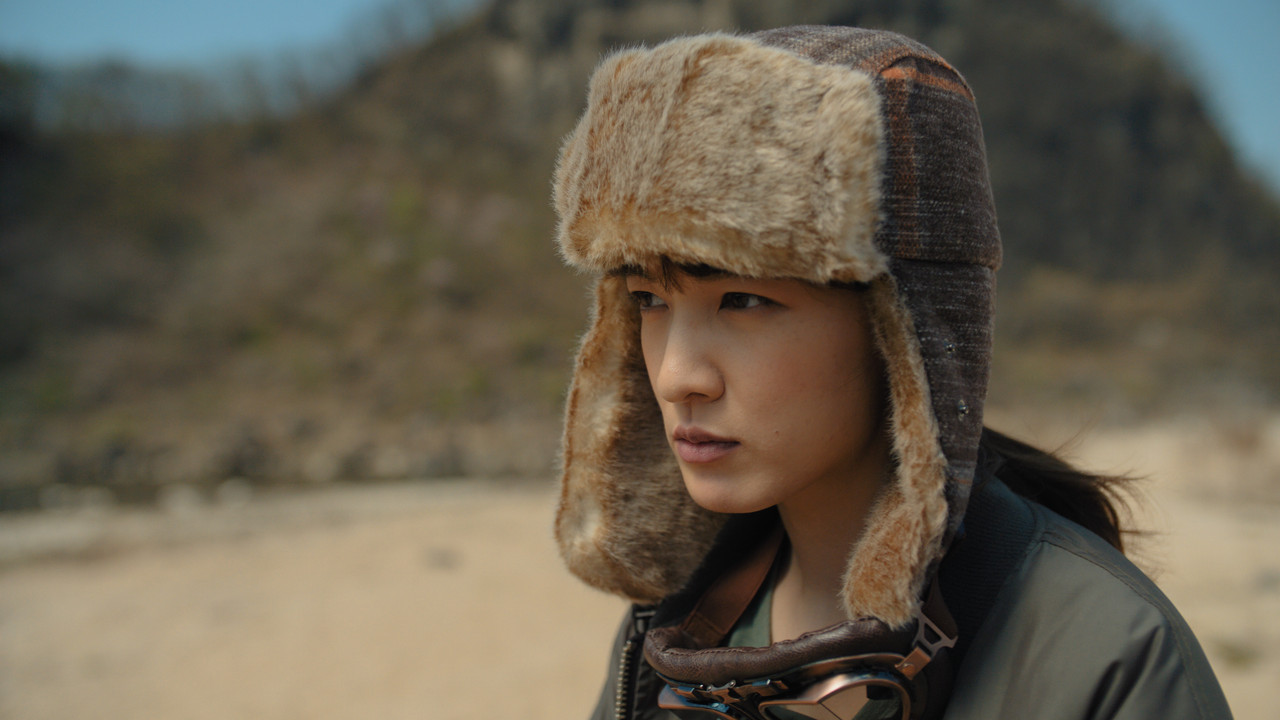
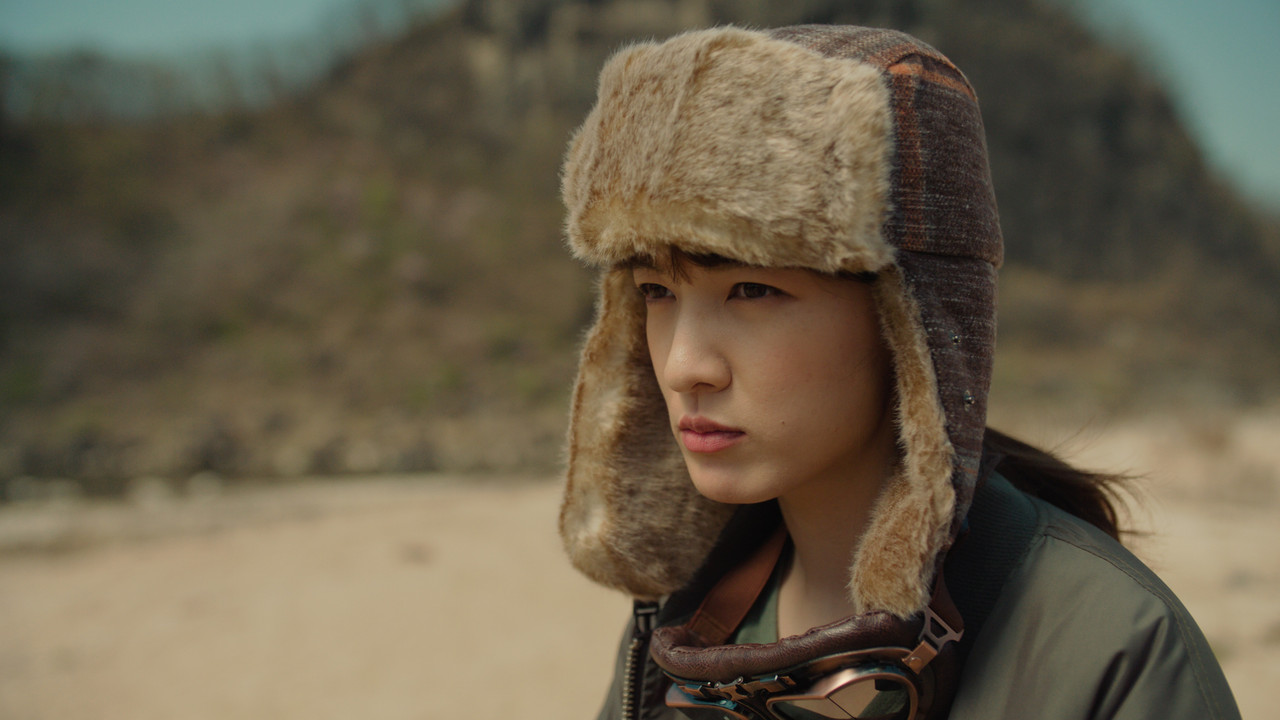
IMHO her makeup is a bit too aparent...

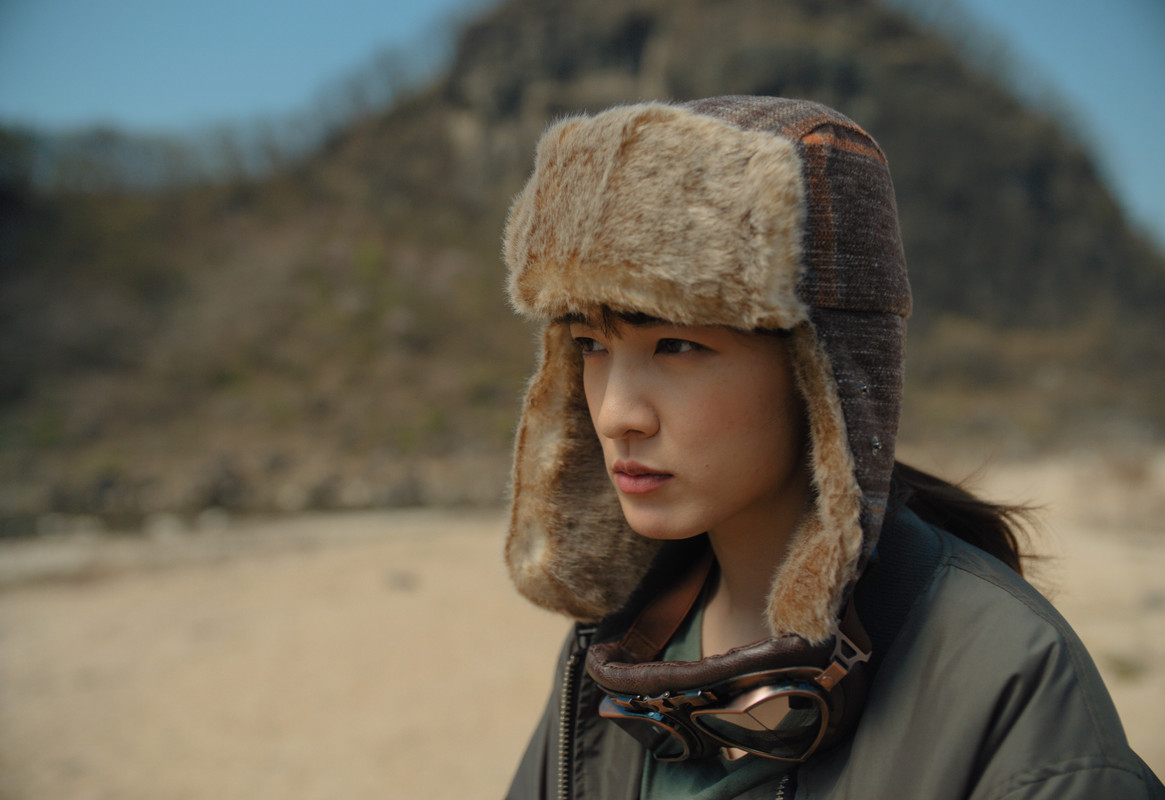
You can always make it less apparent . But that's the makeup artist's job. You can either go with it or counteract it but who were you to go against the original intent. Also, this is a Korean skin tone so how much of the look is makeup and how much comes from here complexion, I don't know. Plus I did use a FUJI Negative and Kodak PRINT FILM Emulation which could have exacerbated the appearance of too much makeup.


1-2-2-1-2-2.jpg


1-2-1-1-2-1.jpg
 
How to make a Lut from a DCTL with Davinci Resolve, 3D Lut Creator Pro and a Hald File for a general grading Lut and for an ARRI AWG4/ALC4 Workflow and an ARRI ALF4 LOOK FILE.


RAVENGRADE and DCTLs-Part 1


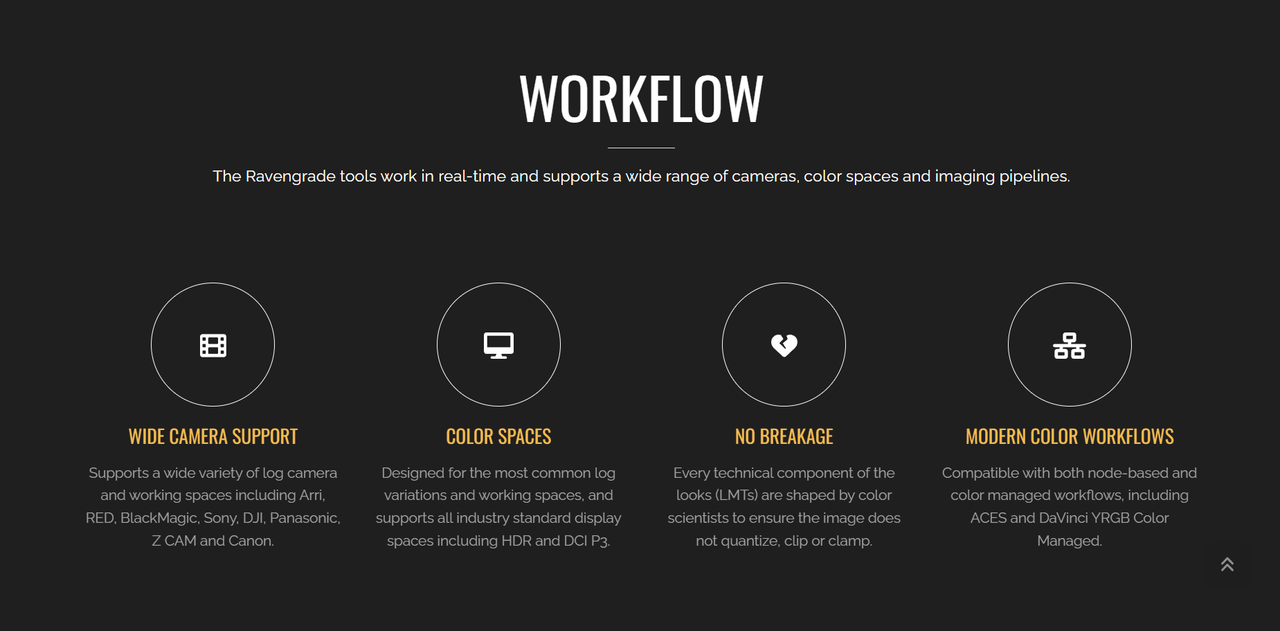
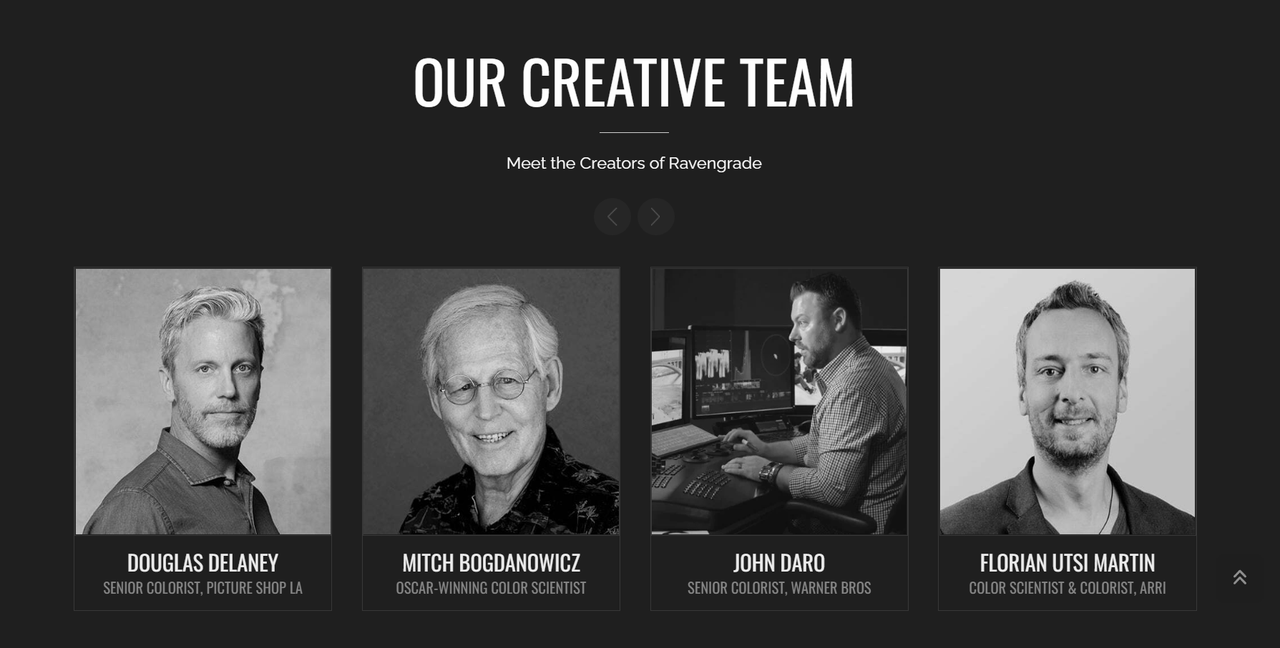
First here is an introduction to RAVENGRADE

Website
Ravengrade


Screenshot-5782.png


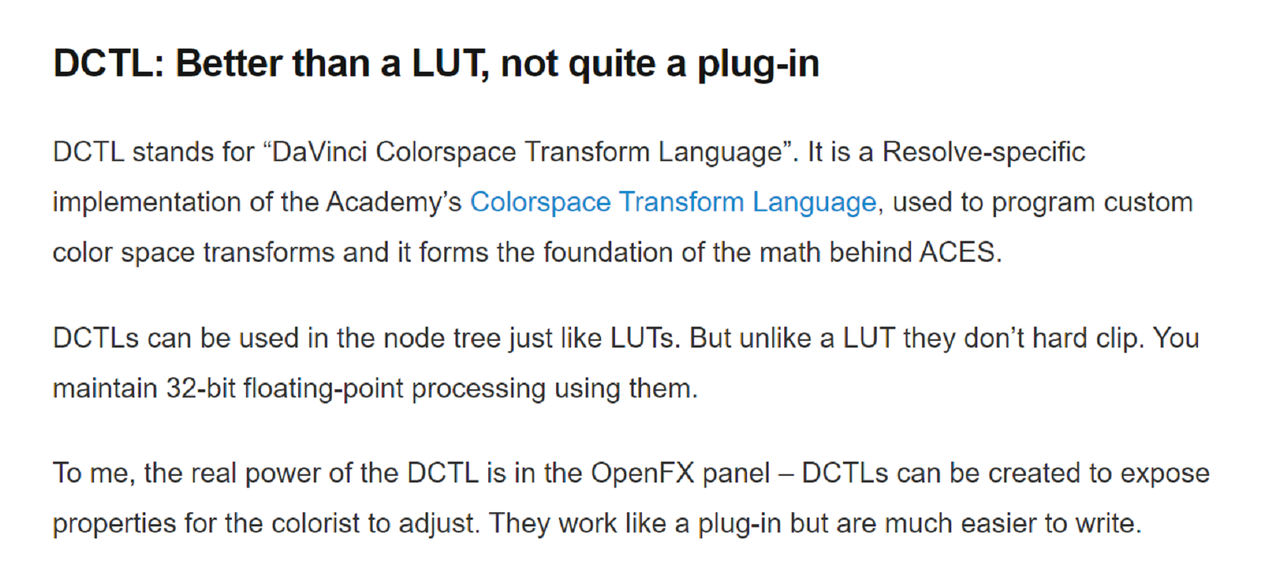
Here is also a basic definition of what a DCTL is from Mixinglight.com

Using DCTLs And Expanding Resolve's Functionality (mixinglight.com)


Screenshot-5783.png


With all of the benefits of a DCTL for grading, most don't allow you to "EXPORT" a Lut from it nor can a DCTL Grade be imbedded into a "GENERATE LUT" export from Resolve.

37.png


So If you wanted to create a LUT from a DCTL designed for Grading Images Like RAVENGRADE, what can you do?


Cullen Kelly demonstrated a technique for doing this in the "SHOWLUT MASTERCLASS" I was enrolled in this summer but unfortunately it required Lattice A Mac OSX Program and I was on Windows. He used a HALD file to do this and having used a Hald file to combine a creative Lut and a Technical Lut together into one lut in 3D Lut Creator Pro, I thought I could figure something out for us Windows people using Davinci Resolve, 3D Lut Creator Pro and a Hald file.


Next, Part 2 using RAVENGRADE a DCTL Plugin in Resolve (SECTION 1)...........
 
Last edited:
RAVENGRADE a DCTL Plugin In Resolve - PART 2 ( SECTION 1)

1)First we can start by replacing "LOOK DESIGNER"(An OFX Plugin) with RAVENGRADE( A DCTL) in the Second Node of the Node Tree from Post #421 above.

You'll have to have unzipped the RAVENGRADE download zip file folder and installed it into the Davinci Resolve "LUT FOLDER" to make the "CINELOOKXXX" DCTL for RCM( RESOLVE COLOR MANAGED) , ACES and REC709 visible in the DCTL drop-down menu.

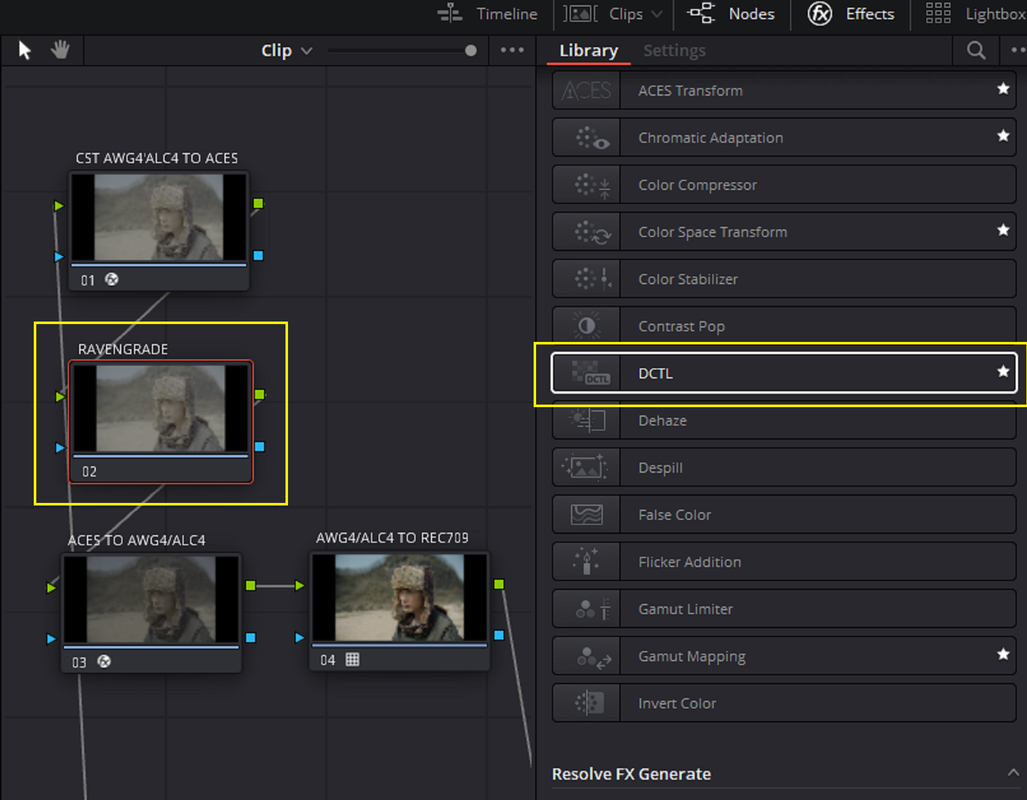
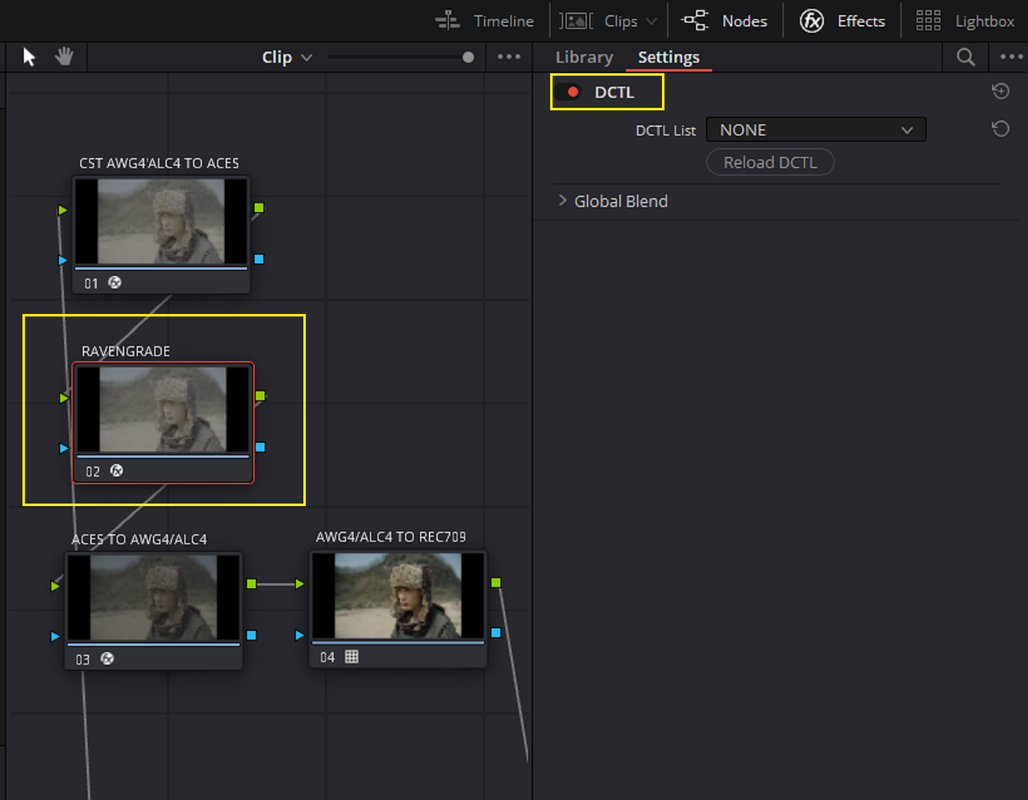
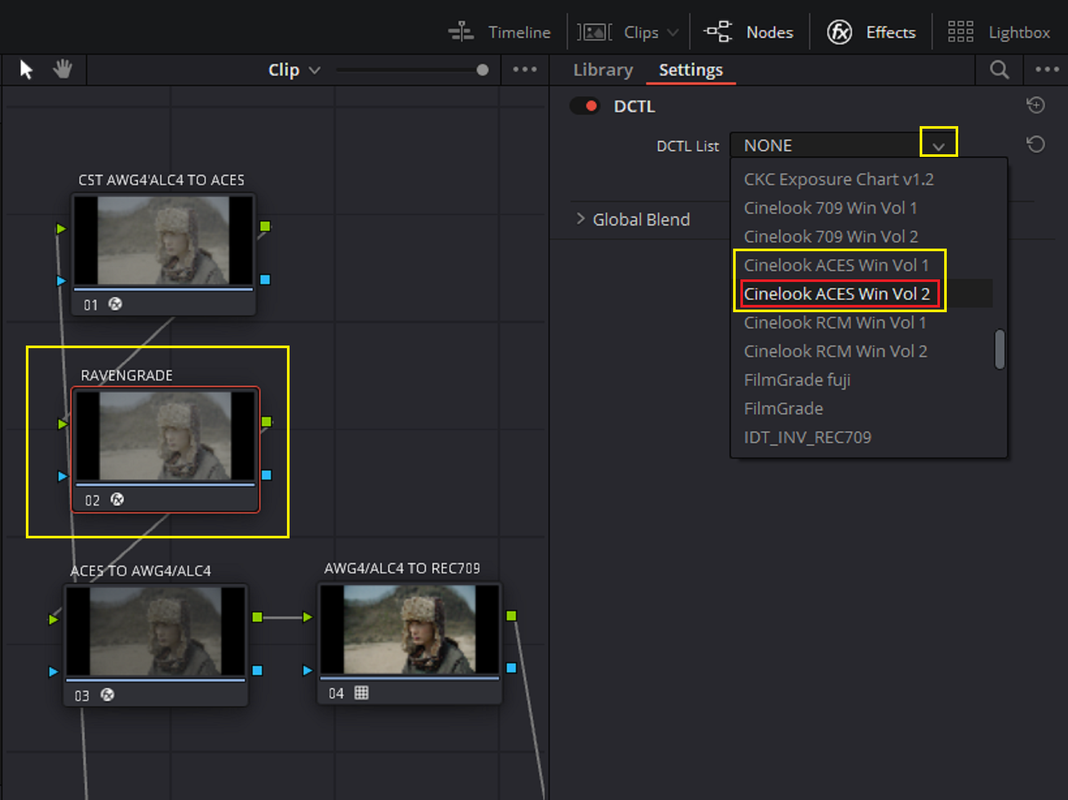
Under "EFFECTS" in the top "RIGHT-HAND" corner of the Resolve UI select "DCTL" and add it to the Second Node of the Node Tree from the "LOOK DESIGNER" grade tut. from above. Then from the DCTL drop-down menu, select either "CINELOOK ACES WIN VOL 1 or VOL 2". In Windows the individual RCM, ACES and REC709 "LOOKs" folders are divided into two halves for some technical limitation reason. On the Mac the Individual RCM, ACES and REC709 folders are single folders.

1.png


2.png


3.png


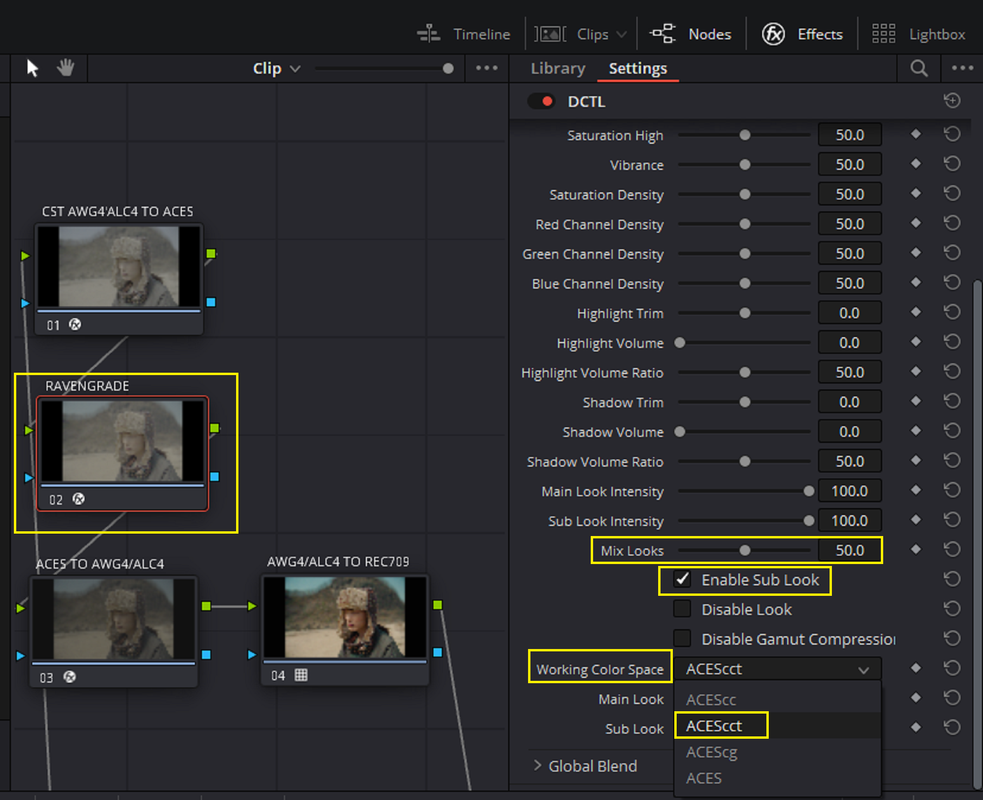
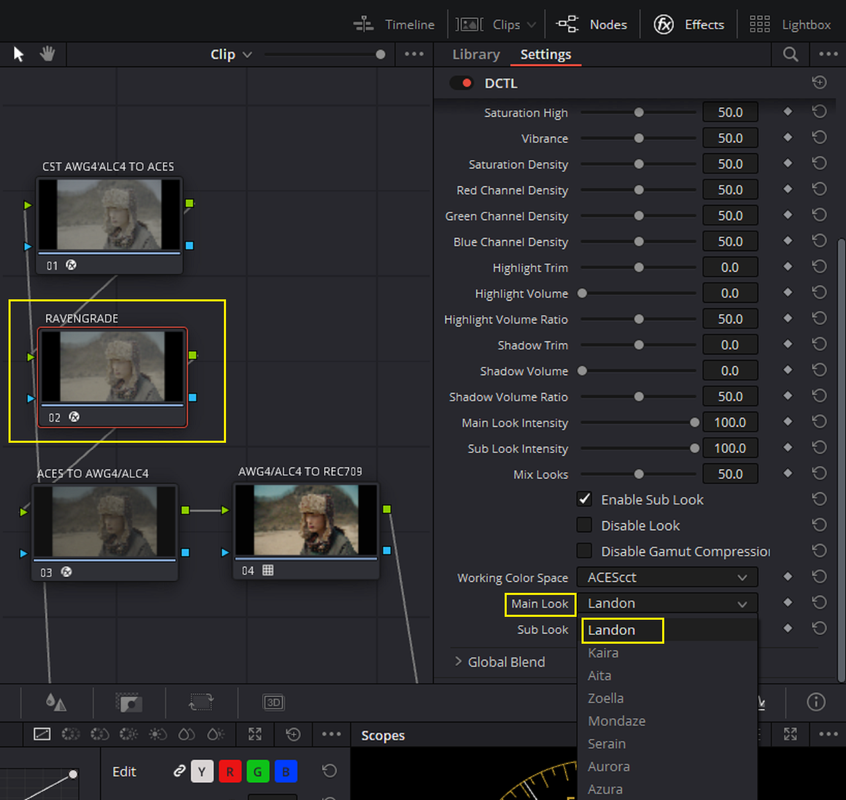
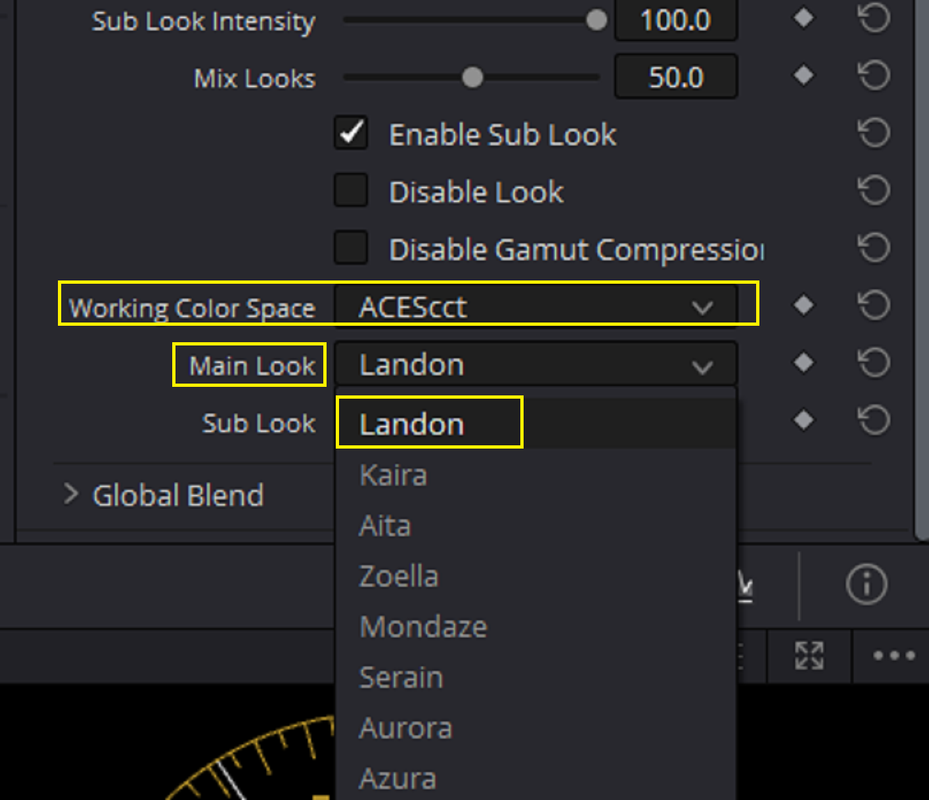
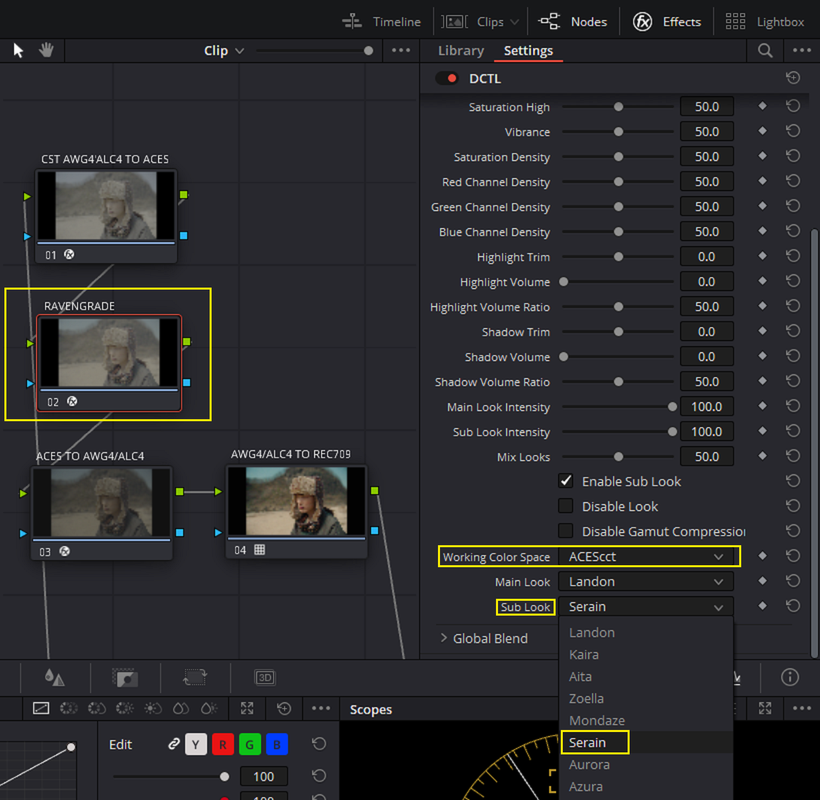
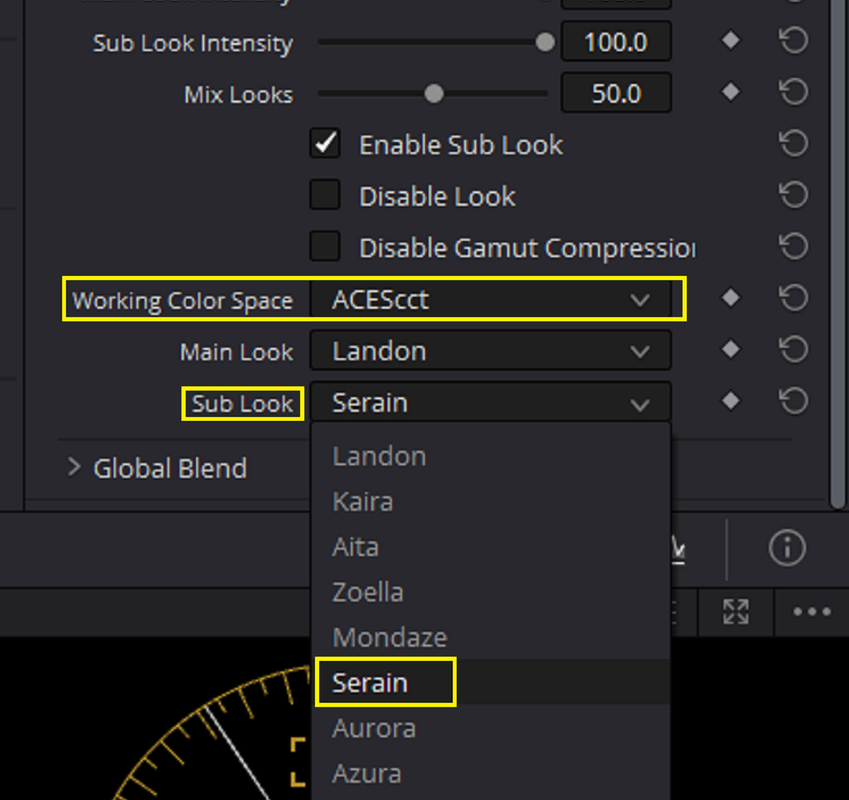
In The RAVENGRADE DCTL, I selected which "WORKING COLOR SPACE" of ACES workflow I wanted to grade in which was "ACEScct". I also selected a "50%" combination of the "MAIN LOOK" and "SUB LOOK" of the two choices that I selected.

4.png


5.png


6.png


7.png


8.png


Which gave the resulting image

9-END.jpg


Next, RAVENGRADE a DCTL Plugin In Resolve - PART 2 ( SECTION 2).......
 
Last edited:
RAVENGRADE a DCTL Plugin In Resolve - PART 2 ( SECTION 2)

Project settings Using a HALD file

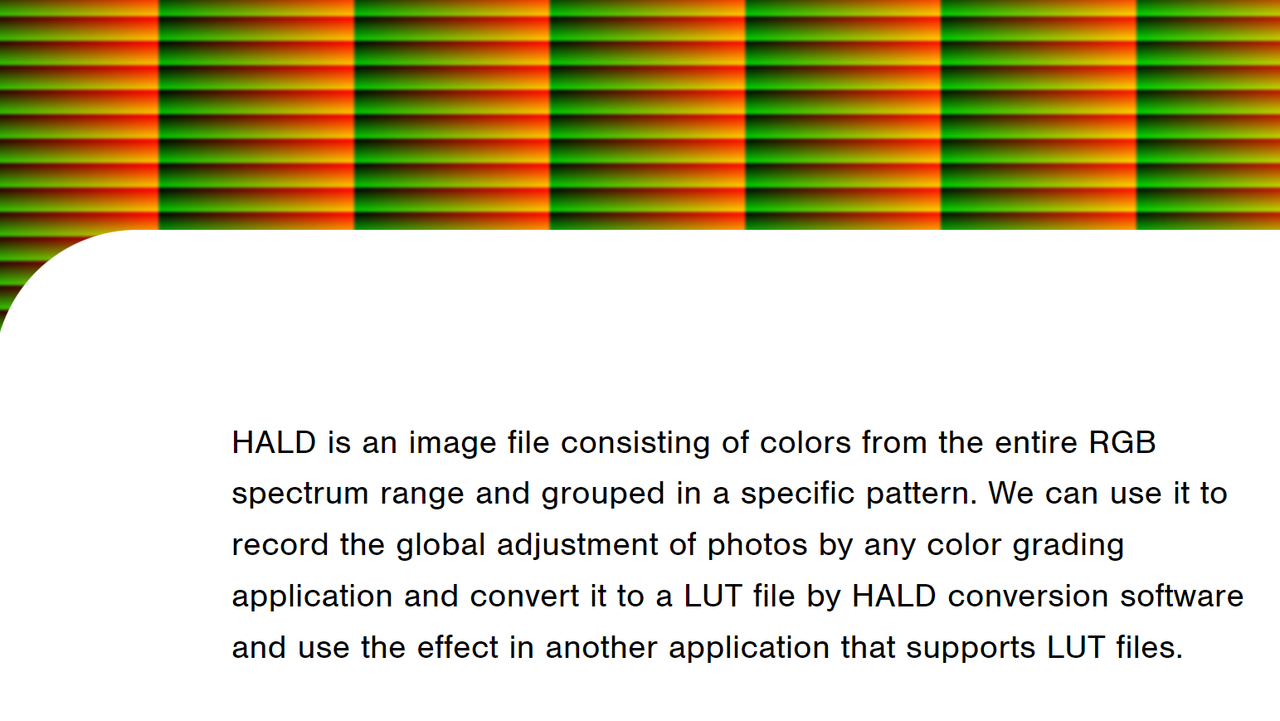
First, Here is some Info. on a HALD file.

Screenshot-5785.png


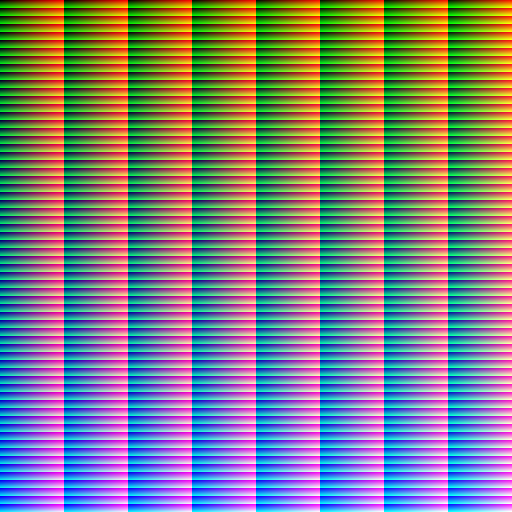
This is a HALD file in a PNG image format that I will be using to make a Lut From a DCTL grade.

hald-64.png


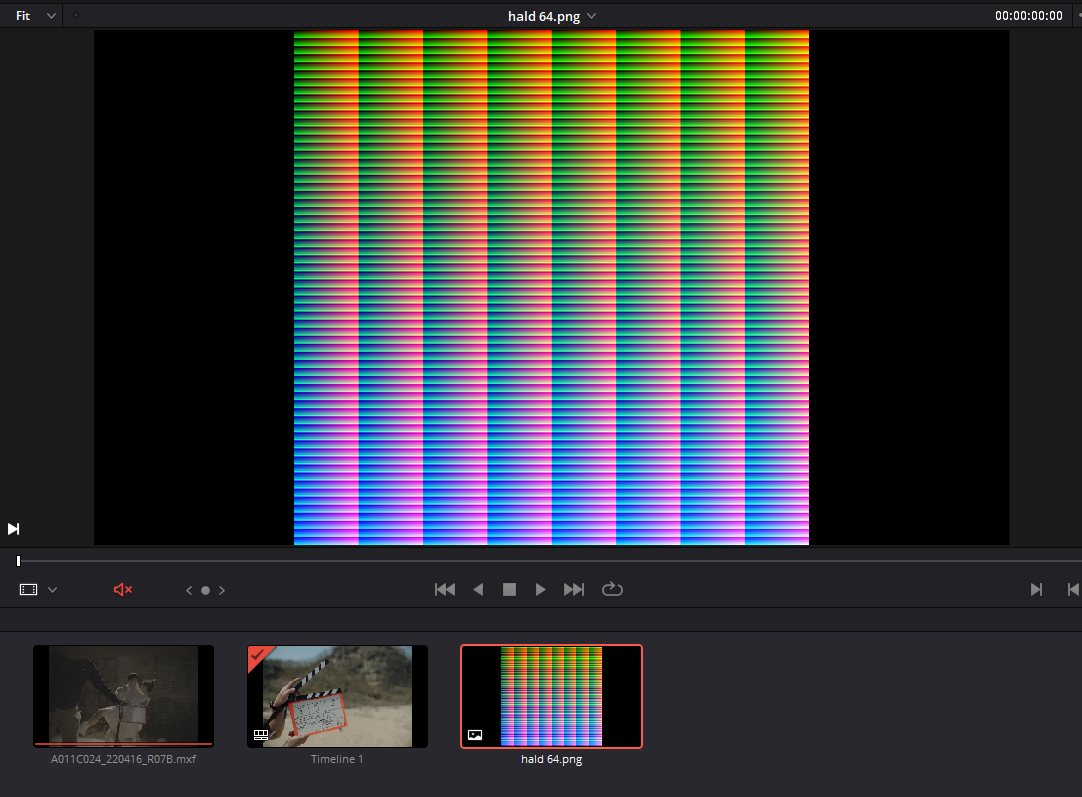
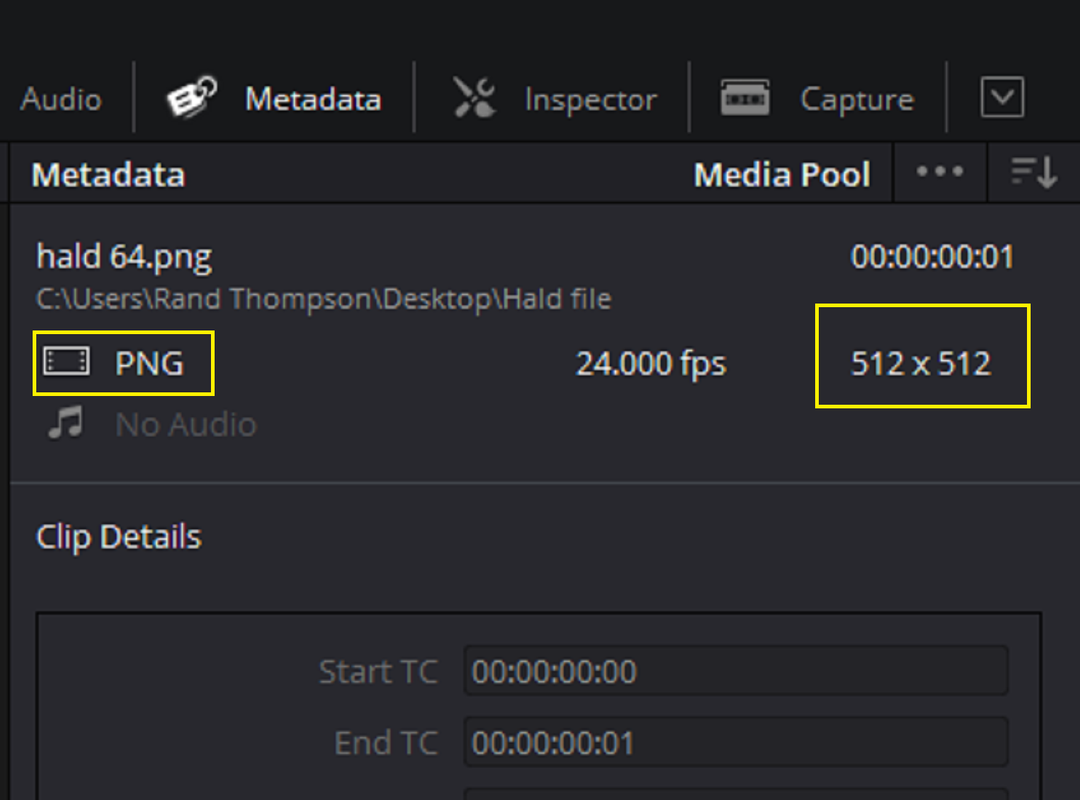
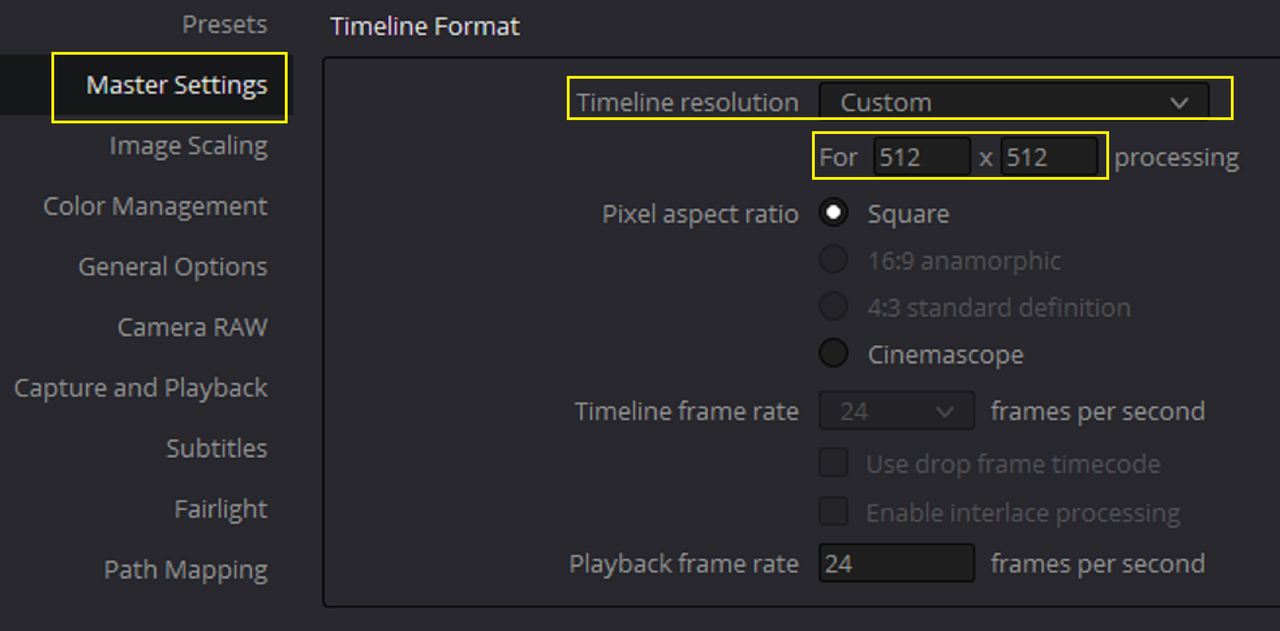
1) Import the HALD file into Resolve's "MEDIA POOL". The HALD file has dimensions of 512 x 512. These dimensions are very important because the grade from the DCTL has to cover "ONLY" the dimensions of the HALD file(512 x 512) and nothing larger than that. So the "MASTER SETTINGS" "TIMELINE RESOLUTION" has to be changed to 512 x 512 also. Using anything other than this resolution for the project will result in a LUT that will be a complete failure.

10.png

11.png


12.png


Next, RAVENGRADE a DCTL Plugin In Resolve - PART 2 ( SECTION 3).......
 
Back
Top